Home tab & tiles
The tabs
GameLodge has three tabs: Home, Library and Apps (plus Settings). Default tab chooses which one opens after starting and when Home is pressed.
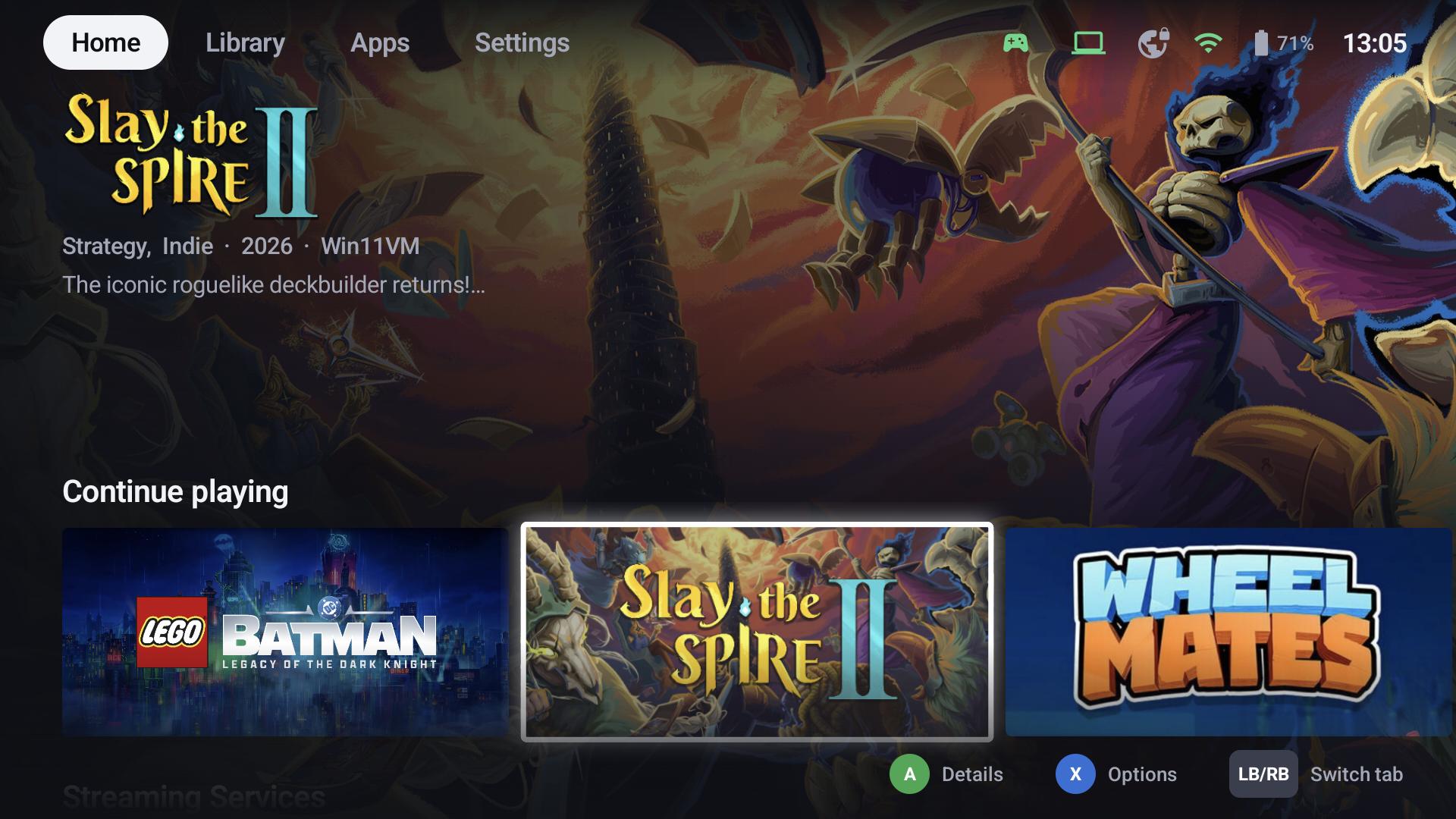
The Home tab shows the focused game big – its background, logo, genres, play time and description – above rows of your choice: Continue playing, favourites, recently added, any filter or group and your Home Assistant tiles. Turn rows on with Show as row on the Home tab in a filter's settings.
Tiles per tab
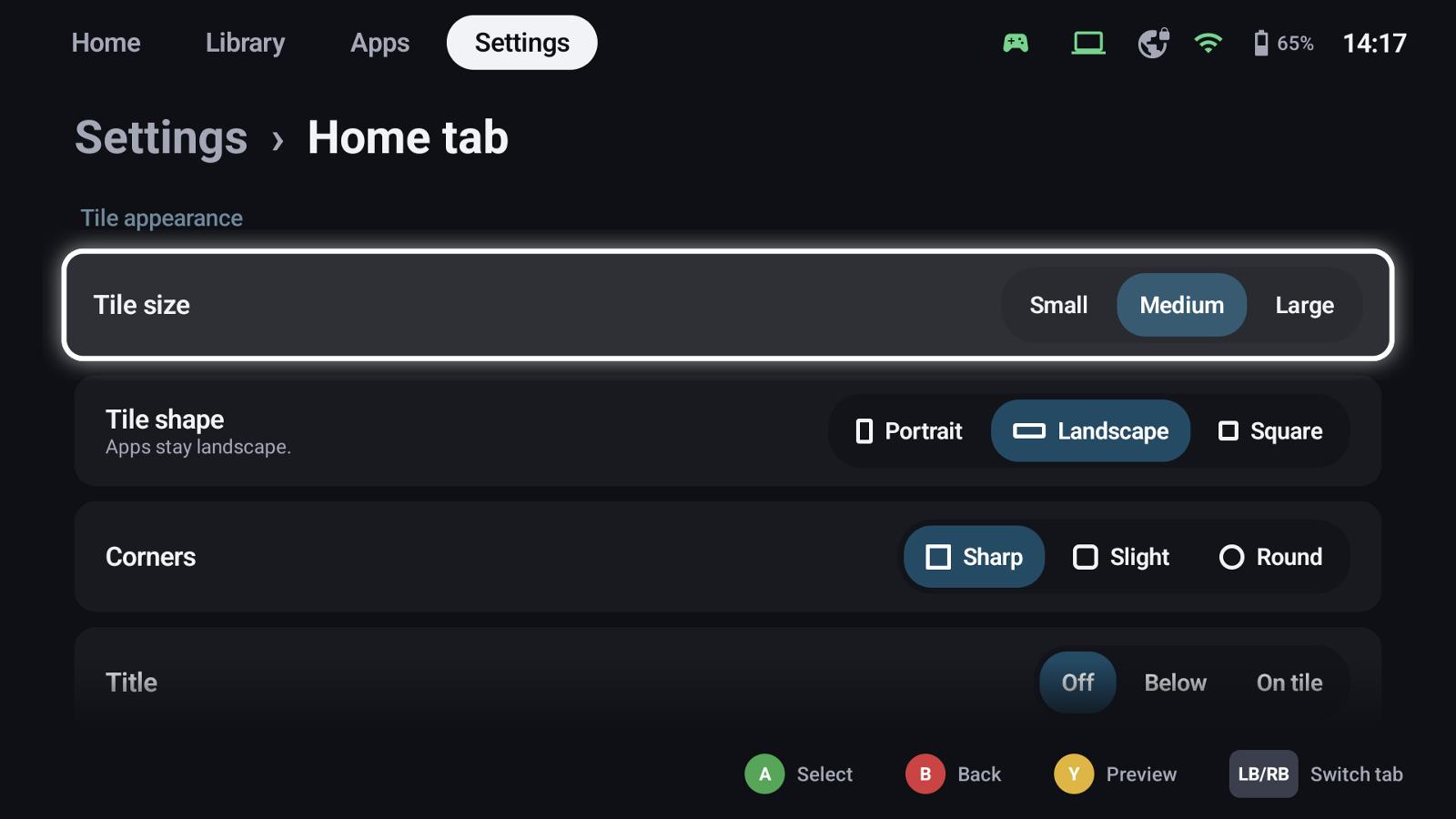
Settings → Home tab / Library tab / Apps tab set the tiles of each tab separately:
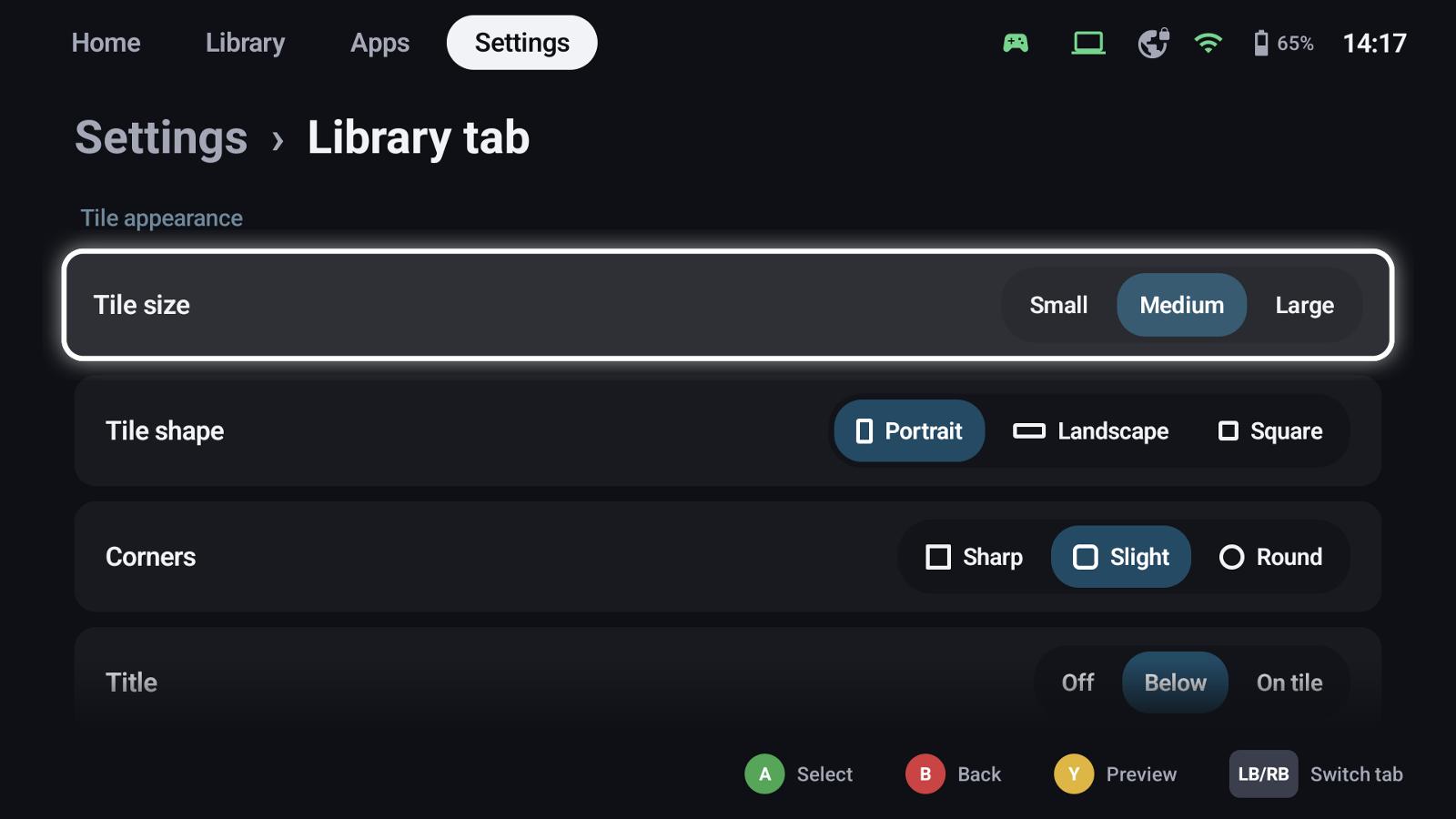
| Setting | Options |
|---|---|
| Tile size | Small, medium, large |
| Tile shape | Portrait cover, landscape (16:9), square – apps stay landscape on the Home tab |
| Corners | Sharp, slight, round |
| Title | Off, below the tile, on the tile |
| Extra info | None, play time, last played, progress (play time against the time to beat) |
| Badges | Where an entry comes from (Android, PC, ROM, host), installed state |
| Apps tab | Icons or banners |
Y shows a live preview of a tile with your settings.
When a game has no artwork in the chosen shape, GameLodge builds one: background plus logo, or the cover on its own blurred background.
Appearance
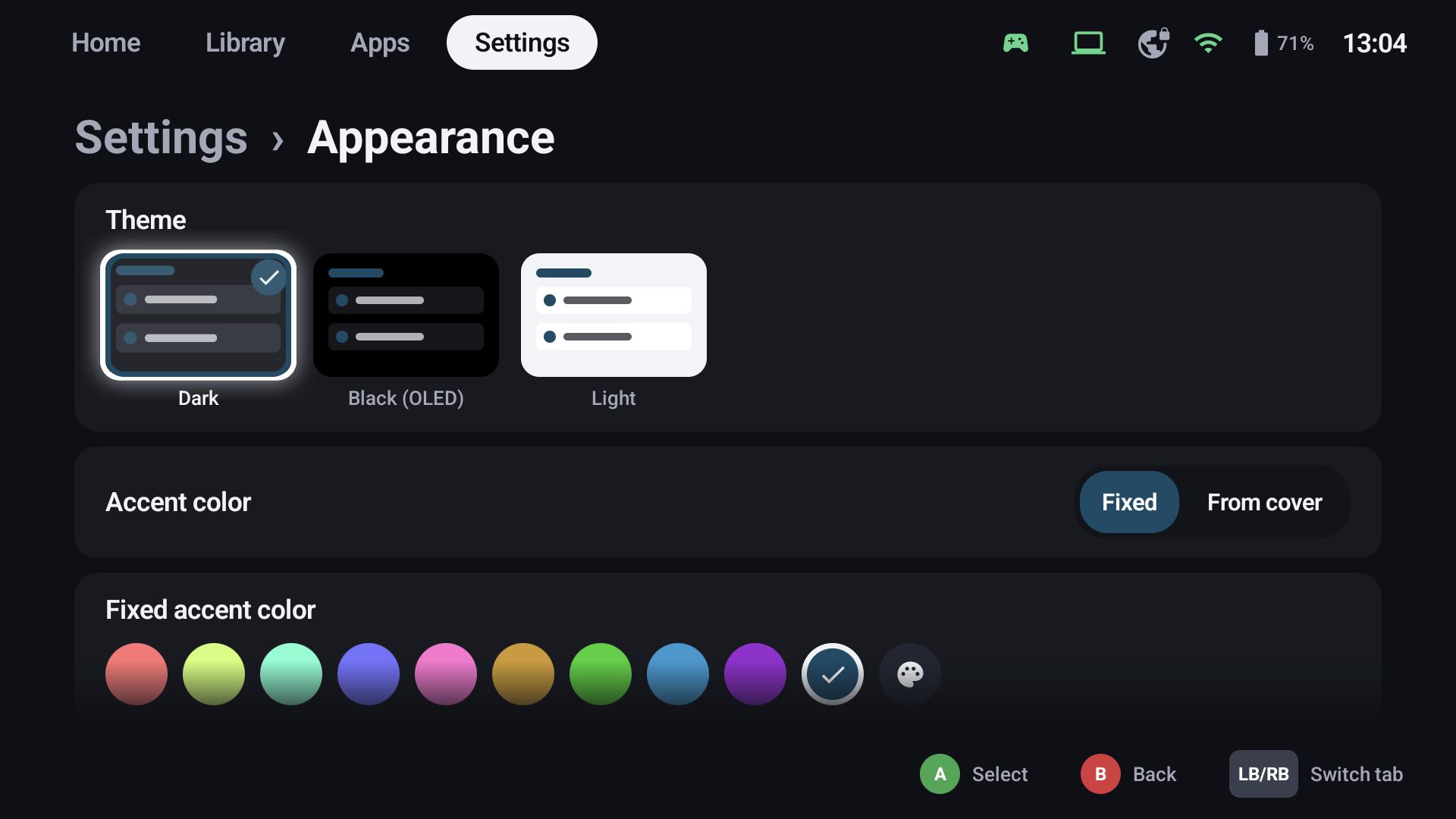
- Themes Dark, Black (OLED) and Light
- Accent colour: fixed (presets or your own colour) or From cover – taken from the focused game
- Focus zoom and glow, dimming of games that aren't installed, animations, UI size
Sounds & vibration
UI sounds with volume and style, which events play a sound, and the vibration strength of the interface.
Language
English, German, French, Spanish, Italian and Portuguese (Brazil), or the device's language (Settings → Language).