Emulators & ROMs
GameLodge turns your ROM folders into library entries that start with an installed emulator – with the same artwork, metadata, play time and controller handling as every other game. Most of this page is about Android; the Windows app has its own section below.
How it works
- You pick one or more ROM folders.
- GameLodge scans them and recognises each game's platform – from the subfolder name (
snes,psx,switch…) or from the platform you assign to the folder. - Each platform starts with an emulator installed on the device. GameLodge knows the start command of each supported emulator (taken from ES-DE) and hands it the ROM file.
- The games appear in the library with a ROM badge, get metadata and artwork like every other game, and play time is measured by GameLodge itself.
If one of your streaming hosts has the same game on the same platform (for example from a Playnite library), both are merged into one entry; you choose where to start it.
Set up
Open Settings → Emulators (or the Emulators & ROMs step of the setup wizard).
ROM folders
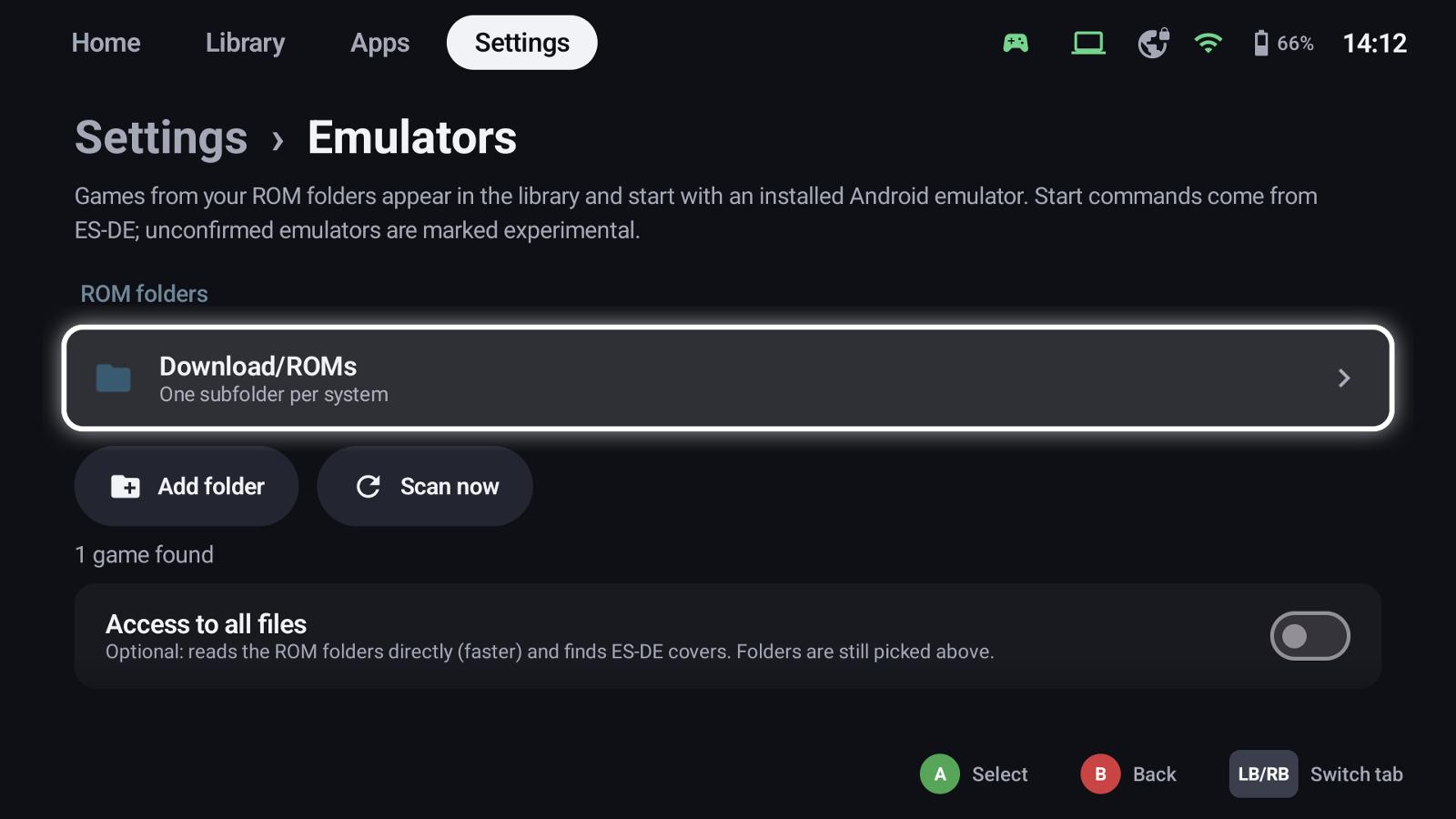
Add folder opens Android's folder picker. Select a folder that contains your games and allow access.
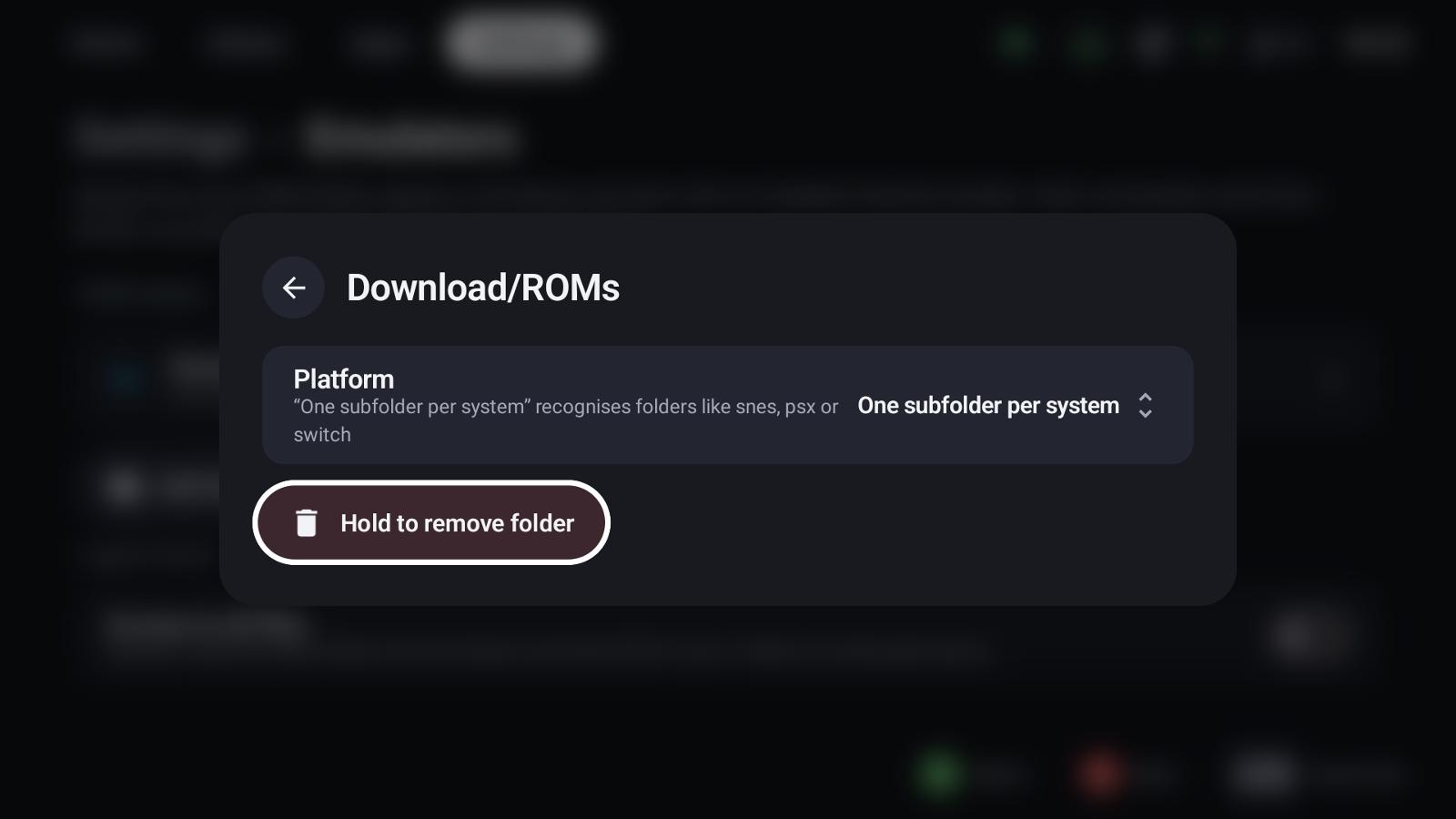
Selecting a folder opens its settings:
- Platform: One subfolder per system (recommended) recognises subfolders like
snes,psxorswitch; or assign one platform to the whole folder. - Hold to remove folder removes it from GameLodge (the files stay).
A typical layout:
ROMs/
├── gba/        Advance Wars.gba
├── n64/        …
├── ps2/        Okami.chd
├── psp/        …
└── snes/       Super Metroid.sfc
Scan now reads the folders again, e.g. after you added games.
Access to all files
Optional: with Access to all files GameLodge reads the ROM folders directly. Scanning is faster and ES-DE covers next to your ROMs are found. Folders are still picked as above.
Emulator per platform
Every platform with games or an installed emulator is listed with the emulator it uses. Select a platform to choose another installed emulator. A note shows when an emulator needs BIOS / firmware files – add them in the emulator itself.
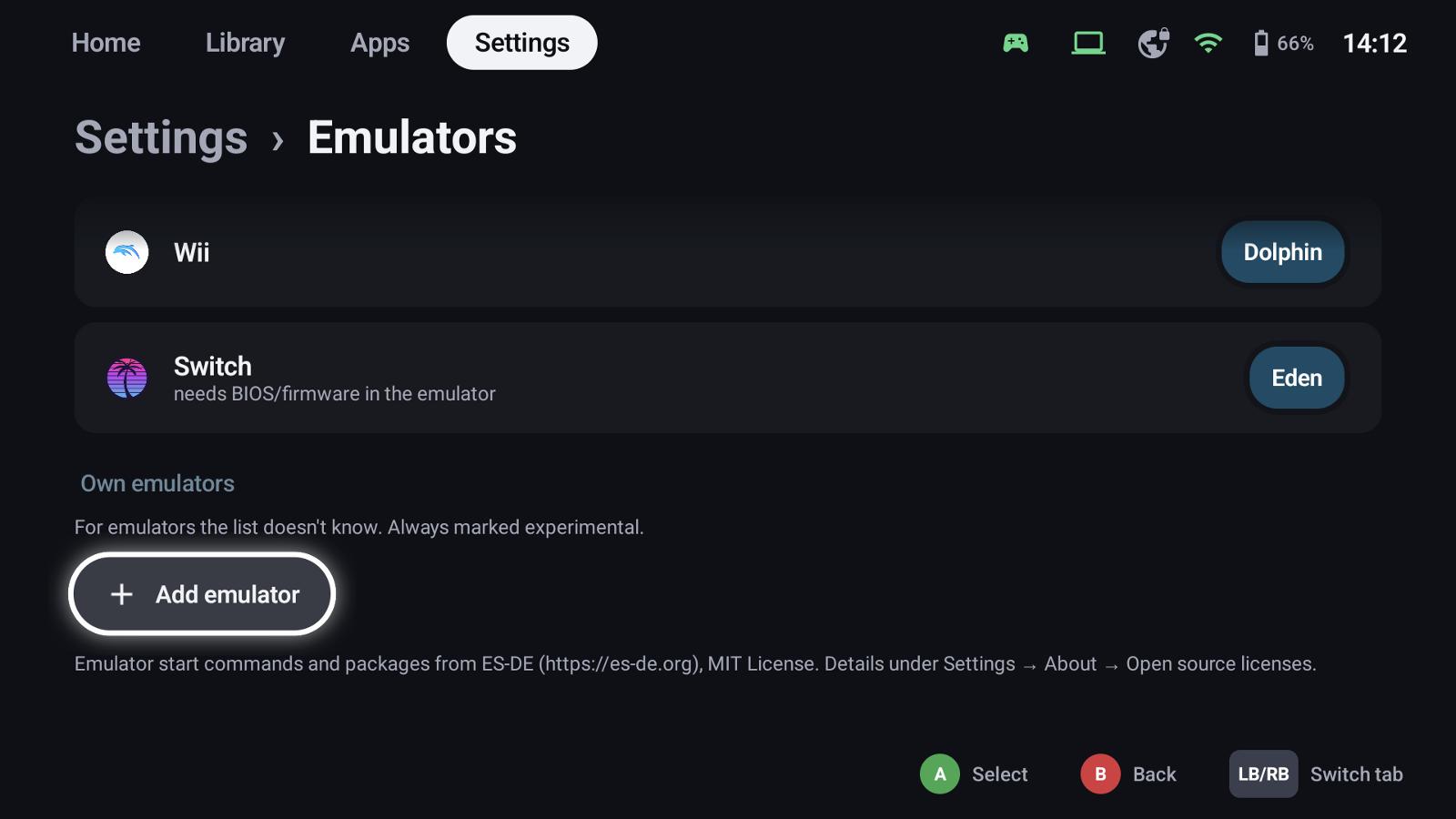
A single game can use another emulator than its platform: pick it when you start the game ("Platform default" keeps the platform's choice).
Supported platforms
| Platform | Folder names | Emulators |
|---|---|---|
| Arcade | arcade, mame, fbneo, neogeo |
FinalBurn Neo, MAME (RetroArch), MAME4droid, Flycast |
| Dreamcast | dreamcast, dc |
Flycast, Redream, Flycast (RetroArch) |
| Game Boy / Color / Advance | gb, gbc, gba |
GBC.emu, GBA.emu, My Boy!, Pizza Boy, SkyEmu, mGBA, Gambatte, SameBoy (RetroArch) |
| GameCube / Wii | gc, gamecube, ngc / wii |
Dolphin, Dolphin MMJR, Dolphin (RetroArch) |
| Wii U | wiiu |
Cemu |
| Nintendo Switch | switch, ns |
Eden, Kenji-NX, Skyline |
| Nintendo DS / 3DS | nds, ds / n3ds, 3ds |
DraStic, melonDS, NooDS / Azahar, Citra, Lime3DS, Panda3DS |
| NES / SNES / N64 | nes, snes, n64 |
Nestopia UE, Mesen, Snes9x, bsnes, Mupen64Plus, M64Plus FZ (RetroArch and standalone) |
| PlayStation / PS2 / PSP | psx, ps1 / ps2 / psp |
DuckStation, ePSXe, SwanStation / NetherSX2, AetherSX2, Play! / PPSSPP |
| PlayStation 3 | ps3 |
aPS3e, ARMSX3 (experimental) |
| Sega Master System / Mega Drive | mastersystem, sms / megadrive, genesis, md |
Genesis Plus GX, PicoDrive, BlastEm, MD.emu |
| Xbox / Xbox 360 | xbox / xbox360, x360 |
X1 BOX, Xenra, aX360e (experimental) |
Emulators not confirmed with GameLodge yet are marked experimental.
Own emulators
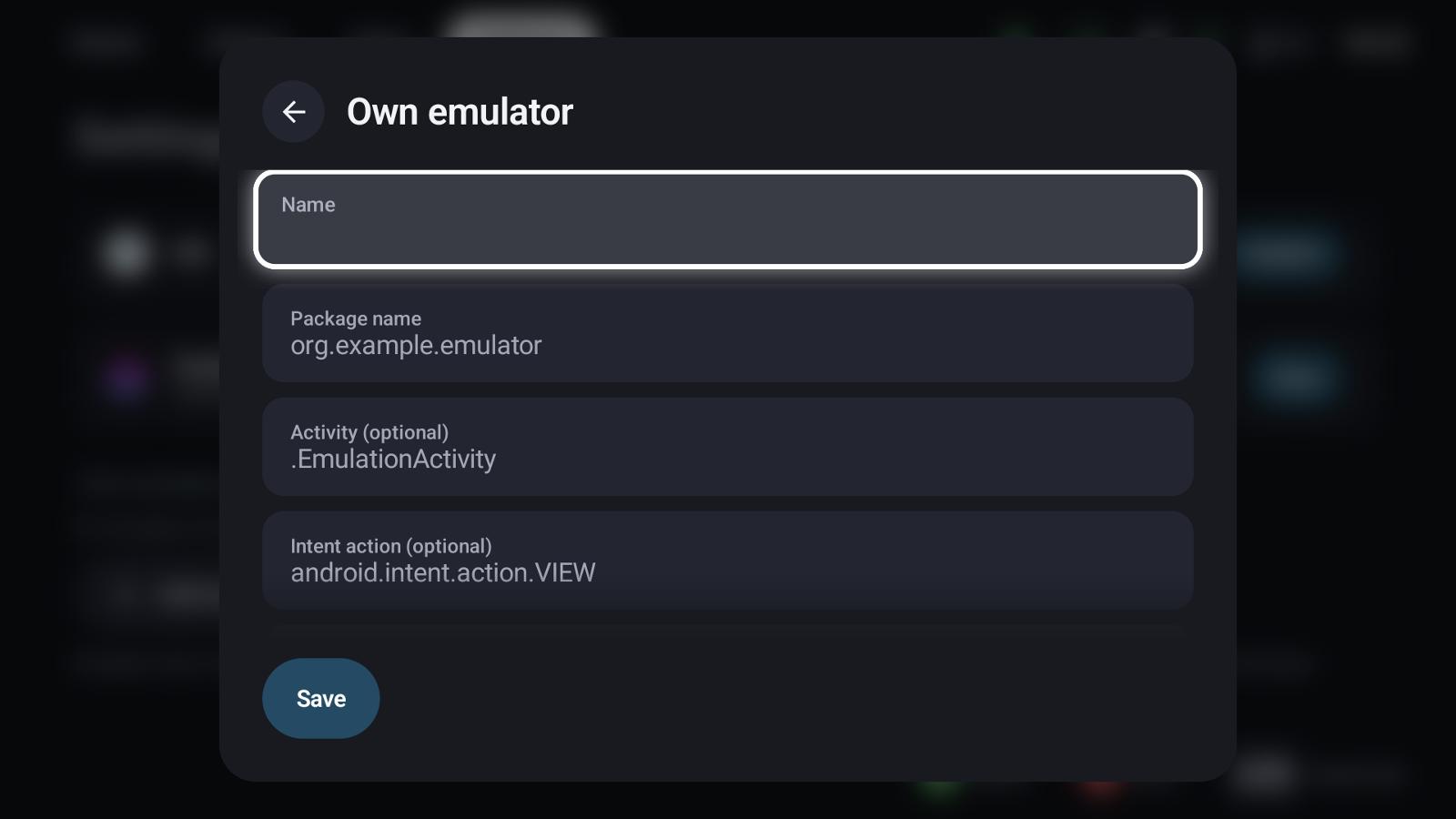
For an emulator the list doesn't know, Add emulator under Own emulators defines its start command:
| Field | Meaning |
|---|---|
| Name | Shown in the emulator choice |
| Package name | The emulator's Android package, e.g. org.example.emulator |
| Activity | Optional: the activity to start (otherwise the app's main one) |
| Intent action | Optional, e.g. android.intent.action.VIEW |
| Data URI | Optional: the file to open, with placeholders |
| Extras | Optional: name=value pairs separated by ;, typed with bool:, int: or long: in front |
| Platforms | The platforms it can run |
Placeholders: %ROMSAF% (the file as content URI), %ROM% (the file path), %BASENAME% (file name without
extension). Own emulators are always marked experimental.
Playing
Start a ROM like any other game. GameLodge starts the emulator with the ROM, measures the play time and brings you back with your Back to GameLodge shortcut. In-game controls are the emulator's own; set them up there once.
On Windows
Settings → Emulators on the PC works the other way round: you add your emulators first, then the folders with your games.
- Add emulator picks a known emulator – Dolphin, Cemu, Ryujinx, Eden / Citron / Sudachi, PCSX2, RPCS3, DuckStation, PPSSPP, Azahar / Lime3DS / Citra, Vita3K, melonDS, xemu, Xenia Canary, Flycast, RetroArch – and finds its program in the usual install folders. Other emulator sets up any other one.
- Arguments use placeholders:
{rom}(the ROM file, put it in quotes),{romName},{romDir},{emuDir}(the emulator's folder) and{core}(the RetroArch core). Playnite's{ImagePath}works too. - Emulator per console chooses which emulator starts which platform.
- Take over from Playnite copies your Playnite emulators, ROM folders and games added by hand. Playnite isn't needed afterwards.
ROM games are recognised and get their artwork the same way as on Android.
See also
- Metadata & artwork – covers for ROMs
- Filters, groups & collections – split by platform
- PC games – emulators on Windows next to the stores