Metadata & artwork
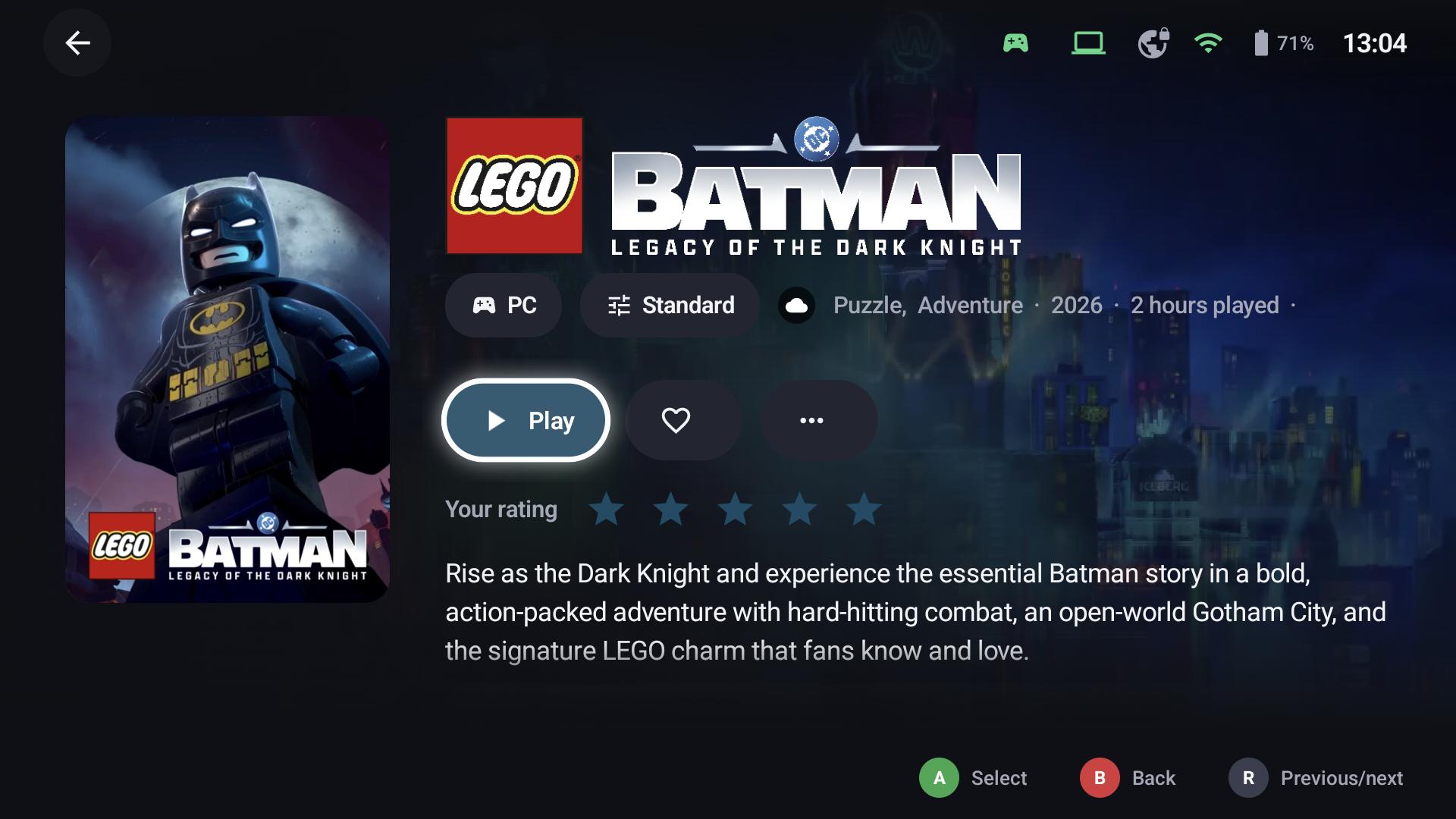
GameLodge fills in descriptions, genres, release years, ratings and artwork – covers in three shapes, backgrounds (heroes), logos, icons and animated artwork – for every game and app.
Sources
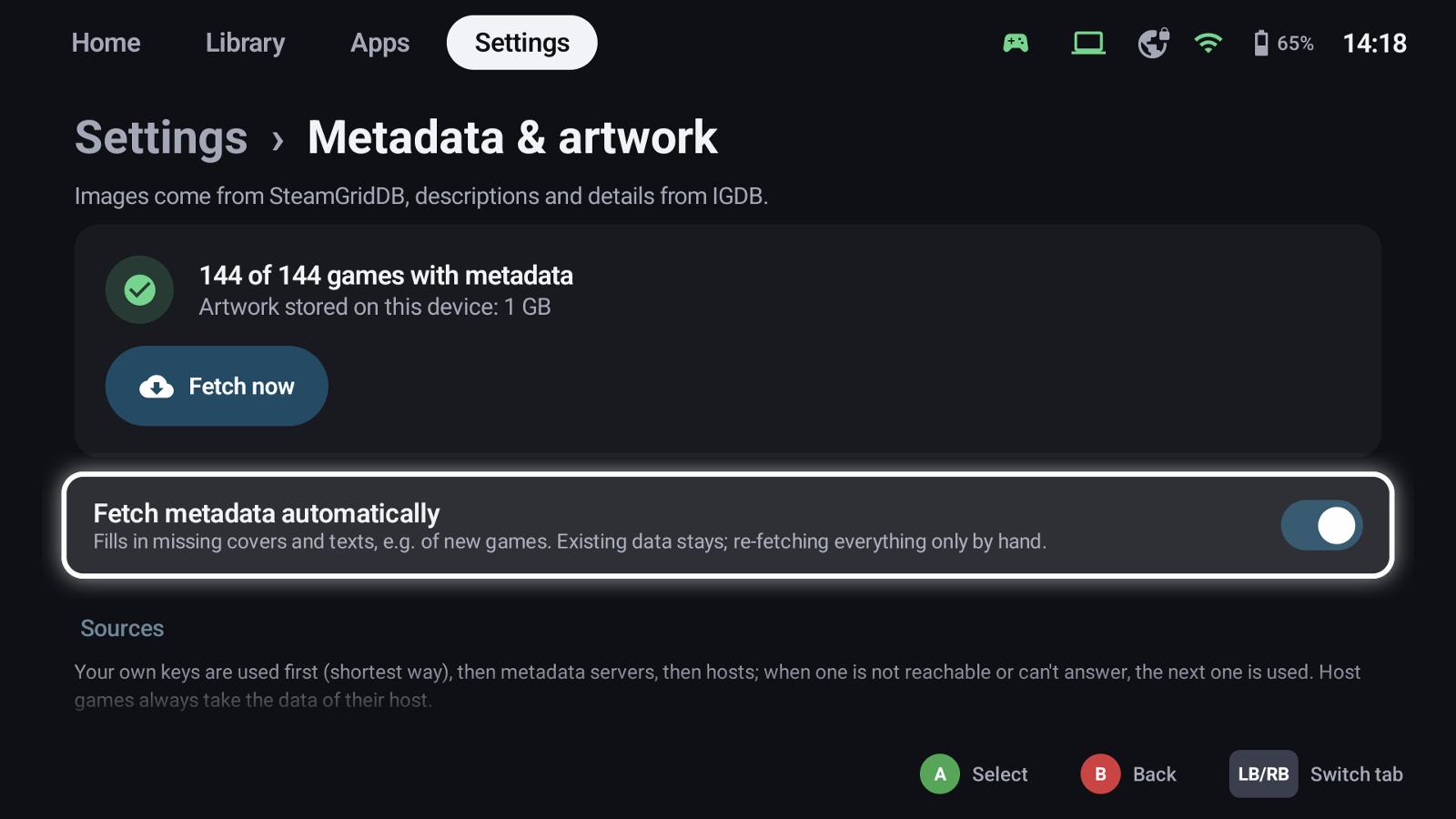
Settings → Metadata & artwork shows how many games have metadata and how much artwork is stored. Fetch metadata automatically fills in what's missing for new games; existing data stays.
| Source | Provides | What you need |
|---|---|---|
| Store / host data | What the store or the host already knows | Nothing |
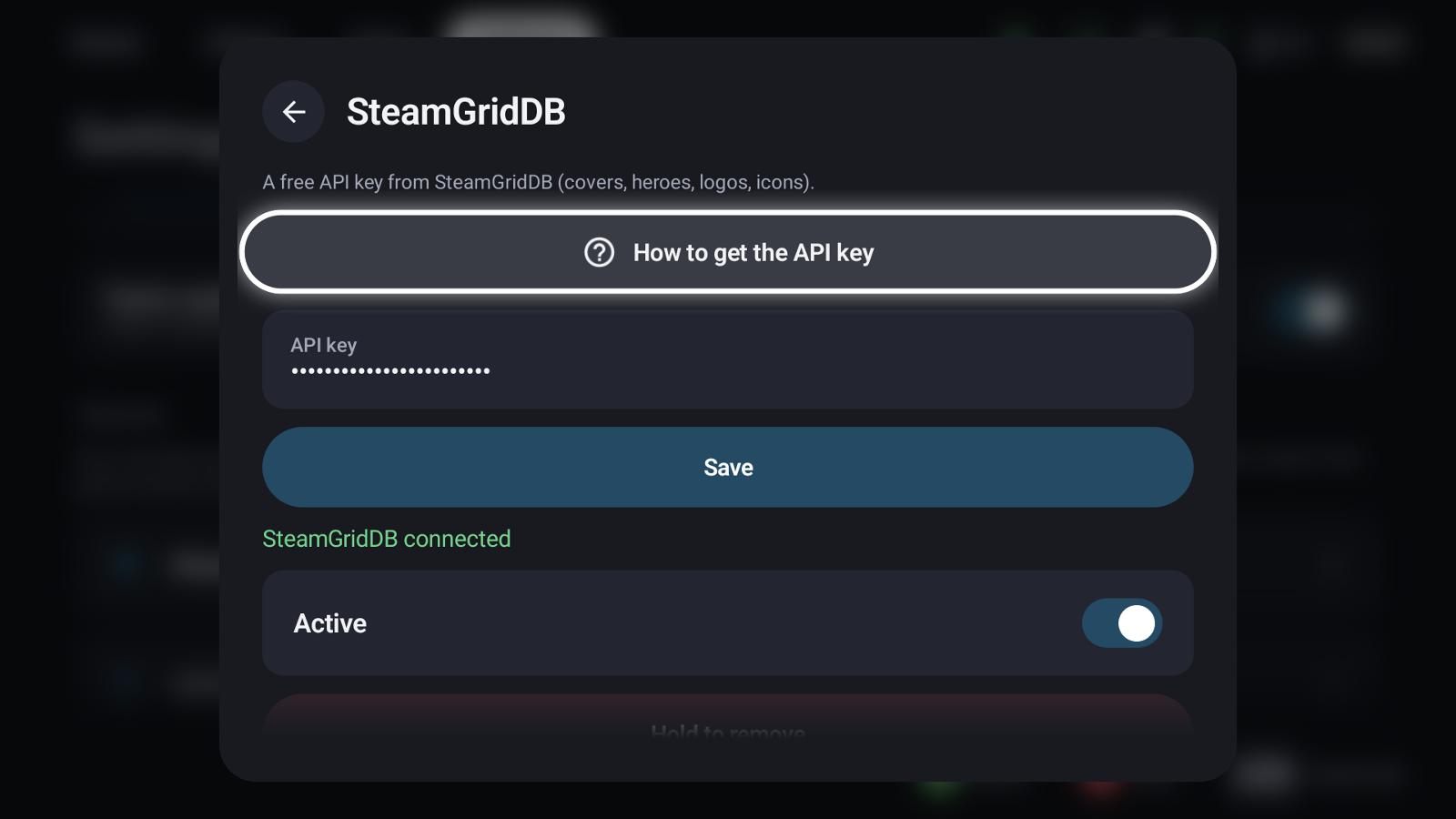
| SteamGridDB | Covers, backgrounds, logos, icons, animated artwork | A free API key |
| IGDB | Descriptions, genres, ratings, release dates, time to beat, covers | Client ID and secret of a free Twitch developer app |
| Metadata server | SteamGridDB and IGDB through a server with your keys | A paired metadata server |
| GameLodge host | The keys and artwork of your Windows PC | A paired GameLodge host |
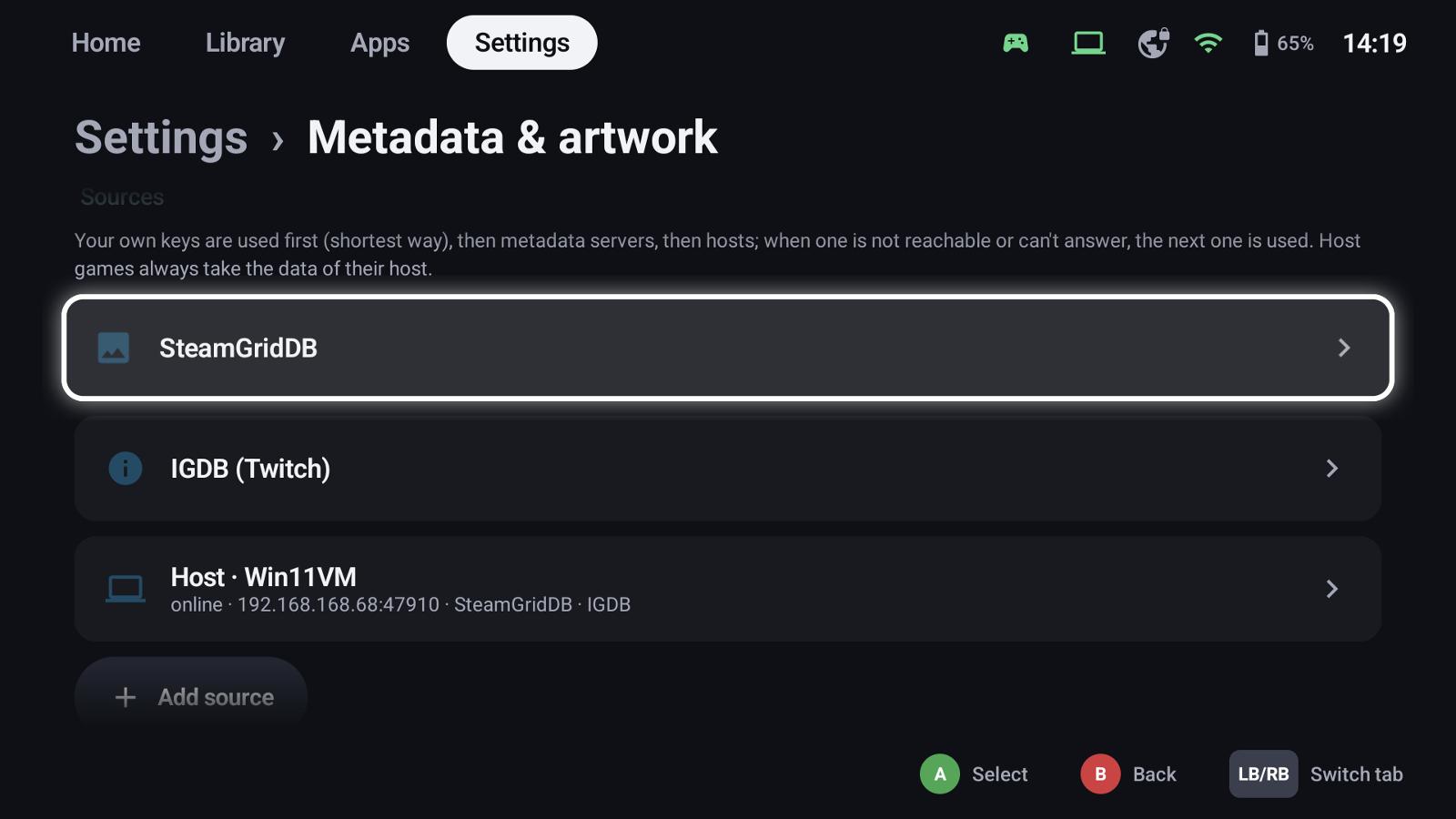
Your own keys are used first, then metadata servers, then hosts; when one can't answer, the next one is asked. Host games always take the data of their host. Each key dialog has a step-by-step guide with a QR code, so you can create the key on your phone.
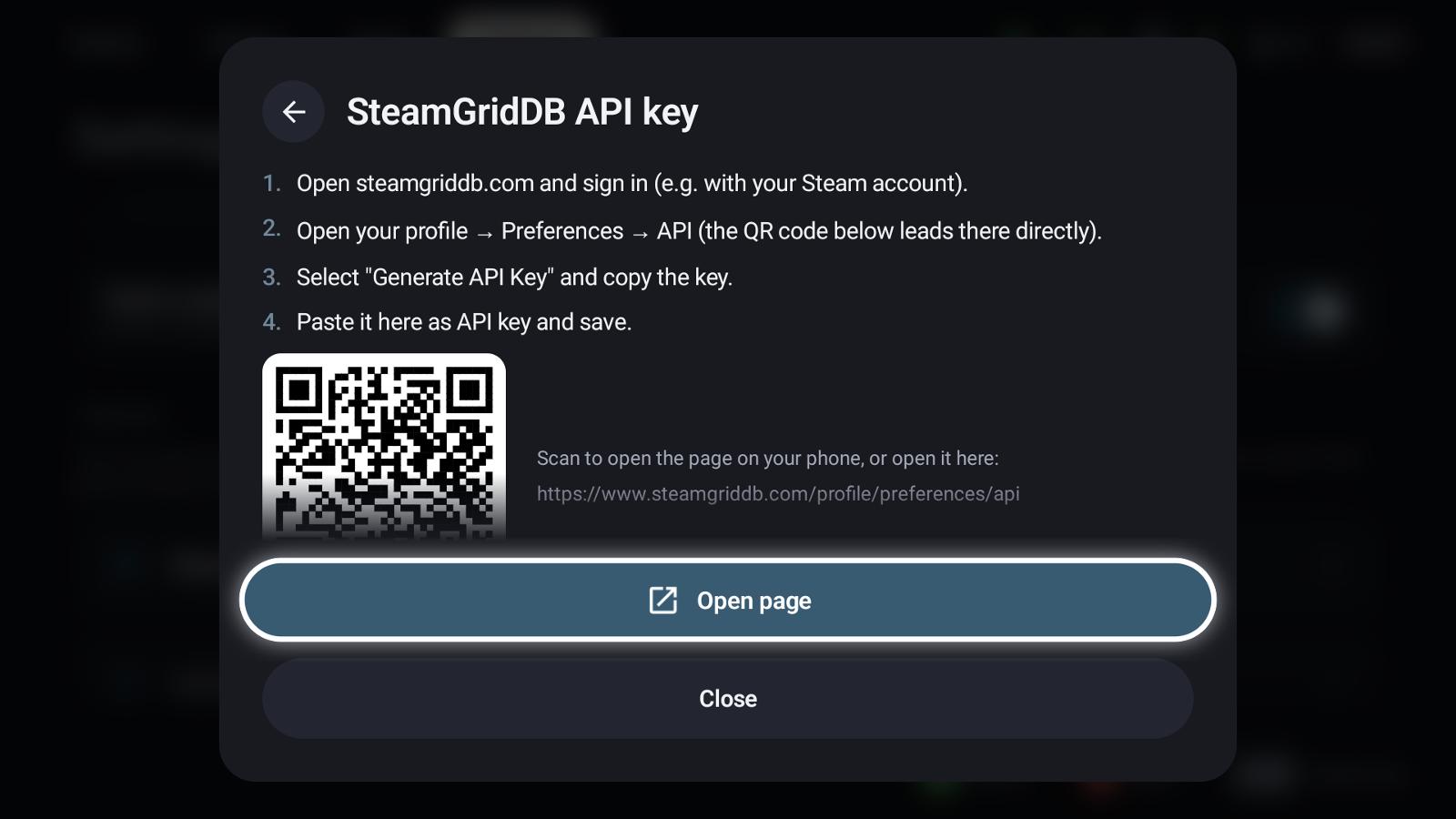
Send keys to hosts shares your keys with GameLodge hosts that allow it (on the host: Devices & pairing), so you only enter them once.
The metadata editor
X → Edit metadata on a tile opens the editor:
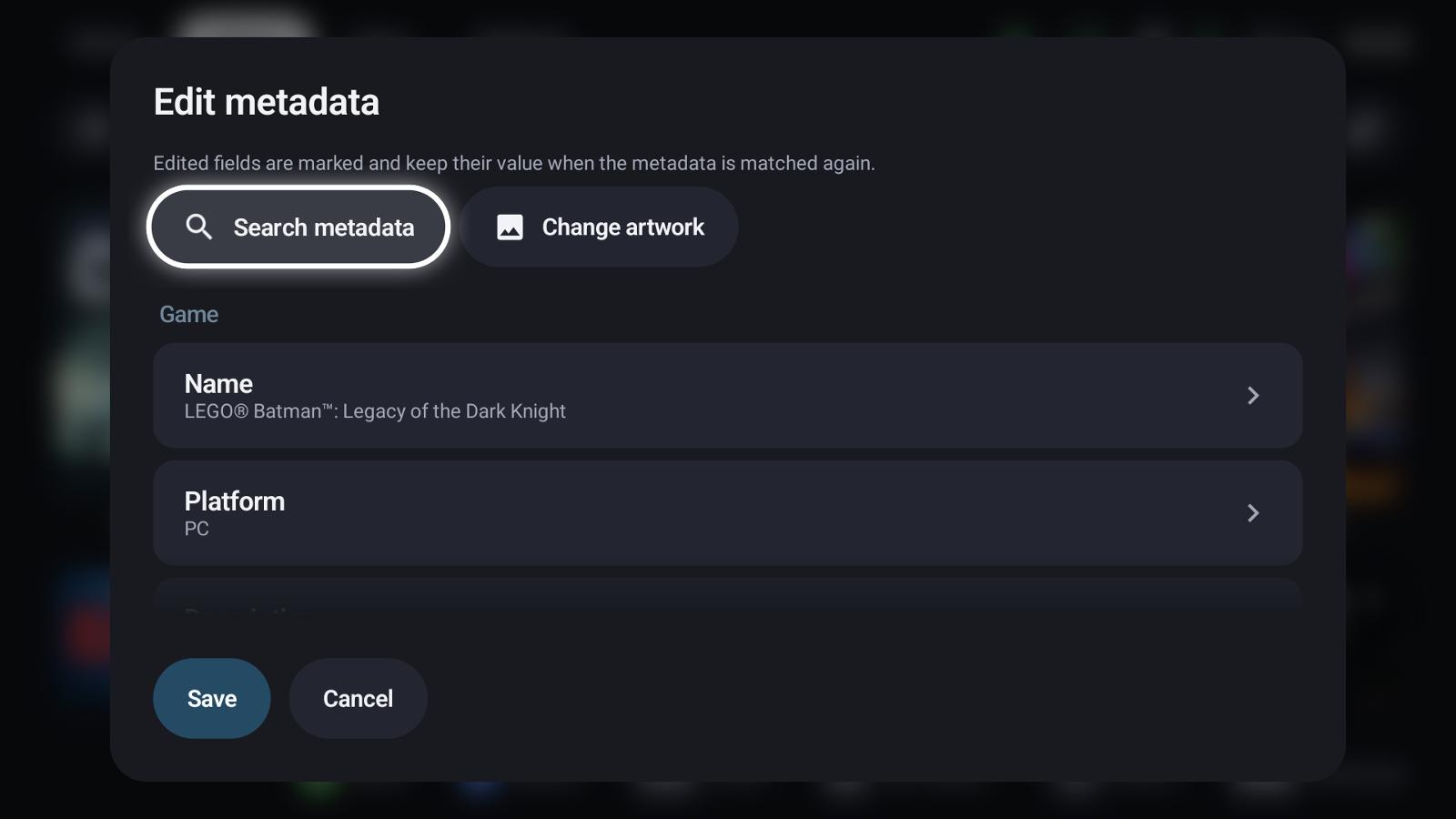
- Search metadata – look the game up under another name and pick the right match
- Change artwork – choose each kind of artwork yourself
- Every field (name, platform, description, genres, developer, year …) can be edited. Edited fields are marked and keep their value when the metadata is looked up again.
- Save or Cancel applies to everything in the editor at once.
Choosing artwork
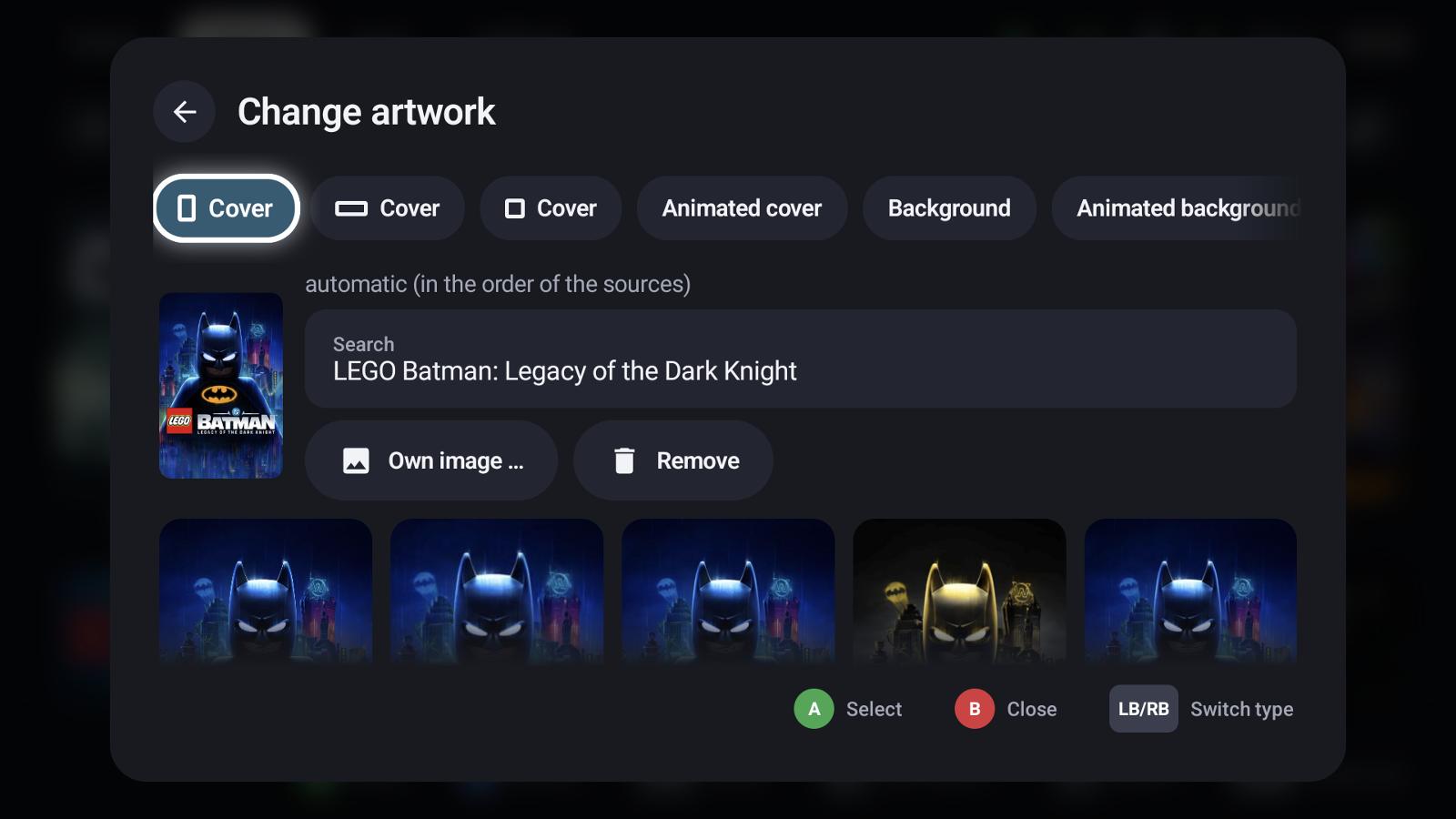
The chips switch between portrait cover, landscape cover, square cover, animated cover, background, animated background, logo and icon. Automatic takes the first source in order; select any image to use it instead, search under another name, add your own image from the device, or remove one.
Uncertain matches
When GameLodge isn't sure which game a title is, the match lands in the review list (shown on the settings page while there are any): confirm it or pick the right game.
Animated artwork
Animated covers and backgrounds play when a tile is focused – or always, if you prefer (Library tab and Home tab settings). Touch never animates tiles, and they only download on unmetered networks unless you allow it.
Maintenance
- Re-fetch all looks up all automatically found metadata again; your corrections stay.
- Settings → Data shows the storage used by artwork and can delete and download it again.
See also
- Library
- Your PC as host – artwork through the PC's keys
- Backup & restore – what happens to artwork in a backup
- Setup wizard – key guides with QR codes