TV mode & screensaver
Settings → Screen holds the system bars, the screensaver and the TV settings.
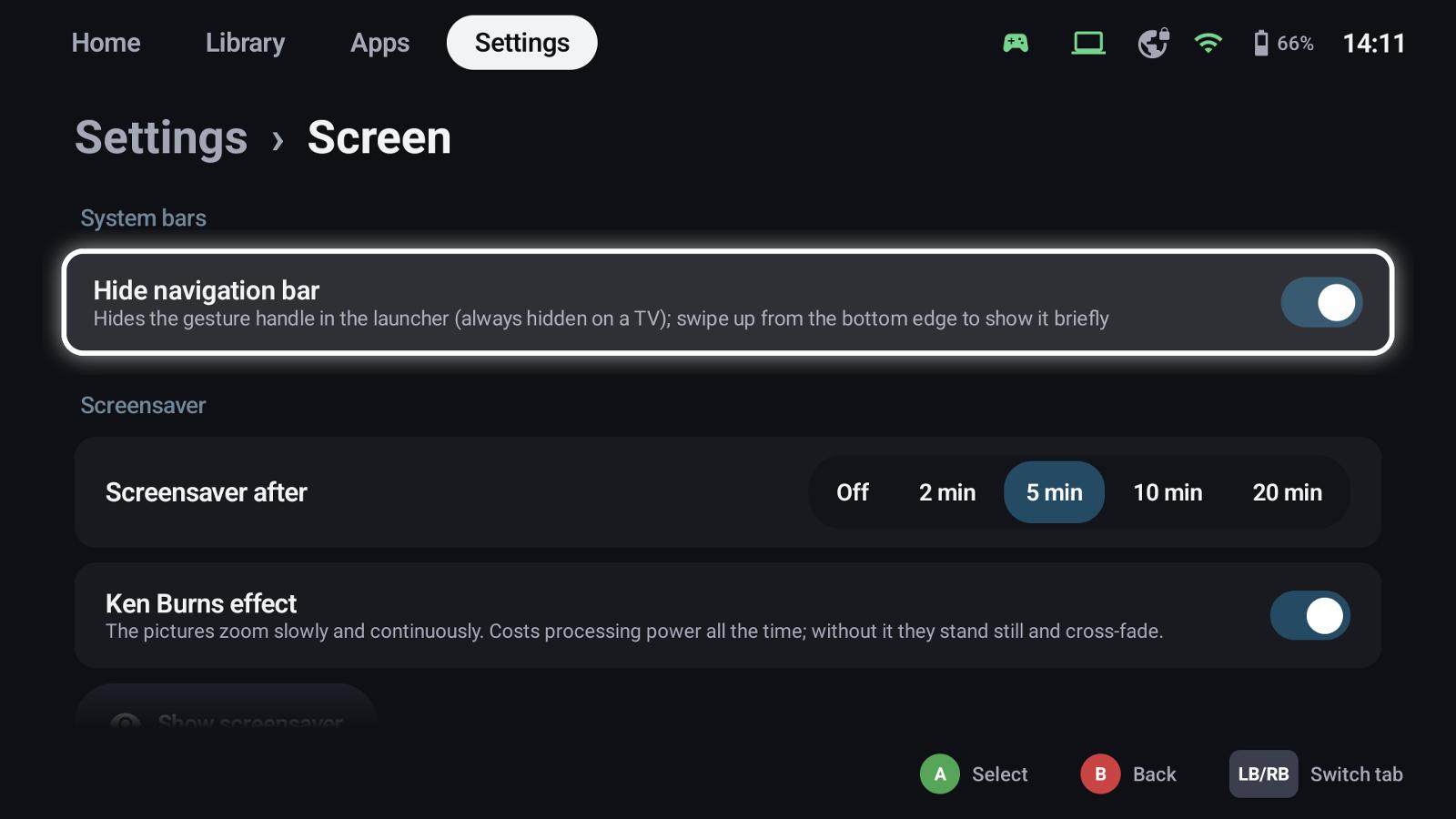
System bars (Android)
Hide navigation bar hides the gesture handle in the launcher; swipe up from the bottom edge to show it briefly. On a TV it's always hidden.
Screensaver
After a while without input, GameLodge shows the artwork of your games full screen and keeps the display awake.
- Screensaver after: off, 2, 5, 10 or 20 minutes
- Ken Burns effect: the pictures zoom slowly; without it they stand still and cross-fade (costs less power)
- Show screensaver tries it right away
Any button, touch or key ends it.
TV / external display
Connect the handheld to a TV or monitor (USB-C / HDMI, a dock):
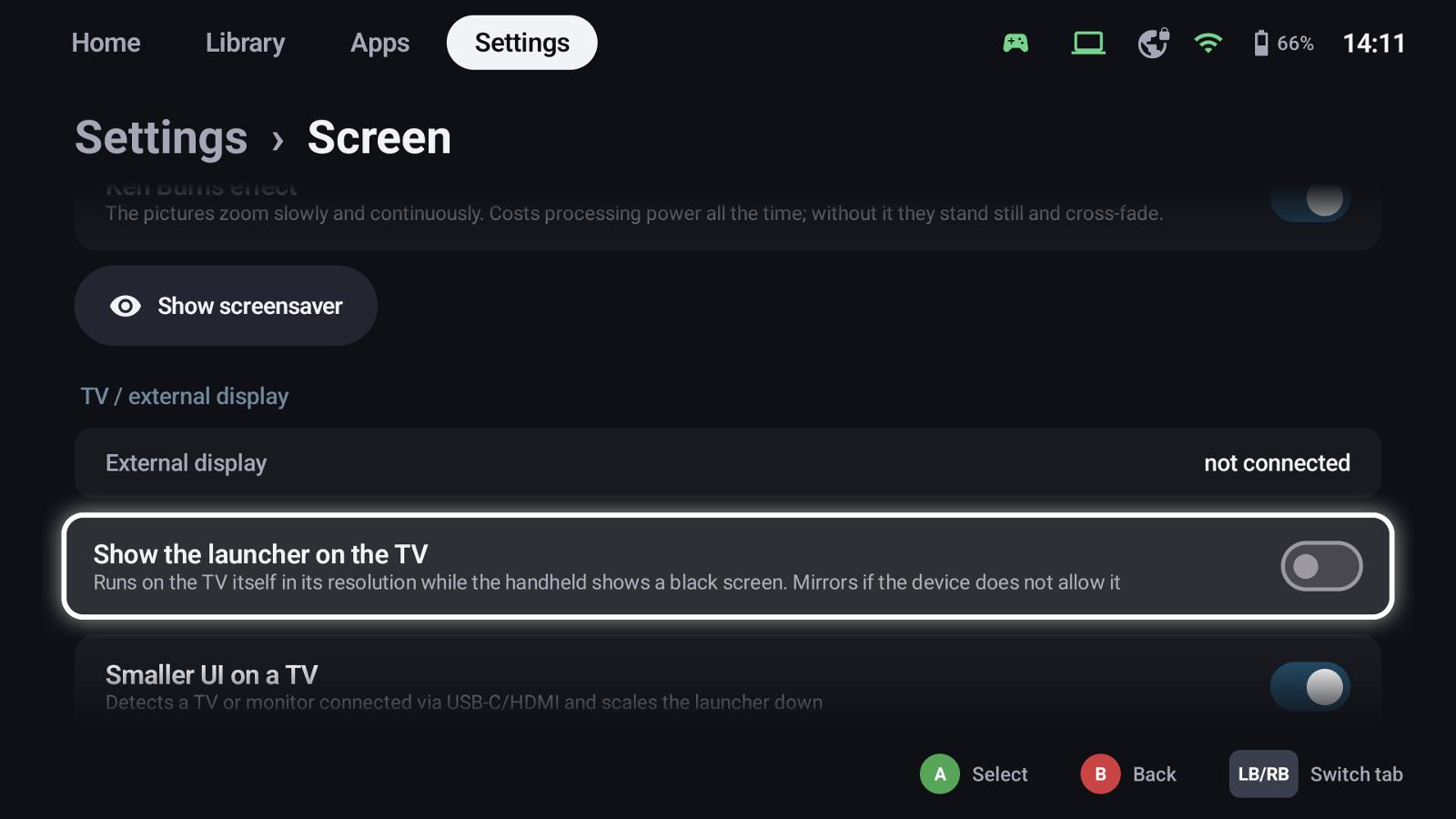
- External display shows whether one is connected and its mode.
- Show the launcher on the TV: GameLodge runs on the TV in its resolution while the handheld shows a black screen (it mirrors if the device doesn't allow that).
- Smaller UI on a TV: scales the launcher down for the bigger screen, automatically or with your own factor.
- Resolution: Automatic draws up to 1080p at a high refresh rate and lets the TV scale up – the smoothest choice on handhelds. If the device can't keep up, GameLodge tells you.
AYN Odin
The TV's output mode is set in the Odin settings, Video output mode; connect the TV again afterwards.
See also
- Home tab & tiles – UI size, animations
- Stream profiles – stream resolution on a TV
- Controllers & shortcuts