VPN (WireGuard)
On Android, GameLodge has a built-in WireGuard VPN to stream from your hosts while you're away from home. It connects only when it's needed.
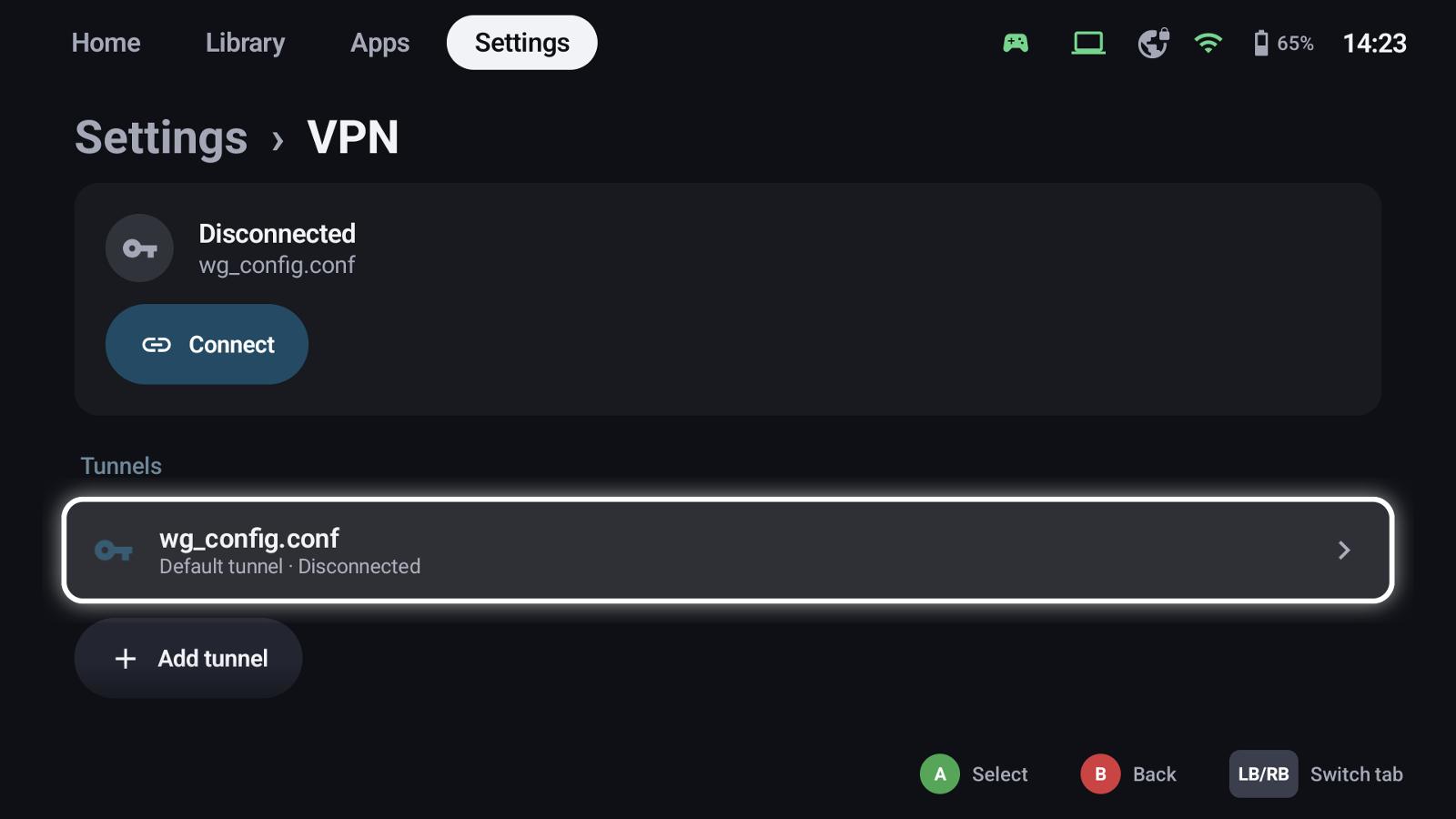
Add a tunnel
- Export a WireGuard configuration (
.conf) from your router or VPN server – on a FRITZ!Box under Internet → Permit Access → VPN (WireGuard). - Settings → VPN → Add tunnel and pick the file.
The first tunnel is the default tunnel. The status card at the top connects or disconnects it by hand.
Connect automatically
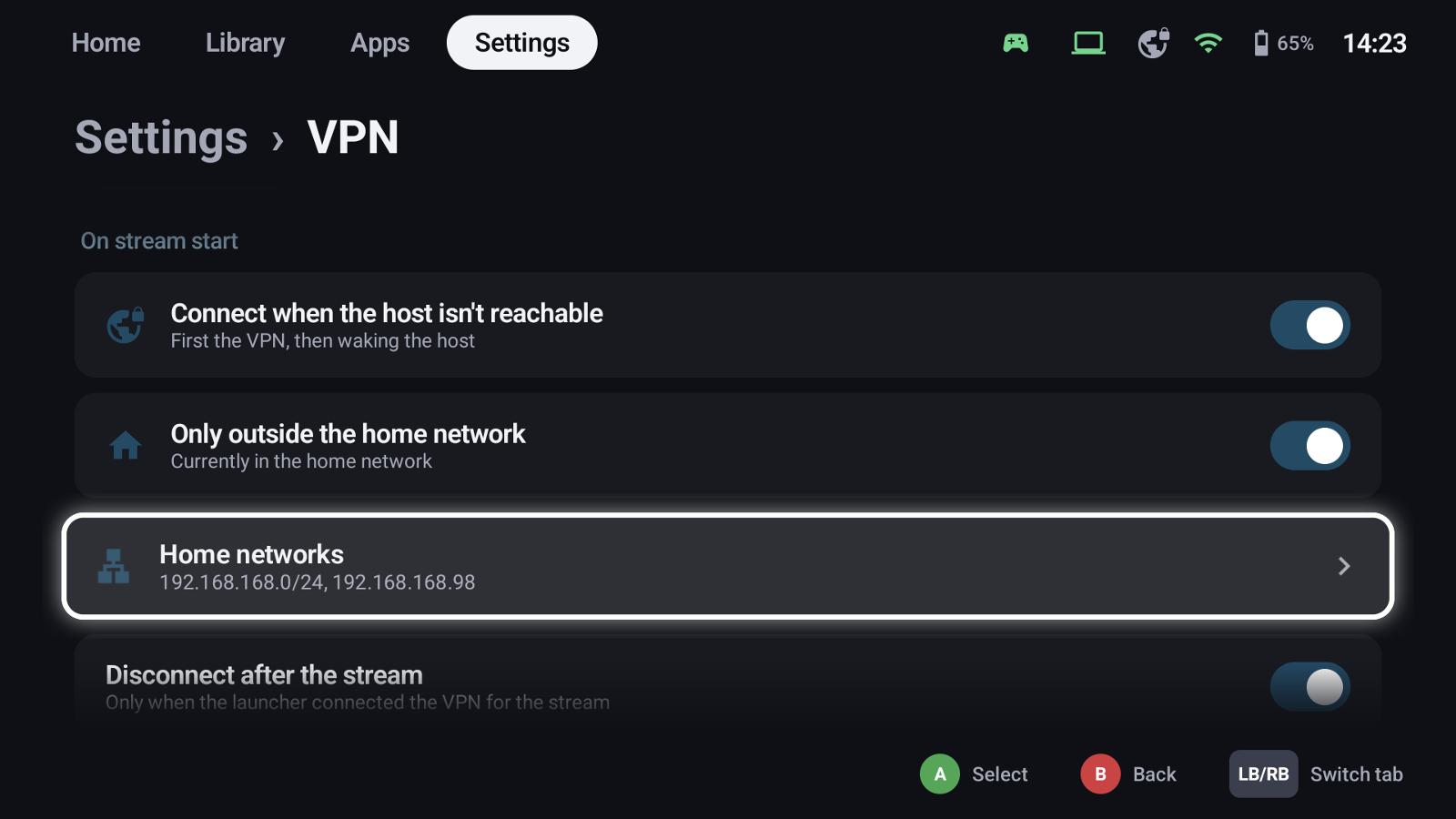
- Connect when the host isn't reachable: when you start a stream and the host can't be reached, GameLodge connects the VPN first, then wakes the host and starts the game.
- Only outside the home network: never connects at home. List your home networks:
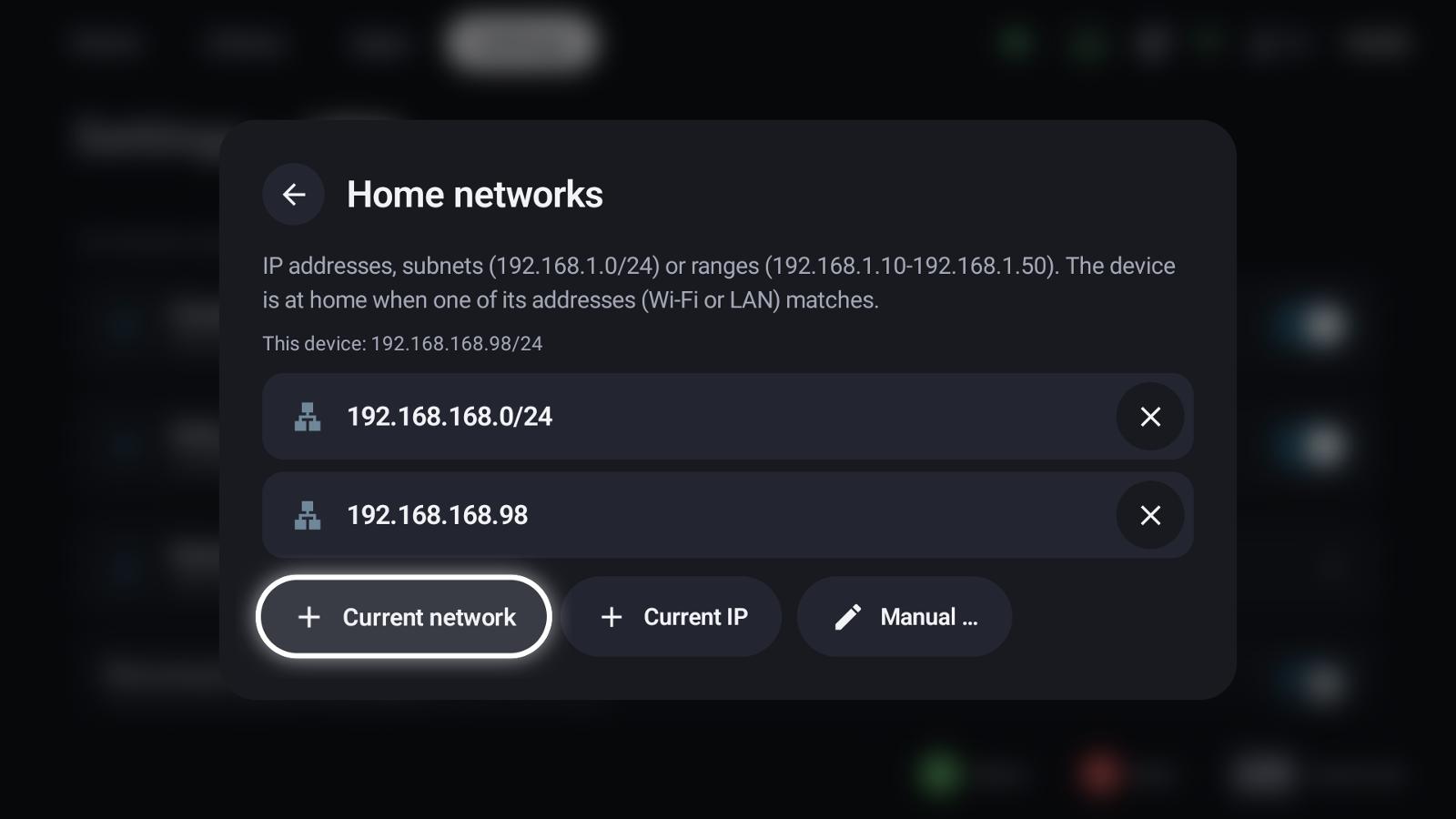
Add the current network, the current IP or enter addresses, subnets (192.168.1.0/24) or ranges
(192.168.1.10-192.168.1.50) by hand. The device is at home when one of its addresses matches.
- Disconnect after the stream ends the tunnel again – only if GameLodge connected it for the stream.
Per host
Each host chooses its tunnel in its settings: Automatic (the tunnel whose allowed IPs cover the host's address, else the default one), a fixed tunnel, or none.
Waking a host through the VPN
Wake-on-LAN packets usually don't pass a VPN. Use a Home Assistant entity as wake method for hosts you stream from away from home.
See also
- Hosts & pairing – tunnel per host, wake-up
- Quick menu – VPN toggle in quick access
- FAQ & troubleshooting – streaming away from home