PC games
On Windows GameLodge reads the game stores installed on the PC and shows their games next to your streams and ROMs – one full-screen library for the whole PC.
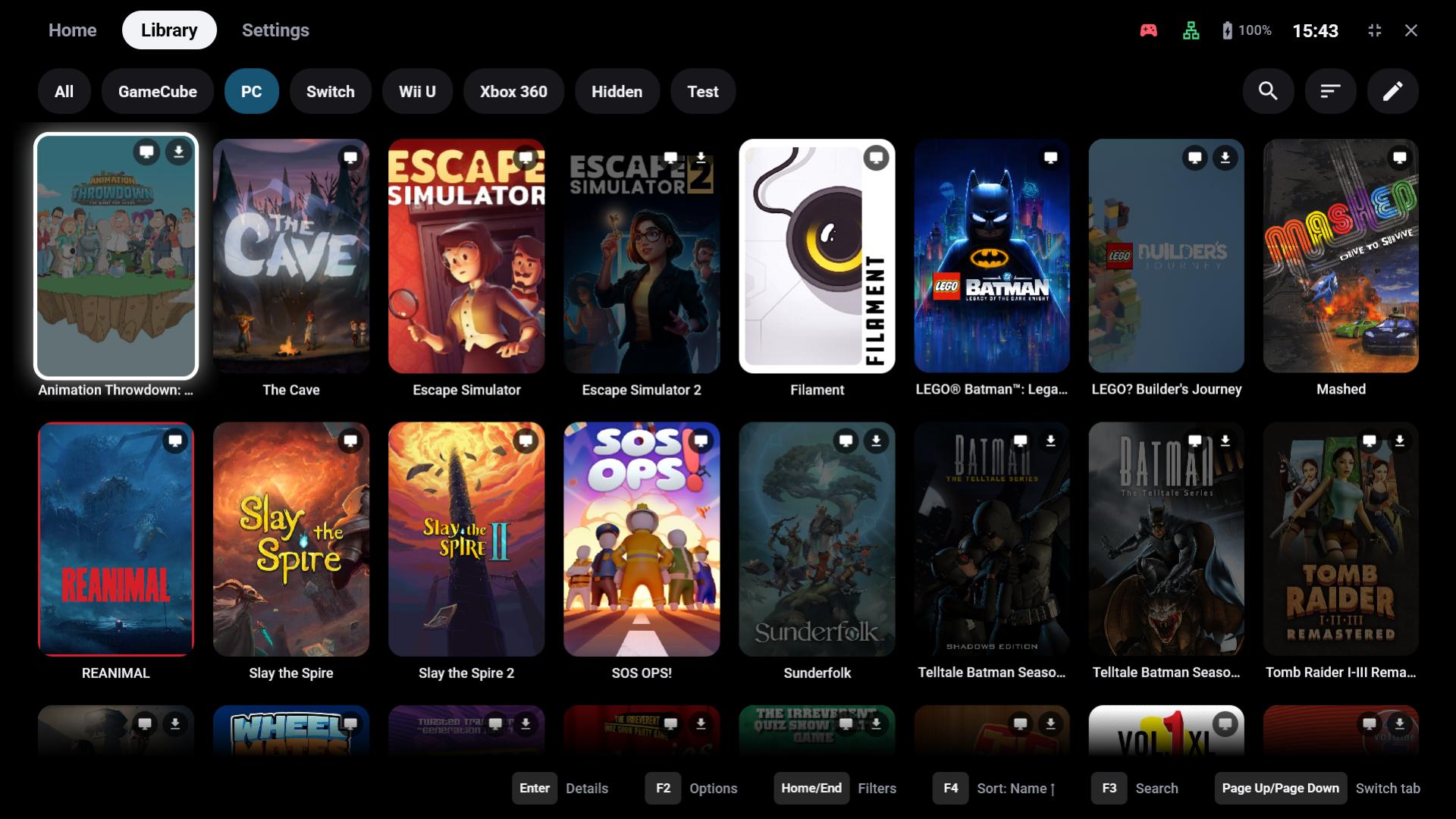
Windows only
This page is about the Windows app. On Android the library holds the device's apps and games, your ROMs and the games of your streaming hosts – which can be exactly these PC games, see Your PC as host.
Game sources
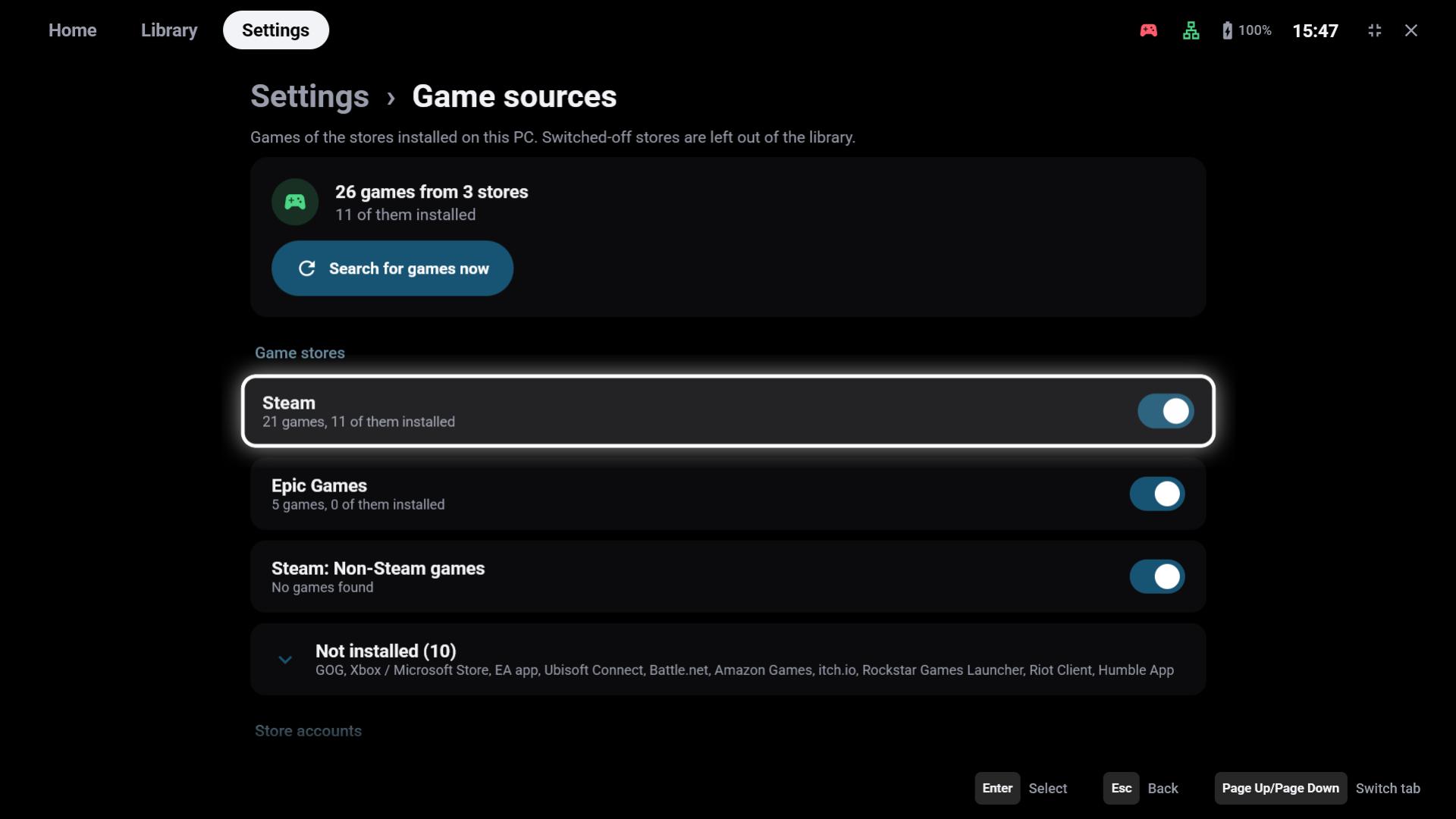
Settings → Game sources lists the stores found on this PC. Switch a store off to leave its games out of the library; Search for games now scans again (GameLodge also scans on start).
| Source | What appears |
|---|---|
| Steam | Installed games; signed in (below) every game you own |
| Steam: Non-Steam games | The shortcuts you added to Steam yourself |
| Epic Games, GOG, Xbox / Microsoft Store, EA app, Ubisoft Connect, Battle.net, Amazon Games, itch.io, Rockstar Games Launcher, Riot Client, Humble App | Installed games, and owned ones where the store keeps them locally |
Stores that aren't installed are collapsed under Not installed. Games that aren't installed are dimmed in the library; starting one opens its store's installation.
Steam account
Without an account GameLodge only knows the Steam games on this PC. Store accounts → Sign in with the Steam app shows a QR code: open the Steam app on your phone, tap the shield (Steam Guard) and scan it. Signed in, Steam lists every game you own – also those not installed and with a private profile. Sign out removes the sign-in from this PC.
Own games and apps
Programs that no store knows – an old game, a tool, a link – are added under Own games and apps → Add game or app:
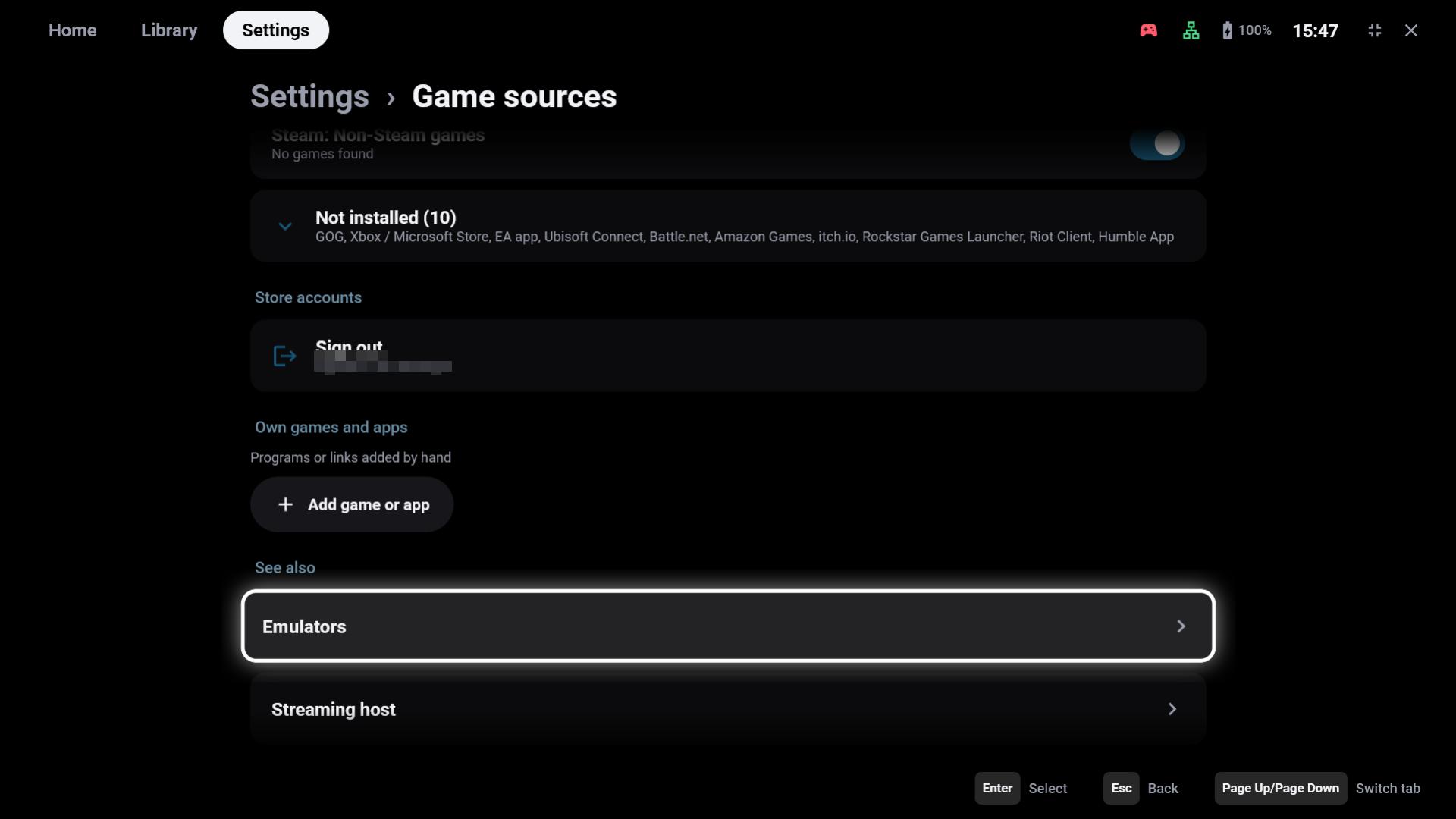
- Name, program or link, optional arguments and working folder
- App instead of game – shows it in the Apps tab
- Hold to remove
Emulators and ROM folders are set up on their own page, see Emulators & ROMs.
Start actions
A game can start in more than one way. X → Start actions on its tile lists them:
- the launch options of the store (read only), and
- your own start actions – e.g. the game's launcher or settings program, a DX11 or VR variant, or a mod manager that starts the game with mods.
The default is used by a plain start; Start with… offers all of them – also to devices that stream this game from the PC.
Process names (optional, separated by commas, e.g. game.exe) tell GameLodge which programs belong to
the game: it waits until they end before it stops the play time and ends a stream. Empty: the program
itself, or the game's known processes.
Details and play time
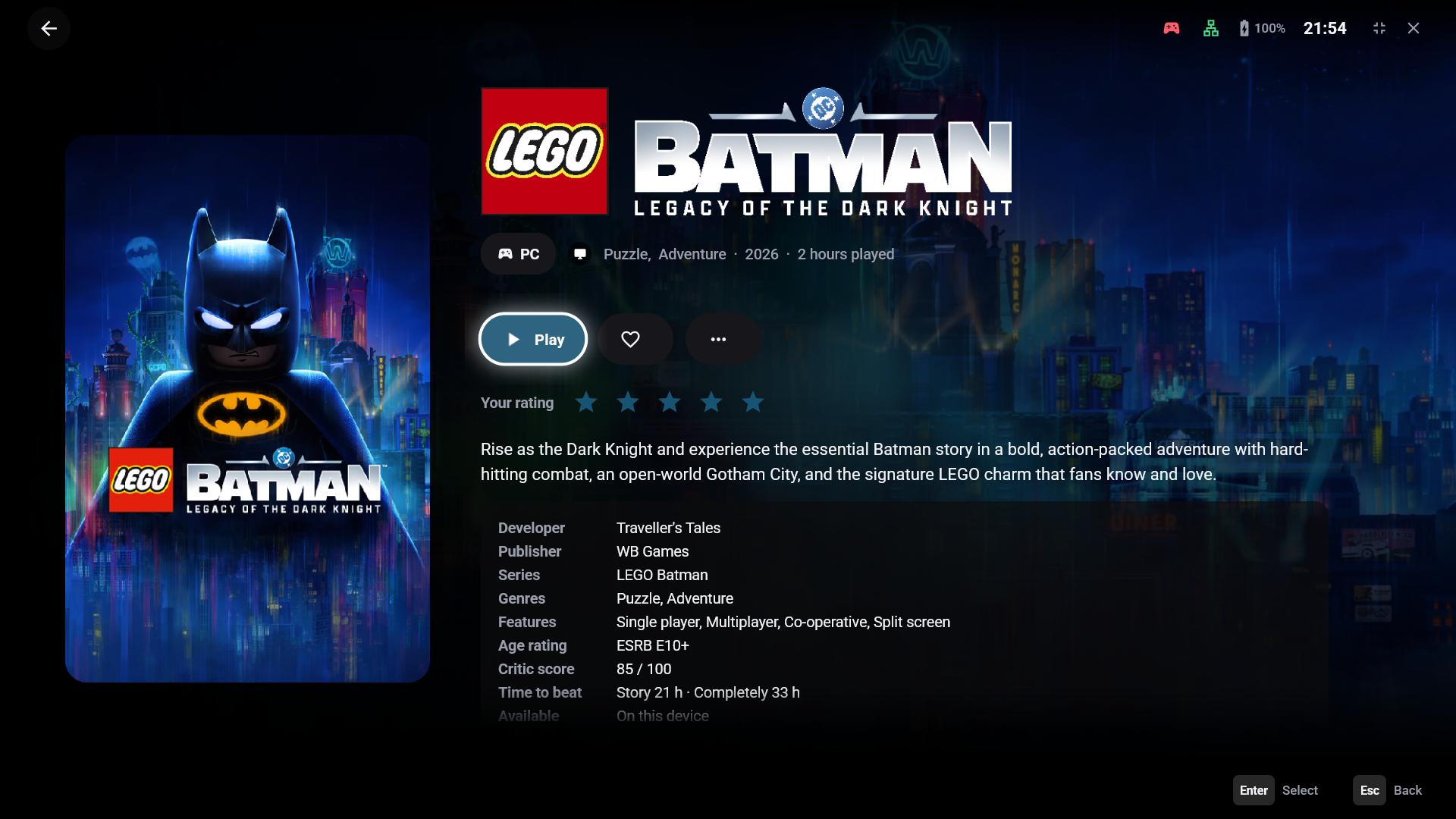
The details page shows the store, genres, release year and play time like on Android; artwork and metadata come from the same sources. Play time is measured while the game's processes run, see Play time & statistics.
See also
- Emulators & ROMs – emulators and ROM folders on Windows
- Streaming host – these games on Vibepollo, Apollo or Sunshine
- Metadata & artwork