Devices & web interface
A Windows PC with GameLodge can share its games with your other GameLodge devices – a handheld, a tablet, a TV. Paired devices get the PC's games with their artwork, metadata and play data, and stream them from the PC's streaming host.
Windows only
Pairing happens on the Windows app of the PC that streams. Devices that pair with it can be Android or Windows.
Devices & pairing
Settings → Streaming host → Devices & pairing pairs your other GameLodge devices with this PC:
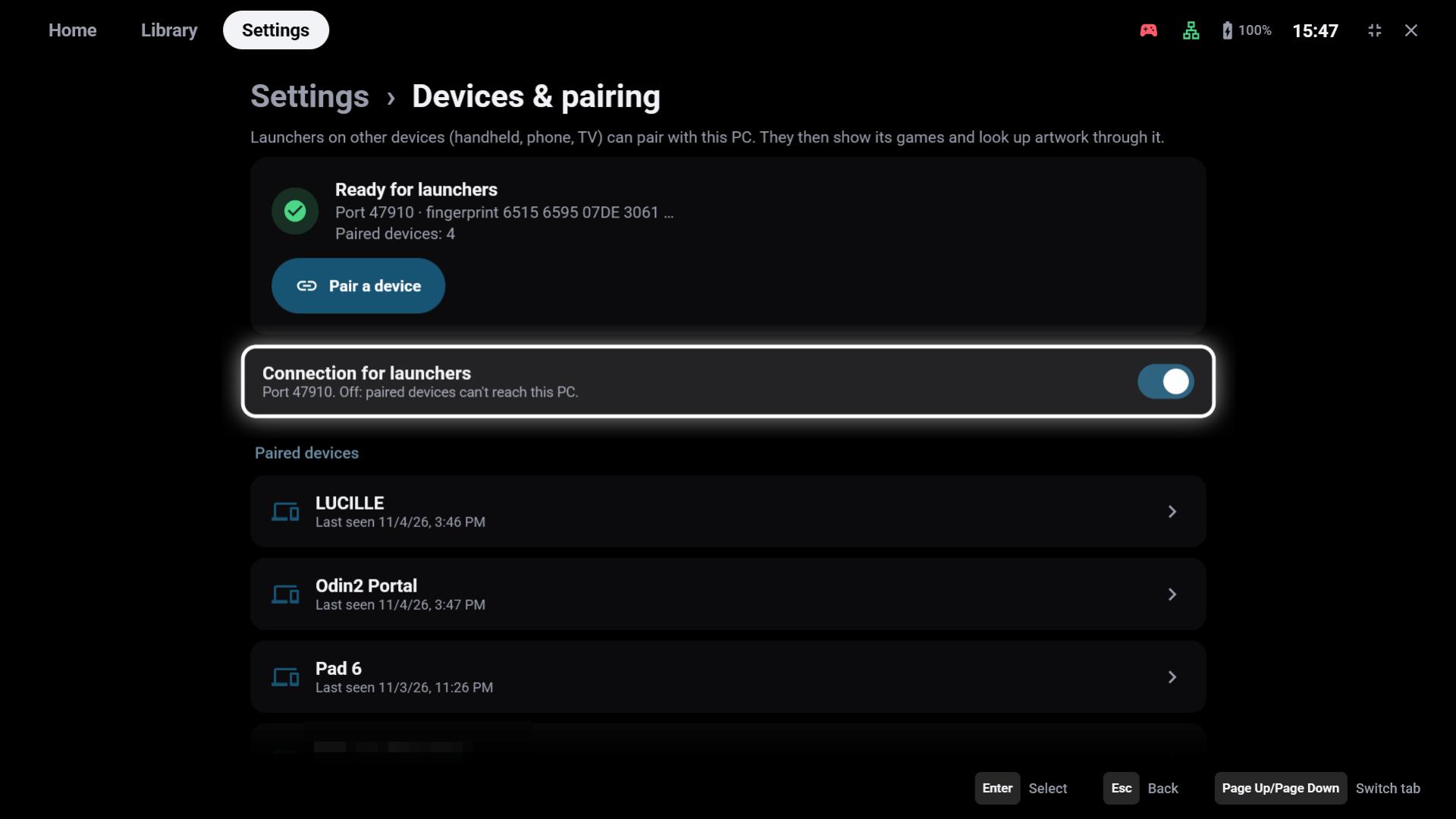
- Press Pair a device on the PC – pairing stays open for two minutes.
- On the device, open Settings → Metadata & artwork → Add source (or the wizard's GameLodge on the PC step) and choose this PC.
- The device shows a 6-digit PIN: enter it on the PC.
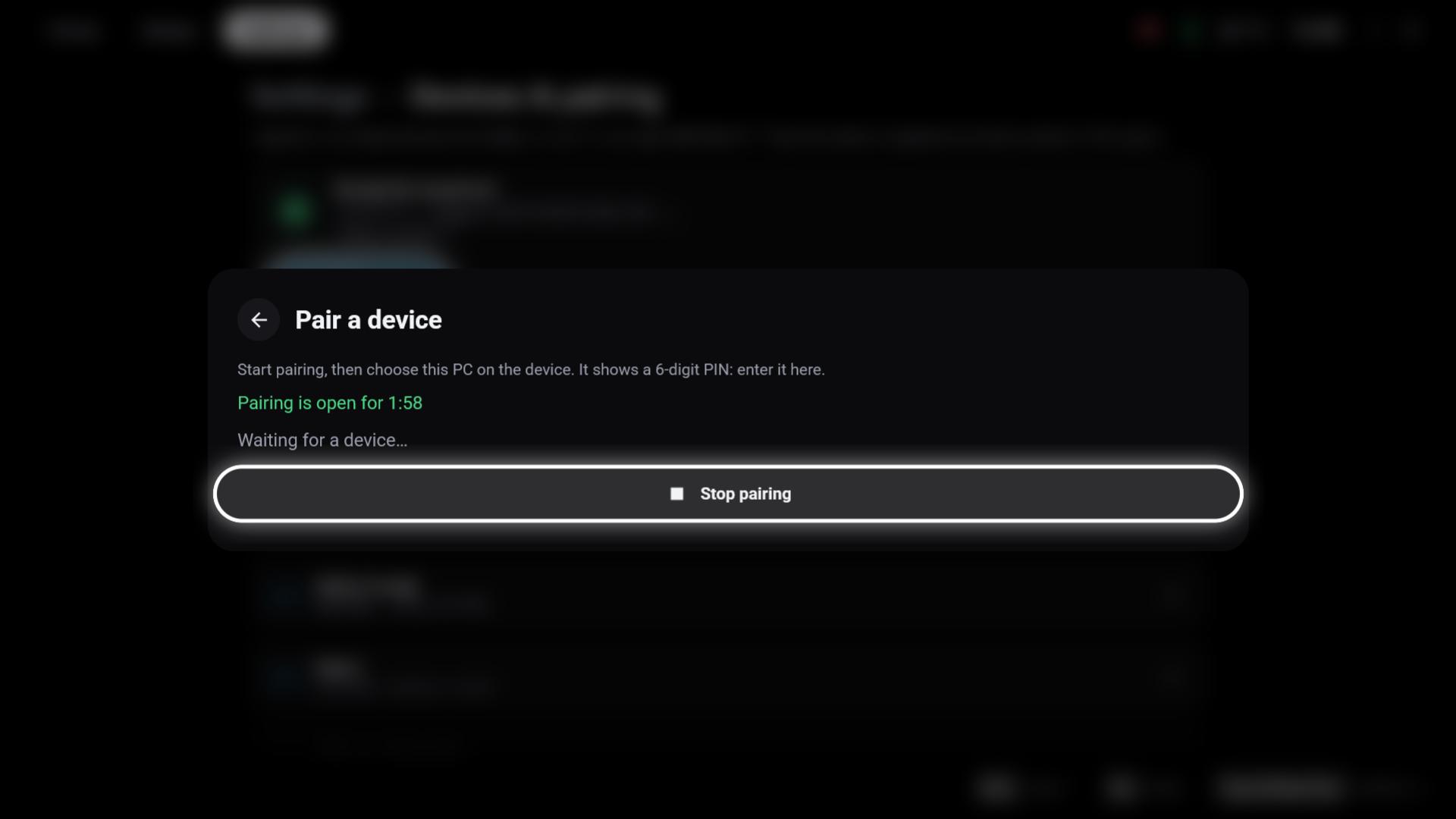
Connection for launchers switches the host role on or off (port 47910); off, paired devices can't reach the PC. Select a paired device to rename it, change what it may do or remove it.
Only paired devices get any access, and every pairing needs the PIN confirmed on the PC.
What paired devices get
| Games | The PC's games with their artwork, platform and metadata, already matched |
| Play data | Play time, ratings, favourites and collections, shared between all devices |
| Metadata | Artwork lookups through the PC's SteamGridDB / IGDB keys – the device needs no keys of its own |
| Keys | Optional: get and change the PC's SteamGridDB / IGDB keys |
| Streaming | The Guide button stays on the device while streaming; resuming brings the game's window to the front |
Web interface
Devices & pairing → Web interface lets you pair and manage devices from a browser in your network – handy when the PC sits under the TV.
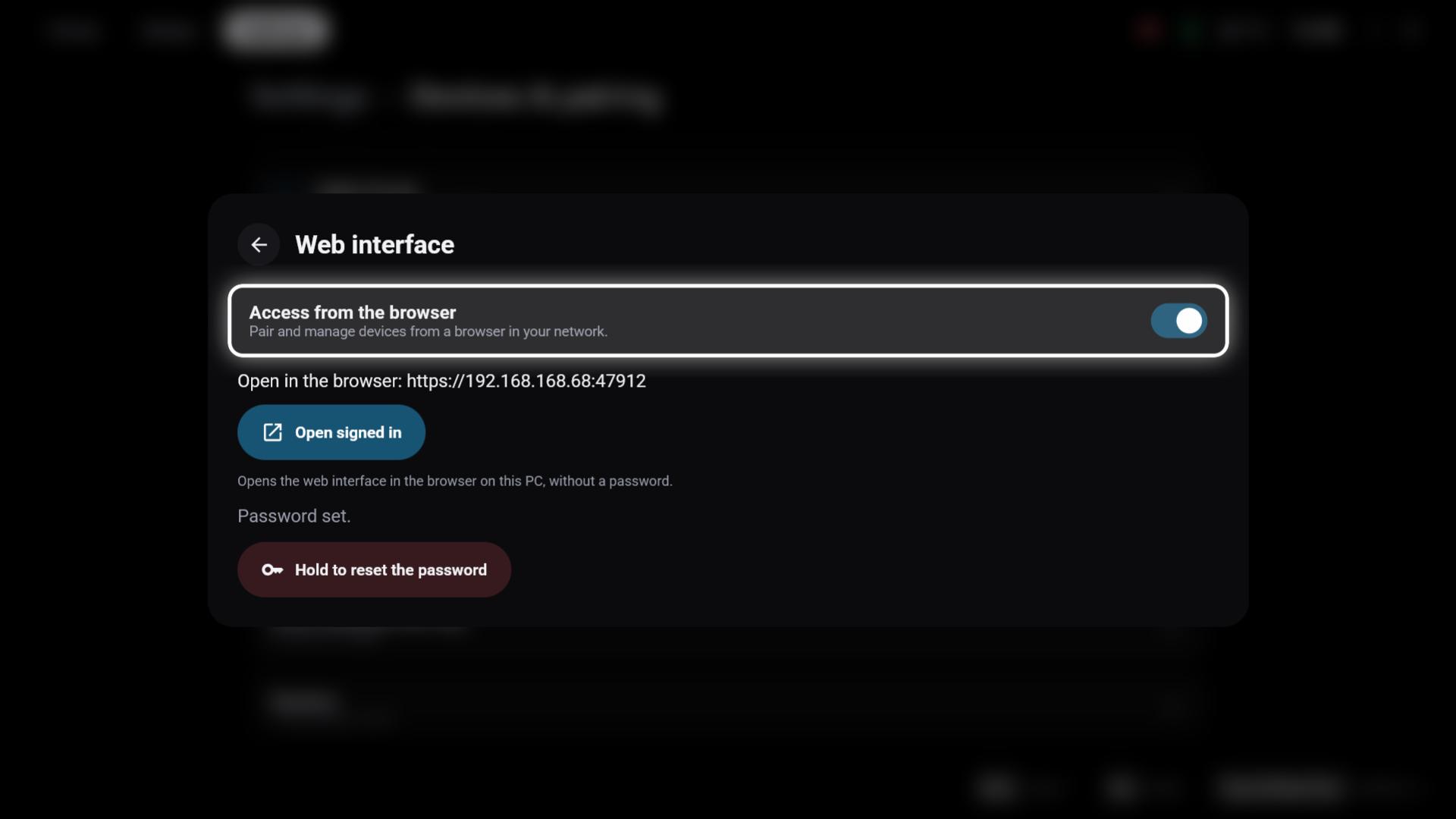
- Access from the browser – on or off; the address is shown below (
https://<PC>:47912) - Open signed in – opens it in the browser on this PC, without a password (also in the tray menu)
- First use from another device: enter the setup code shown in the launcher and choose an admin password; Hold to reset the password starts over
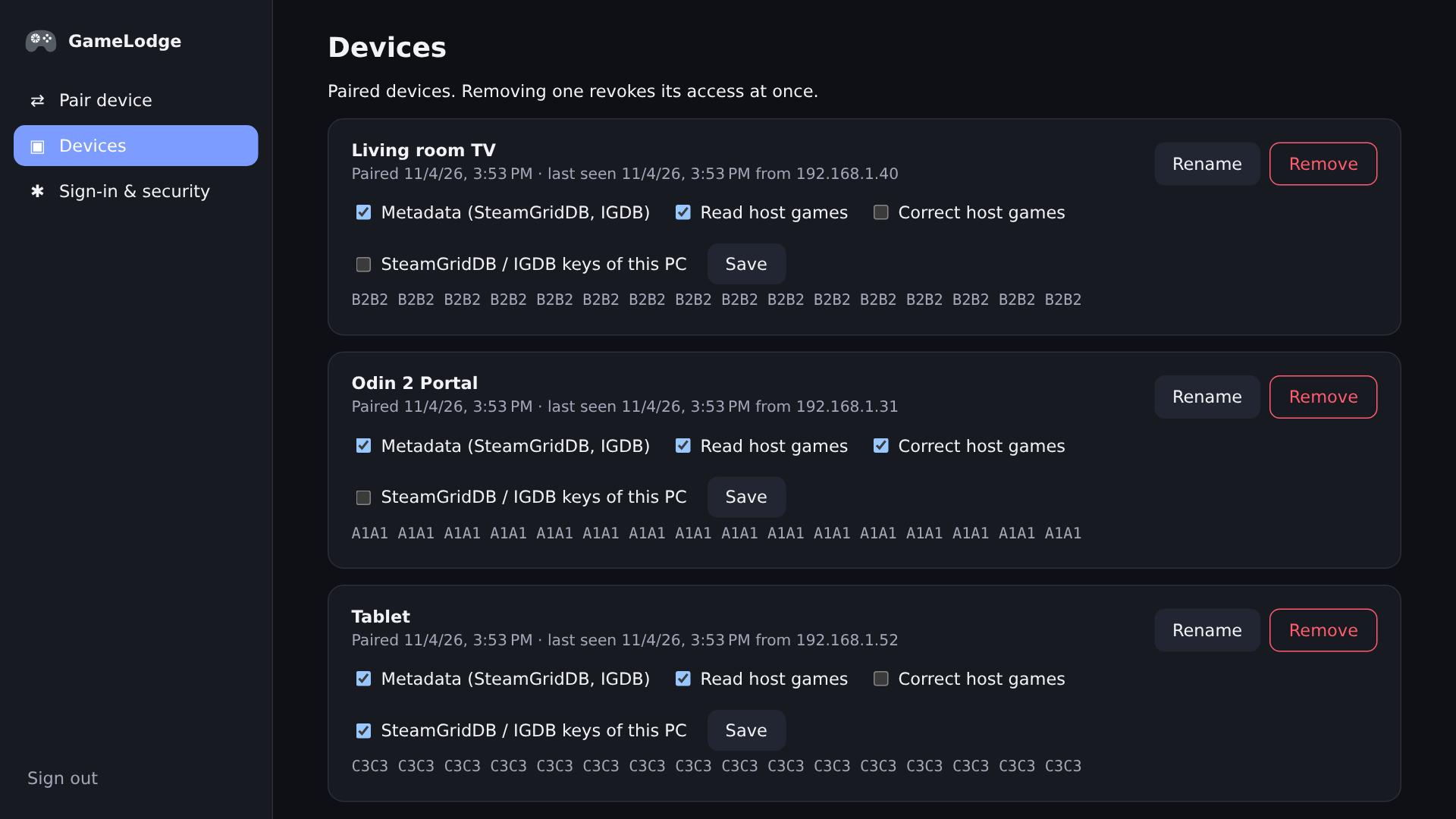
The browser pages pair devices, rename them, set their permissions and remove them. Sign-in & security changes the password and sets up two-factor authentication with an authenticator app; sessions end after 30 minutes without activity and after 12 hours at the latest.
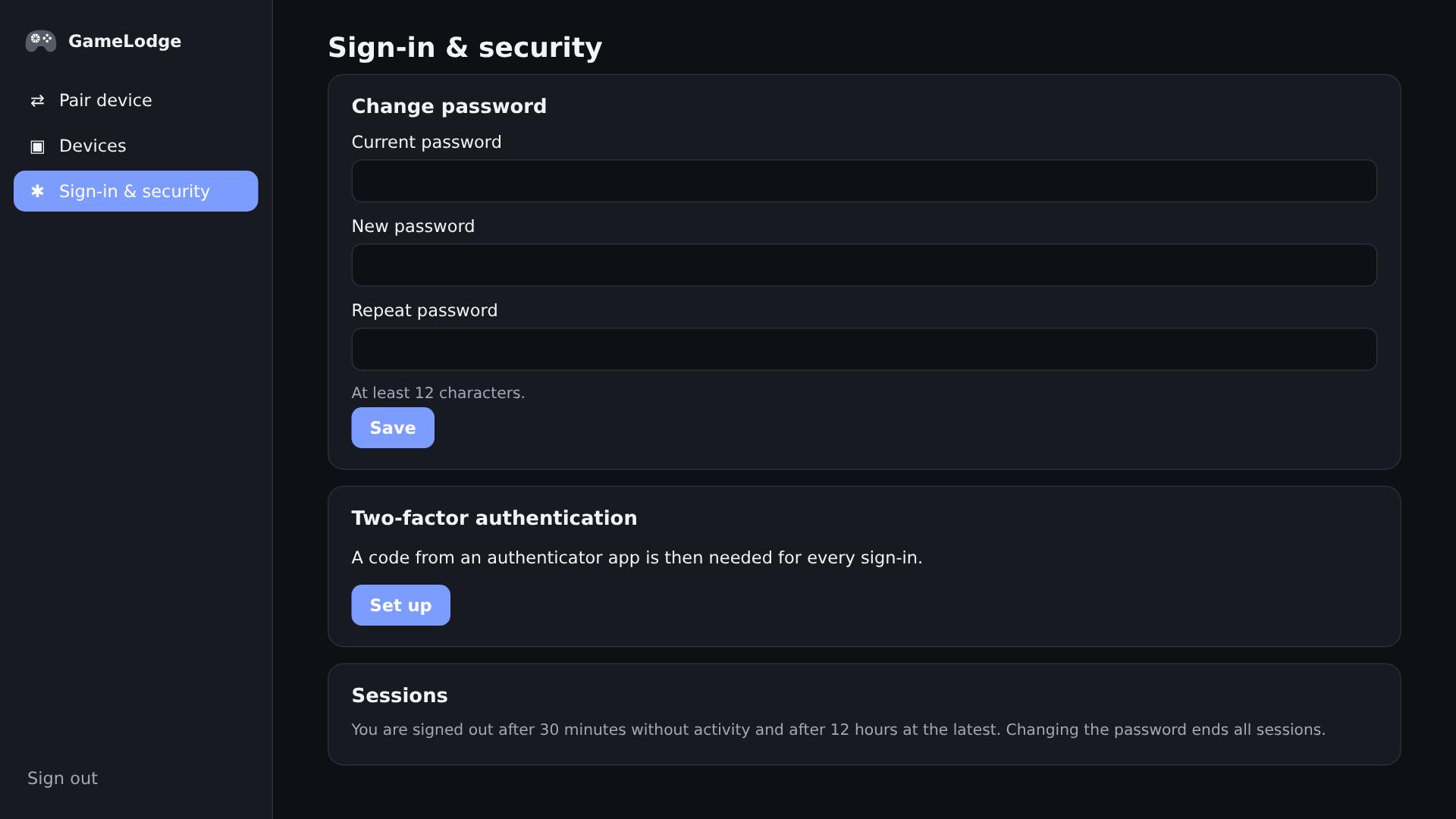
The web interface only answers from private networks and uses the PC's own certificate – your browser asks you to trust it once.
Keep GameLodge running
Host features need GameLodge to run on the PC. With Keep running in the tray (see Getting started) it keeps working with the window closed.
See also
- Streaming host
- Metadata & artwork – sending keys to the PC
- Play time & statistics – shared between devices