Quick menu
The quick menu opens over everything – GameLodge, a game or a stream – with Start (hold) by default. LB / RB switches its tabs, B closes it.
Tabs
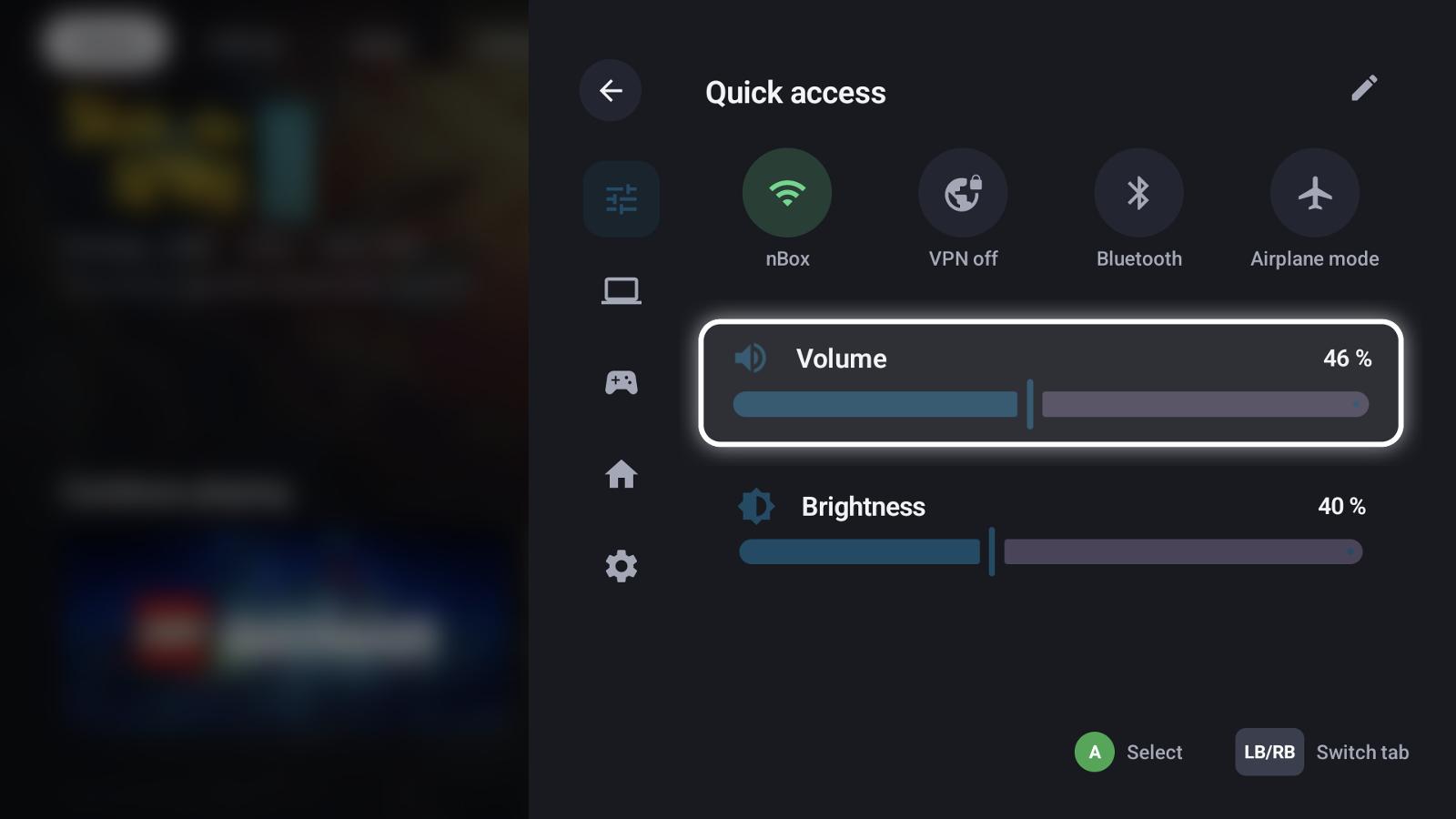
Toggles (Wi-Fi, VPN, Bluetooth, airplane mode …), volume and brightness. Running background tasks show here too.
- Android: Wi-Fi, Bluetooth, airplane mode and the VPN; volume and brightness. On the AYN Odin the TV output mode is in the Odin settings ("Video output mode").
- Windows: volume, the audio output device and – where the display can be dimmed – brightness.
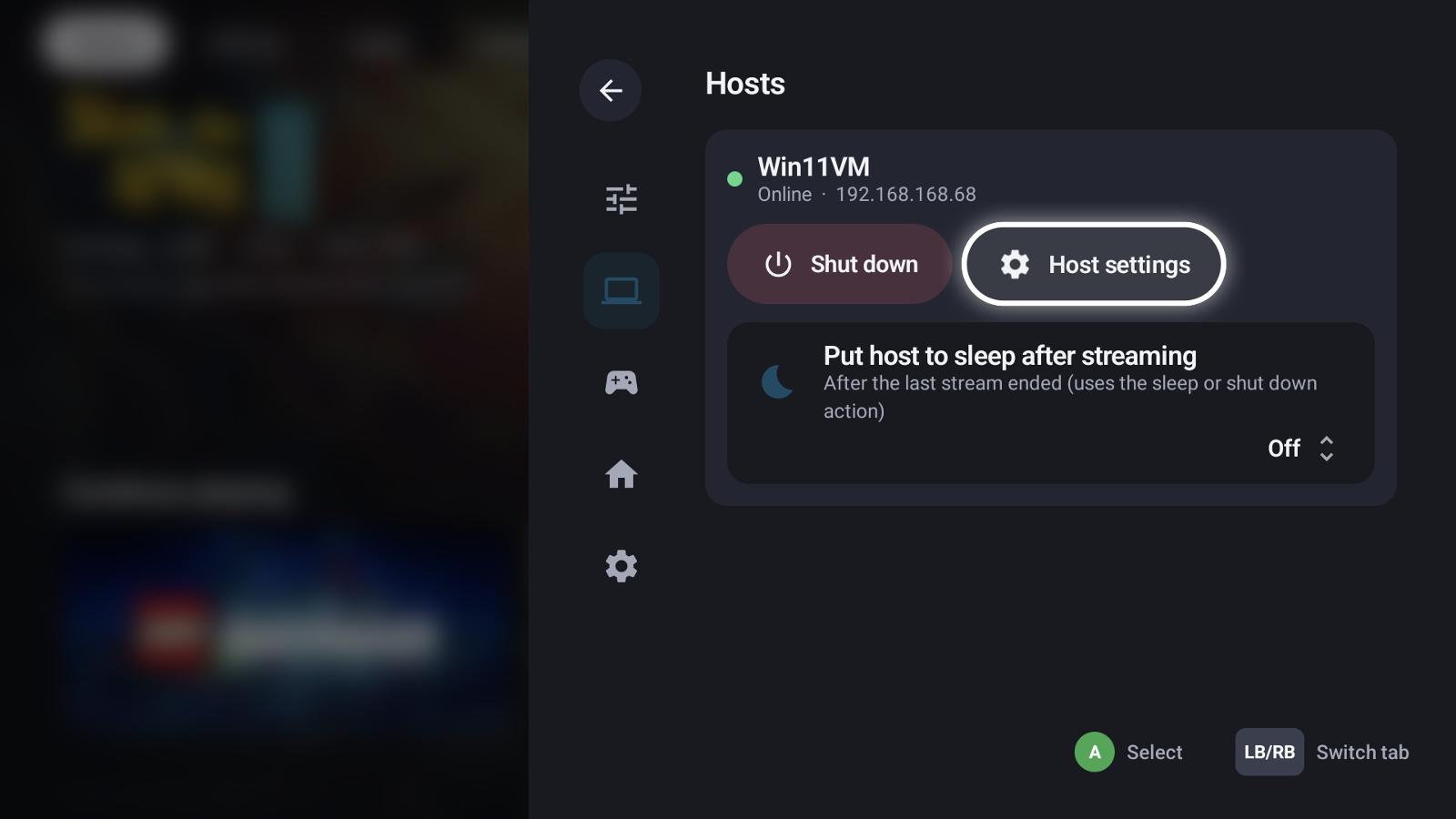
Your hosts with wake-up, shut down, their settings and auto sleep.
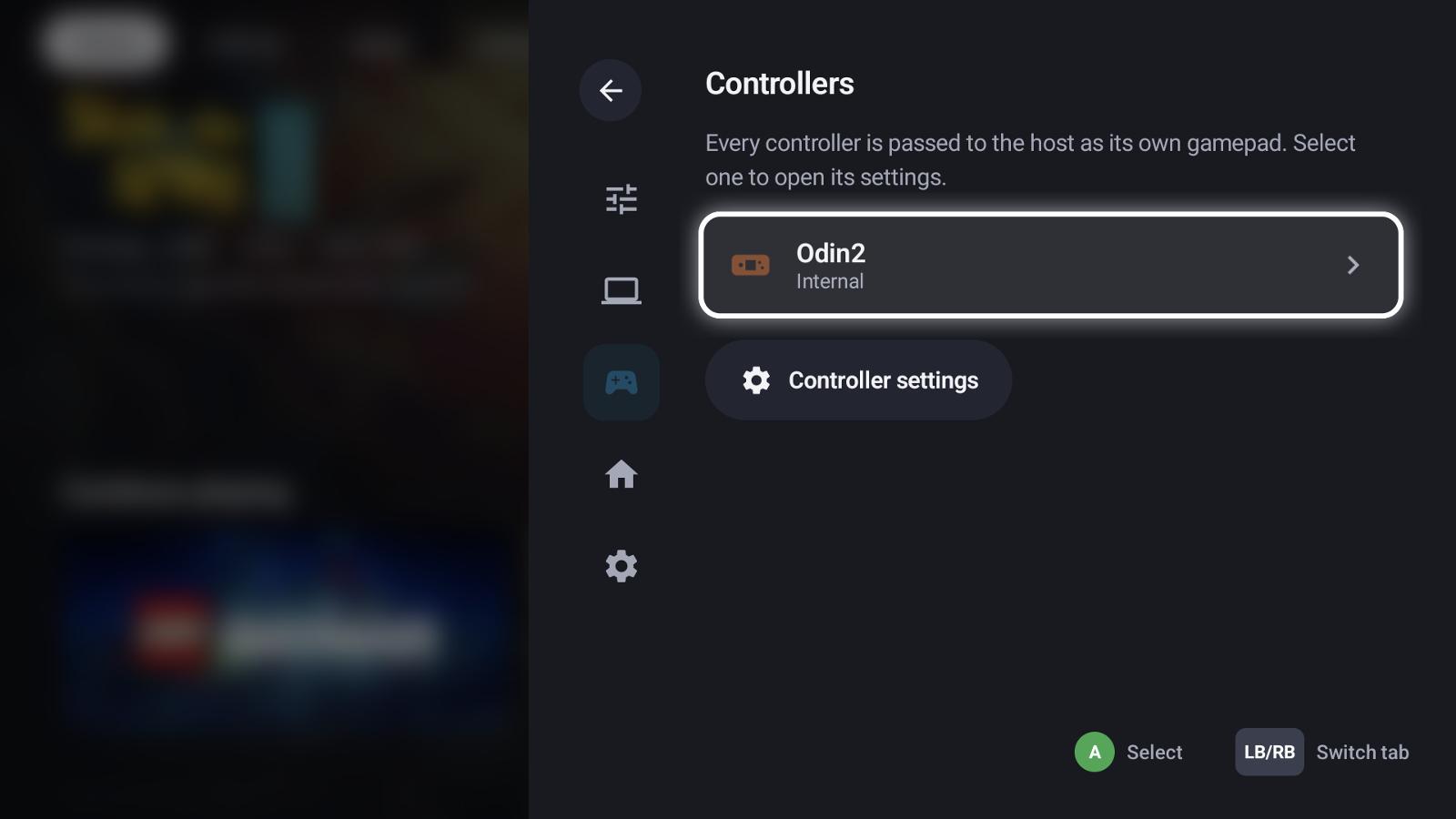
Connected controllers; select one for its settings.
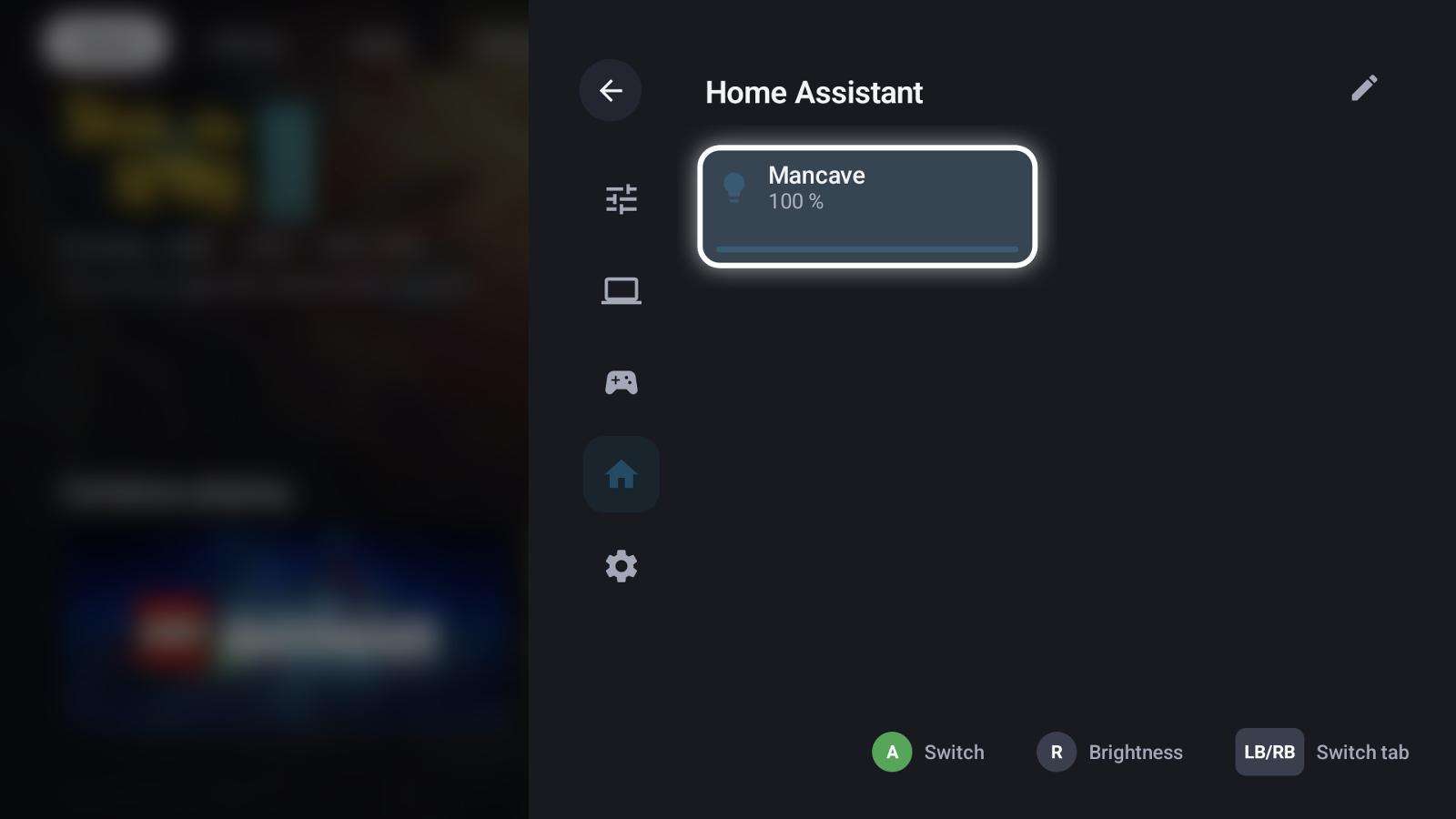
Your entity tiles, see Home Assistant. The pencil edits them.
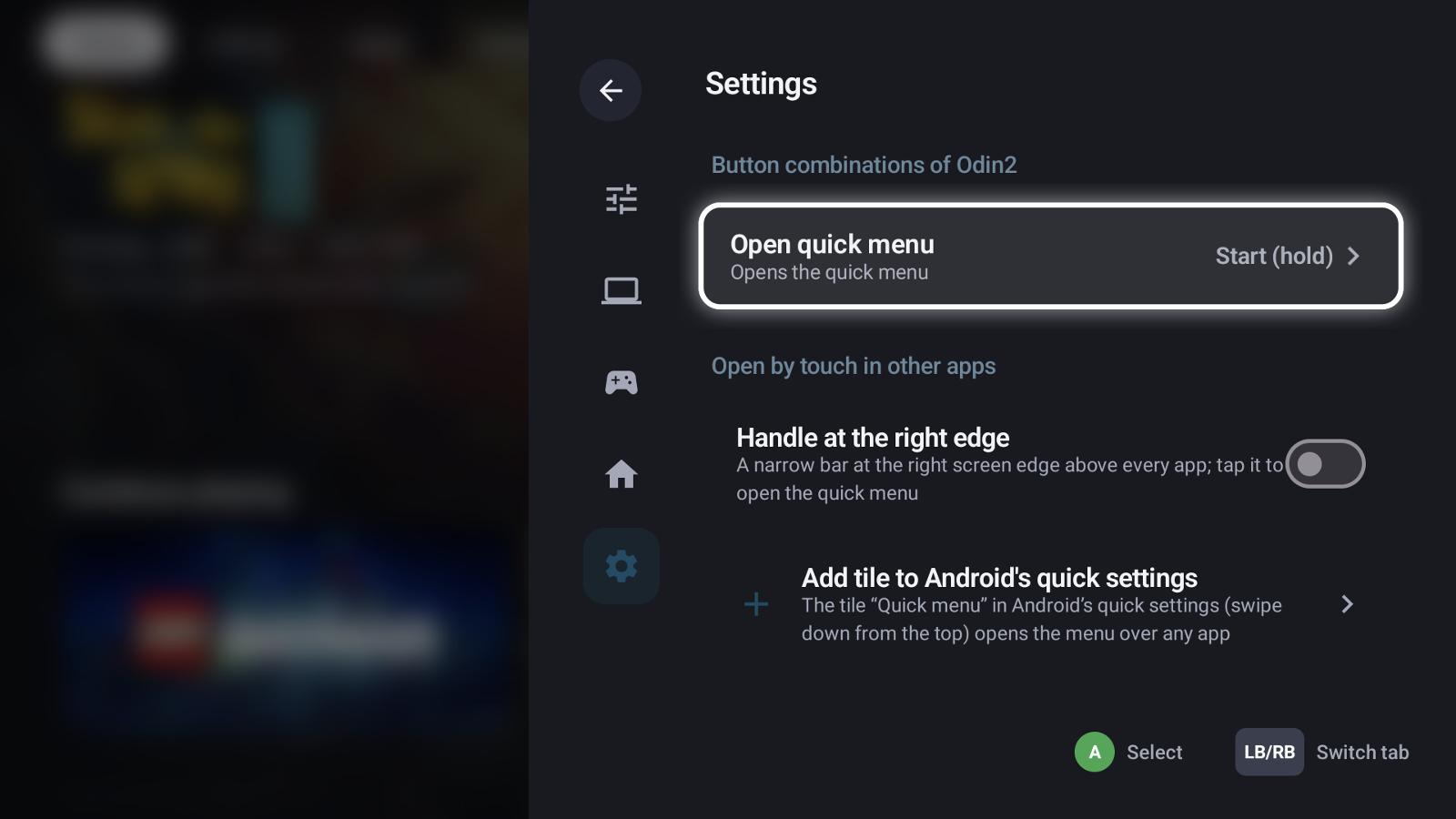
The quick menu's own shortcut, and ways to open it by touch in other apps.
While a game or stream runs, a Running tab comes first: resume, quit, and the stream controls (on-screen keyboard, mouse emulation, performance overlay, disconnect).
Edit quick access
The pencil on the Quick access tab edits its toggles:
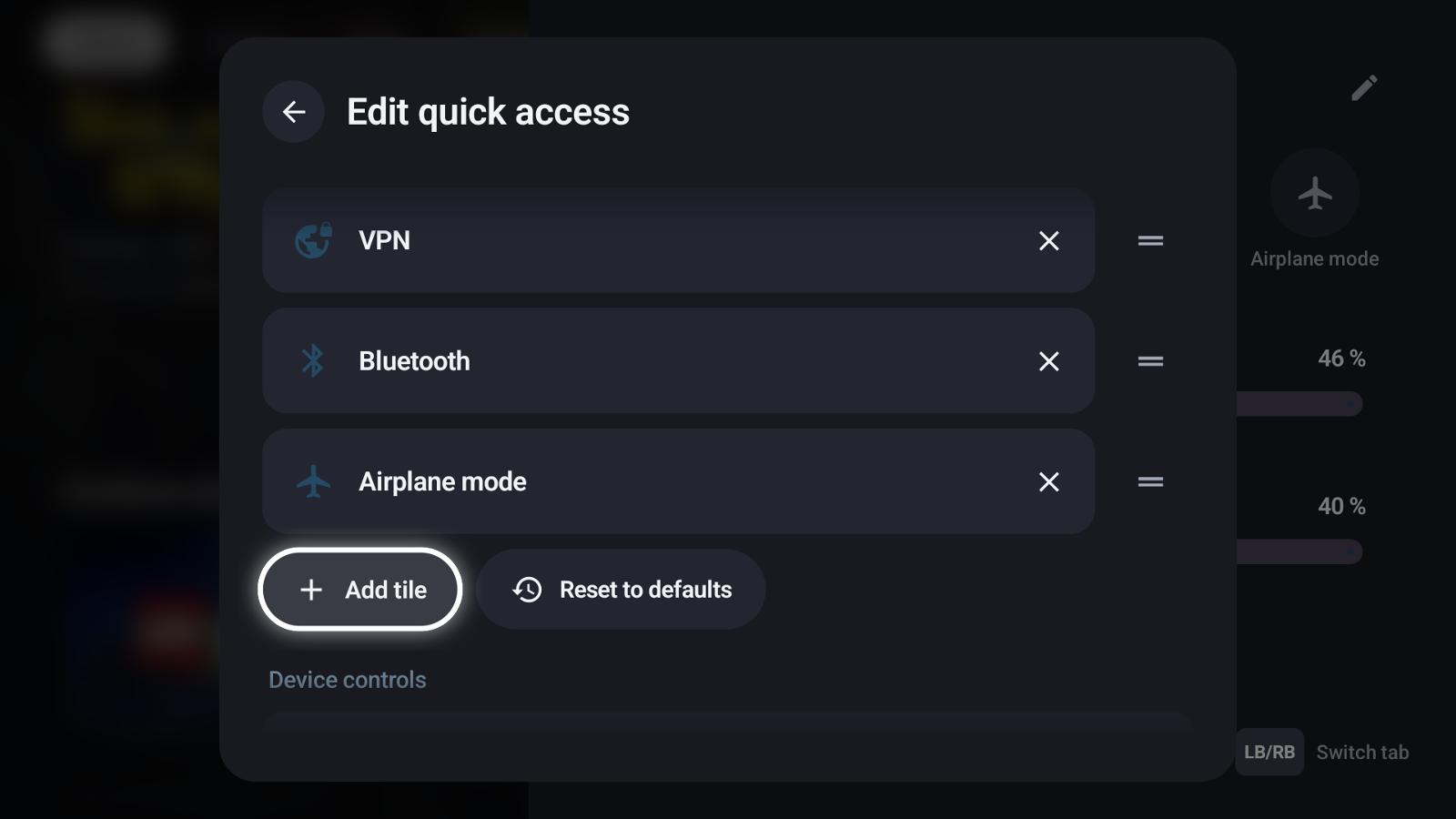
Remove tiles with ✕, reorder them with the handle, Add tile for more, Reset to defaults. Below, Device controls chooses which sliders show.
Opening it without a controller
- Handle at the right edge (Android): a narrow bar at the right screen edge above every app; tap it.
- Tile in Android's quick settings: add "Quick menu" to the quick settings you pull down from the top.
- A keyboard shortcut under Touch, mouse & keyboard (system-wide on Windows).
Tasks
Metadata lookups, artwork downloads, scans, backups and restores run in the background. The status bar shows a spinner while any runs; the task list shows each with its progress. A backup (and a restore while it still unpacks) can be cancelled there.
See also
- Controllers & shortcuts – the quick menu shortcut
- Home Assistant – entity tiles
- Hosts & pairing – host actions
- VPN (WireGuard)