Library
GameLodge has three tabs for your collection: Home with rows of your choice, Library for games and Apps for everything else. Each entry knows how it starts – locally, through an emulator or as a stream – and the same game from several sources appears once.
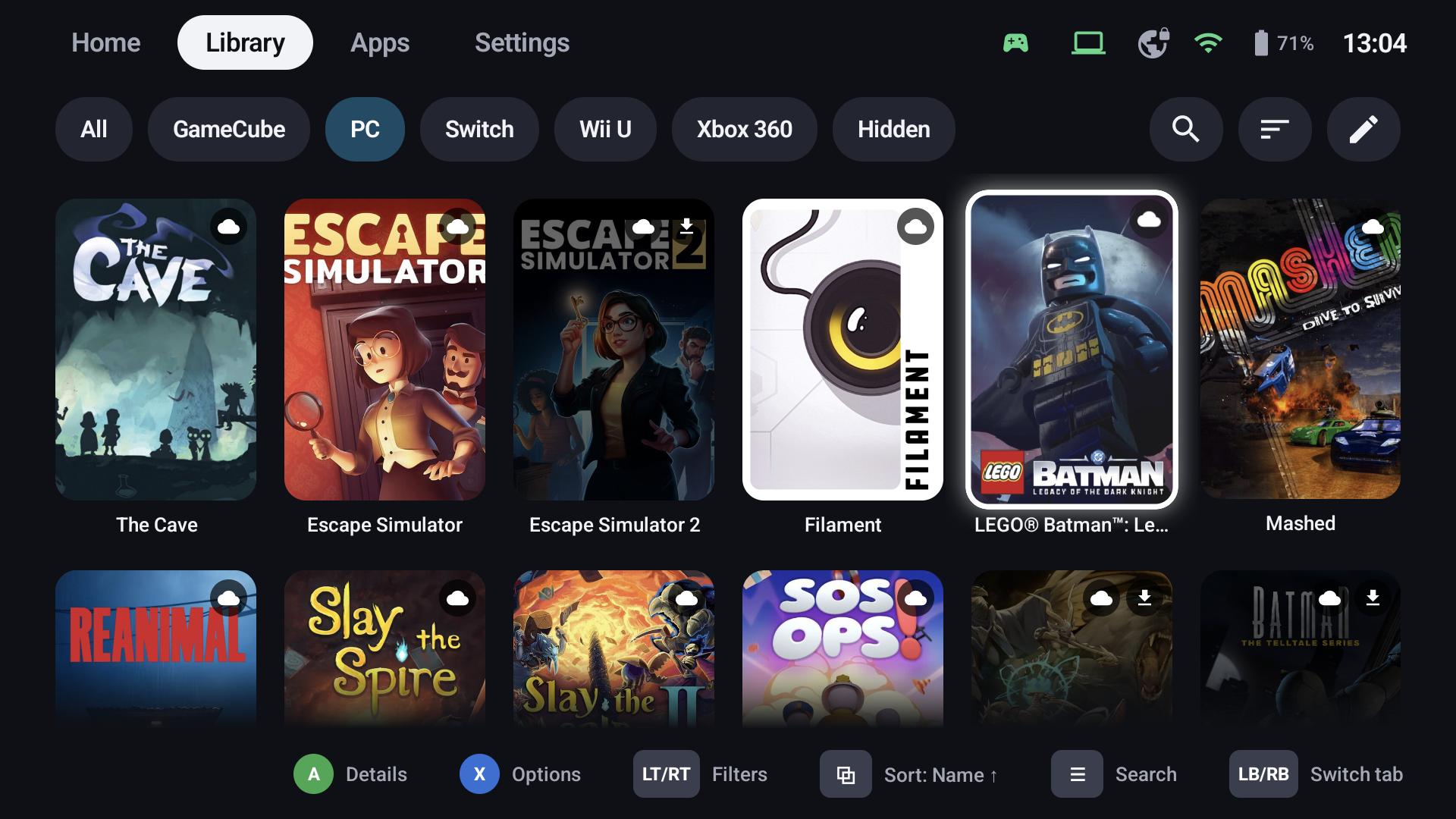
Where games come from
| Source | Platform | What appears |
|---|---|---|
| Installed apps | Android | Apps and games of the device; games are recognised automatically (X → This is an app / a game corrects it) |
| Streaming hosts | Android, Windows | The apps of every paired Sunshine / Apollo / Vibepollo host; with a GameLodge host also their artwork, platform and play data – see Hosts & pairing |
| PC stores | Windows | Steam, Epic, GOG, Xbox, EA, Ubisoft, Battle.net, Amazon and Playnite libraries, plus games you add yourself – see PC games |
| ROM folders | Android | Games from your ROM folders, started with an installed emulator – see Emulators & ROMs |
Games that aren't installed are dimmed; badges on the tiles show where a game comes from (Android, PC, ROM, host).
Navigating
| Button | Action |
|---|---|
| A | Details (games) or start (apps) |
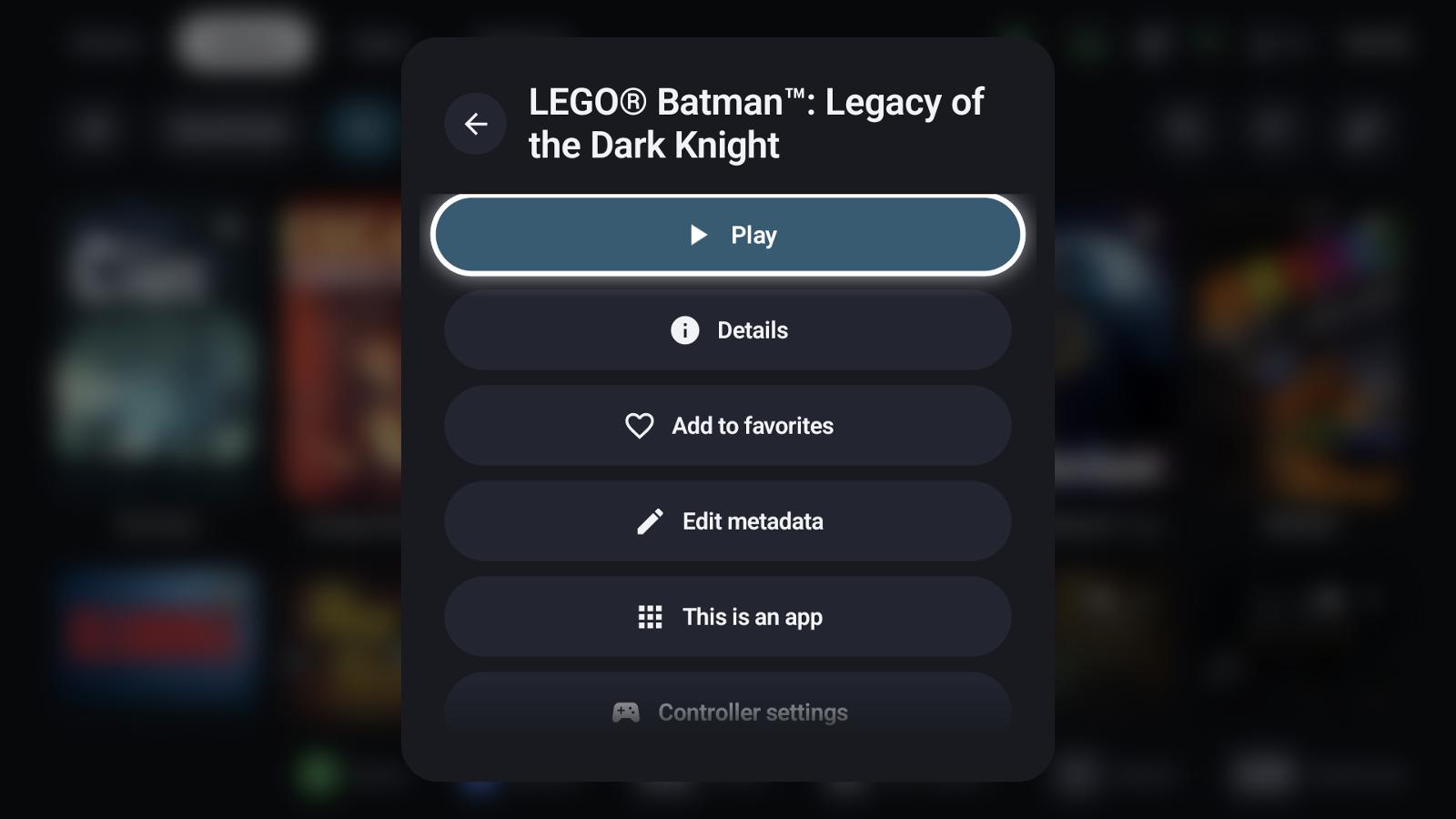
| X | Options: play, details, favourite, metadata, groups, actions, hide … |
| LT / RT | Previous / next filter chip |
| LB / RB | Previous / next tab |
| Menu (≡) | Search |
| View (⧉) | Sort: name, last played, play time, rating, release year, time to beat |
Apps tab
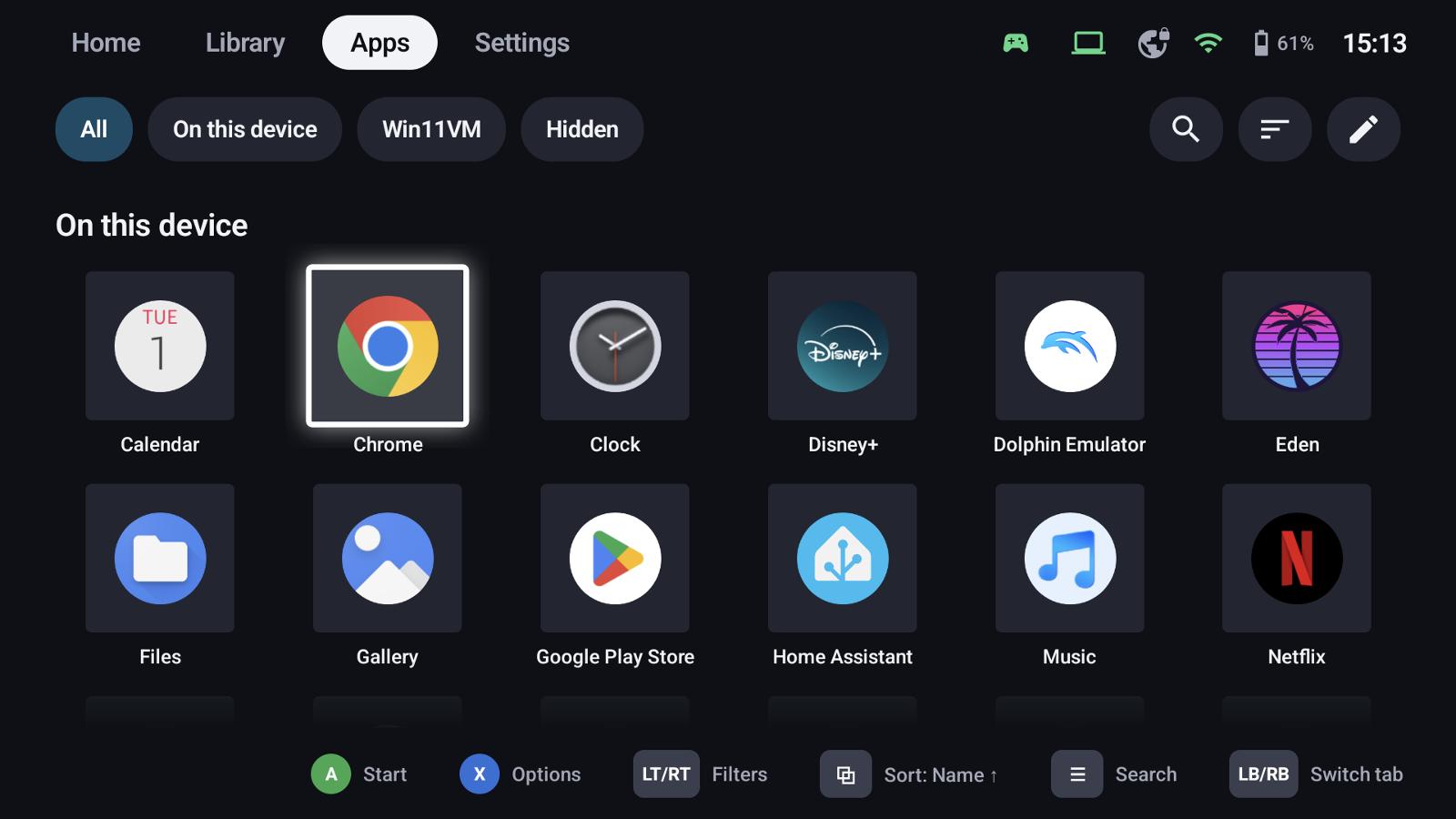
Everything that isn't a game: the device's apps on Android, apps of your hosts and – on Windows – programs you added as apps. Chips split them by source; X → This is a game moves an entry to the library.
On Windows
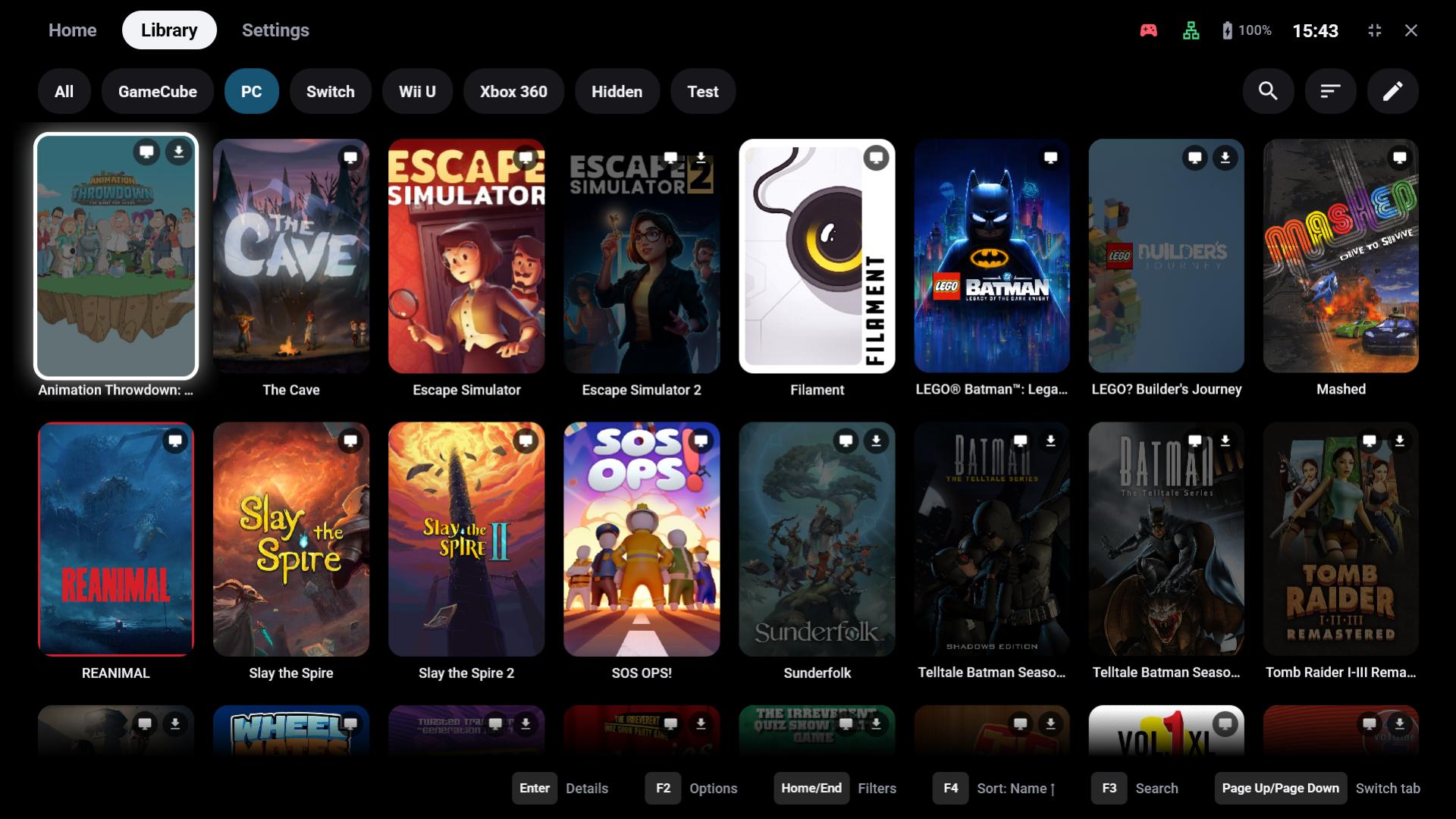
The Windows app looks and works the same; keyboard and mouse work alongside the controller (button hints show the keys). Its local games come from the PC's stores, see PC games.
See also
- Filters, groups & collections – chips, smart filters, Home rows
- Metadata & artwork – sources, editor, artwork
- Play time & statistics
- Home tab & tiles – tile size, shape and badges per tab
- Hosts & pairing – games of your streaming PCs