Controllers & shortcuts
GameLodge is made to be used with a controller. Every controller – the built-in controls of a handheld, an Xbox, PlayStation, Nintendo or other pad – keeps its own settings, starting from defaults for its model.
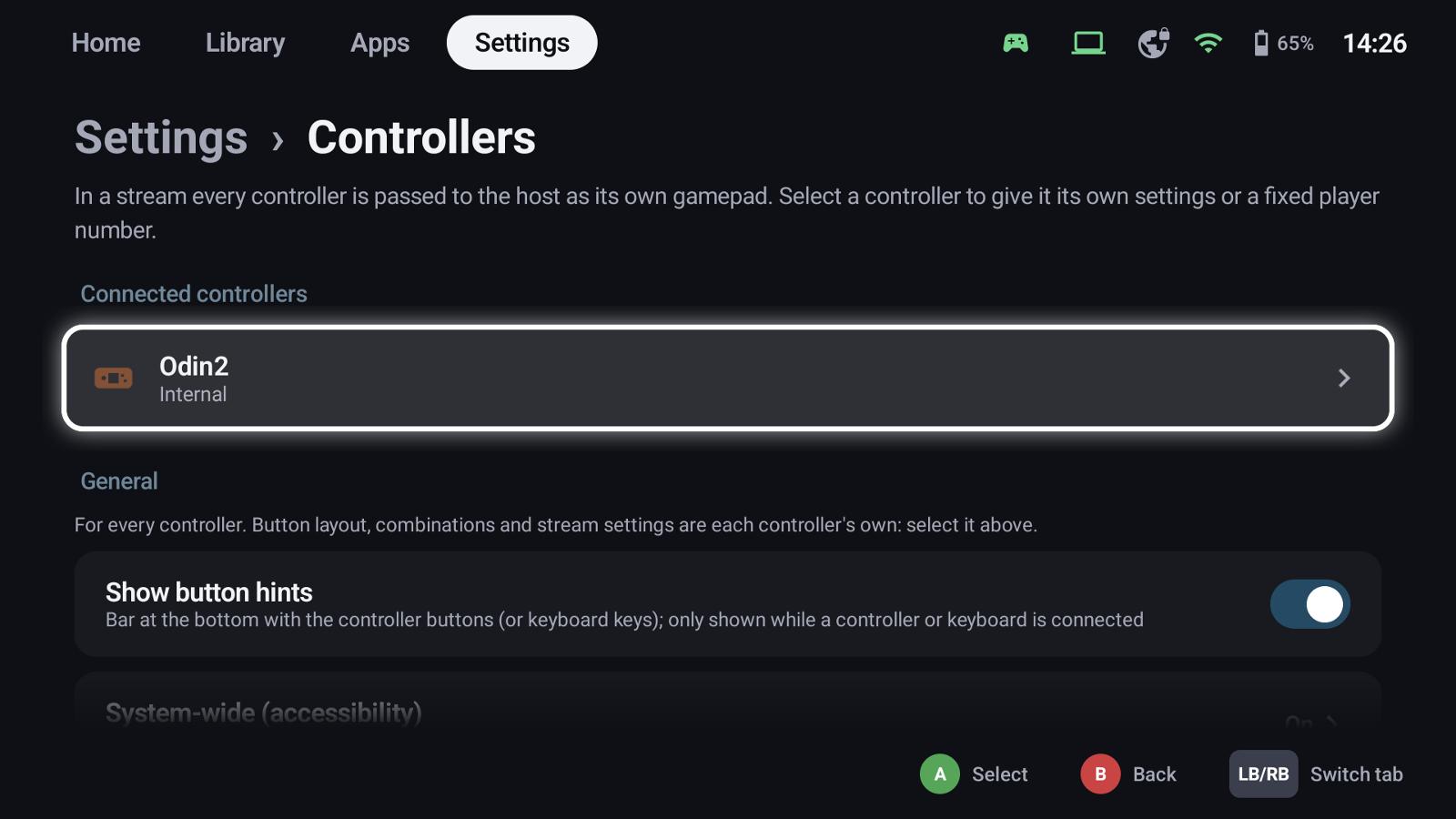
The controllers page
Settings → Controllers lists the connected controllers. In a stream every controller is passed to the host as its own gamepad.
General settings for all controllers:
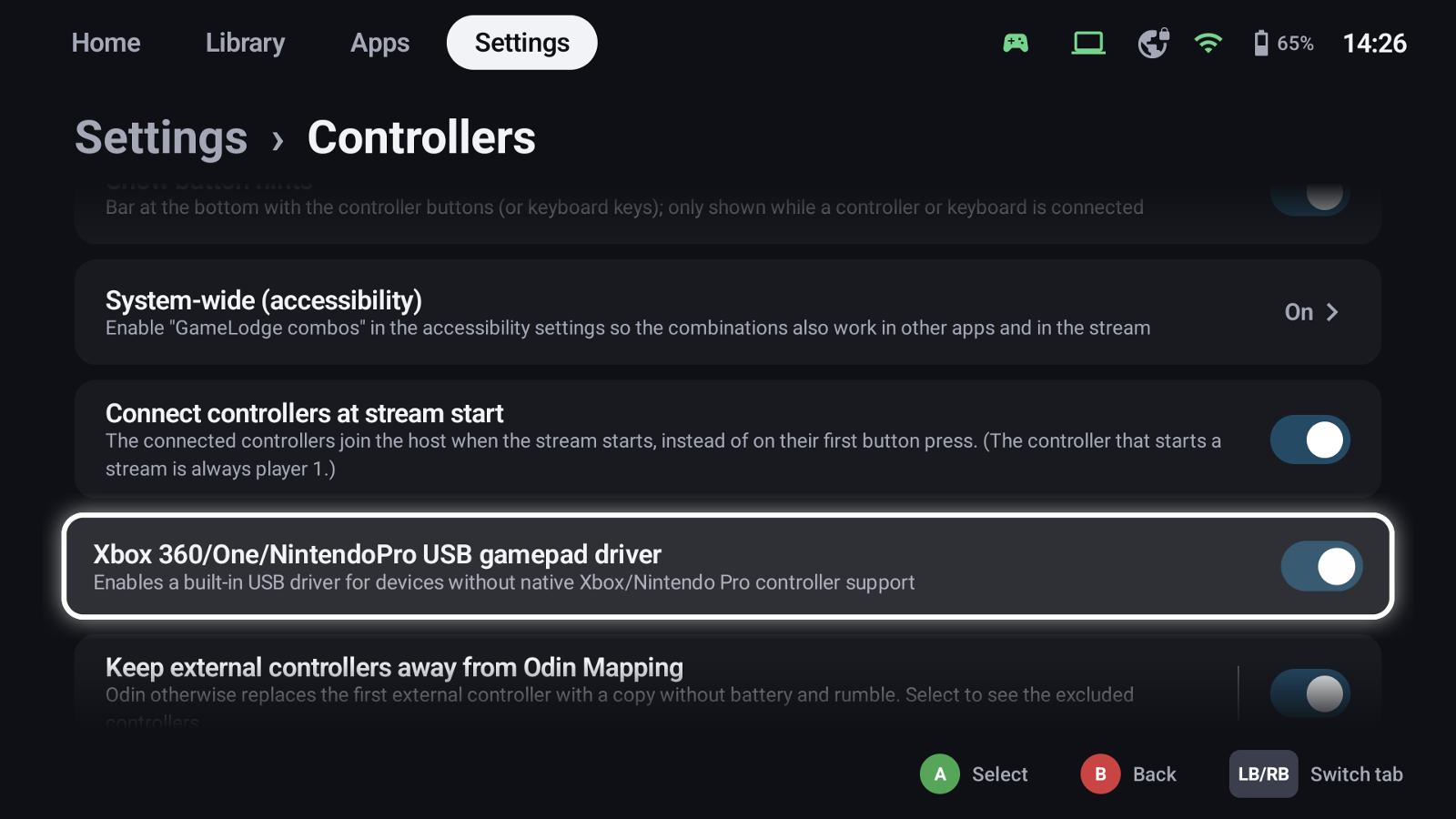
- Show button hints – the bar at the bottom, only while a controller (or keyboard) is connected
- System-wide (accessibility) – shortcuts in other apps too (Android, see below)
- Connect controllers at stream start – all controllers join the host when the stream starts, not on their first button press; the controller that starts the stream is always player 1
- USB gamepad driver for Xbox 360 / One / Nintendo Pro pads without native support (Android)
- Mouse emulation – pointer speed and acceleration, see Mouse emulation
A controller's own settings
Select a controller:
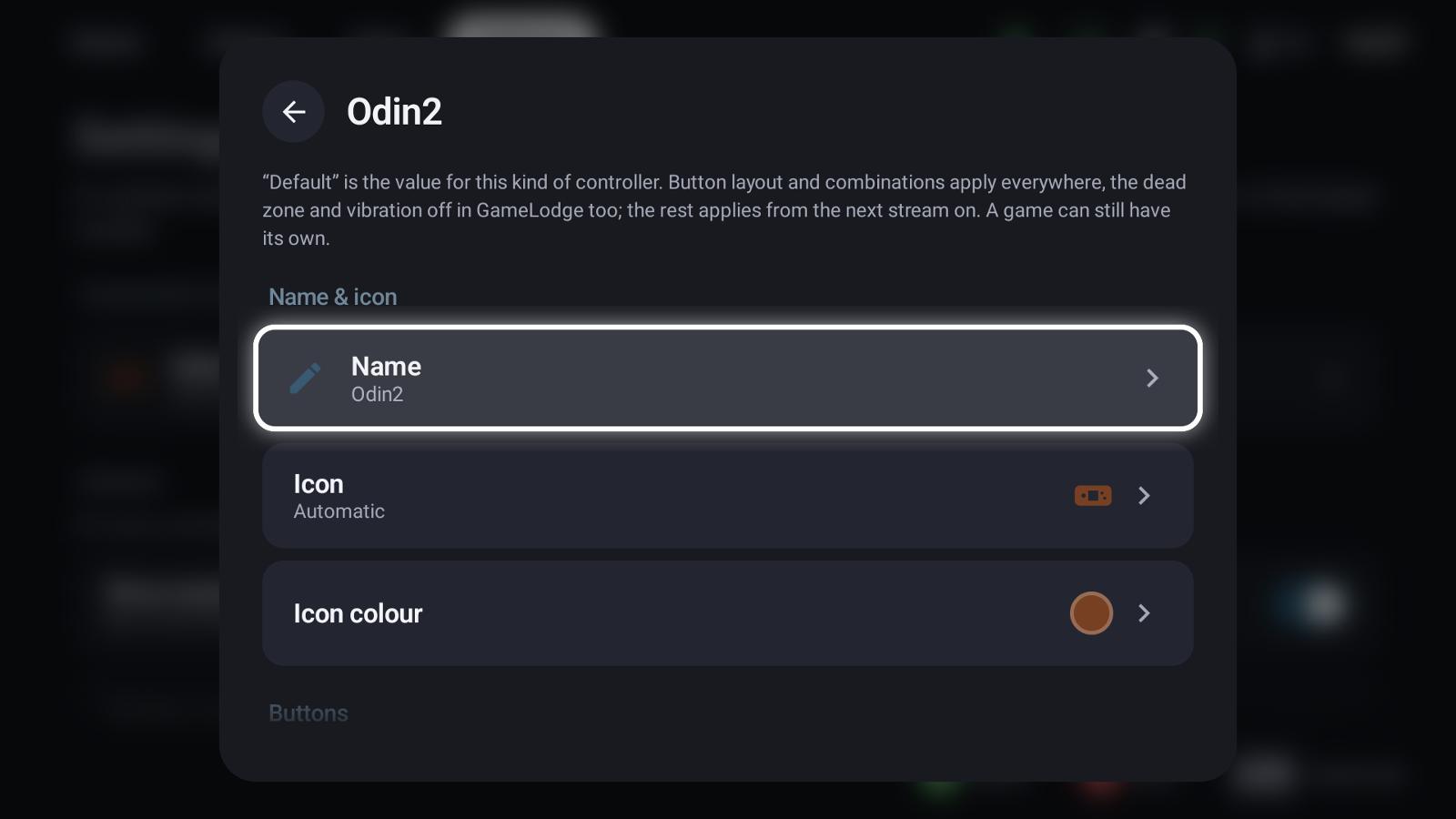
- Name, icon and icon colour – how it appears in GameLodge
- Button layout – Xbox (A below) or Nintendo (A right)
- Button shortcuts (below)
- Stick dead zone, rumble (the controller's motors, or the device's when the controller has none), vibration strength and motion sensors (the controller's gyro or the device's)
- Player number in streams
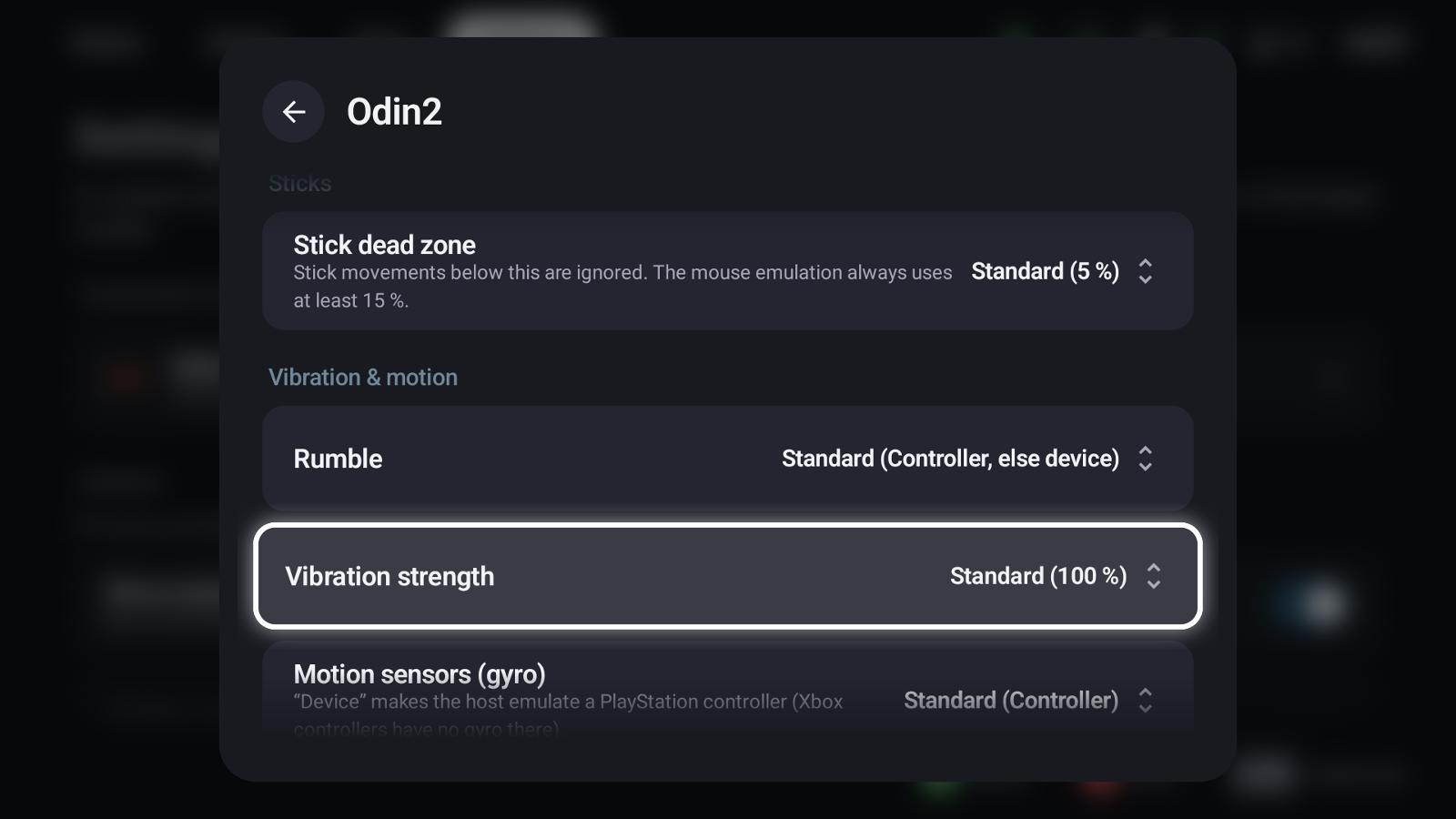
"Default" is the value for this kind of controller. Layout and shortcuts apply everywhere; the dead zone and vibration also in GameLodge; the rest applies from the next stream on.
Button shortcuts
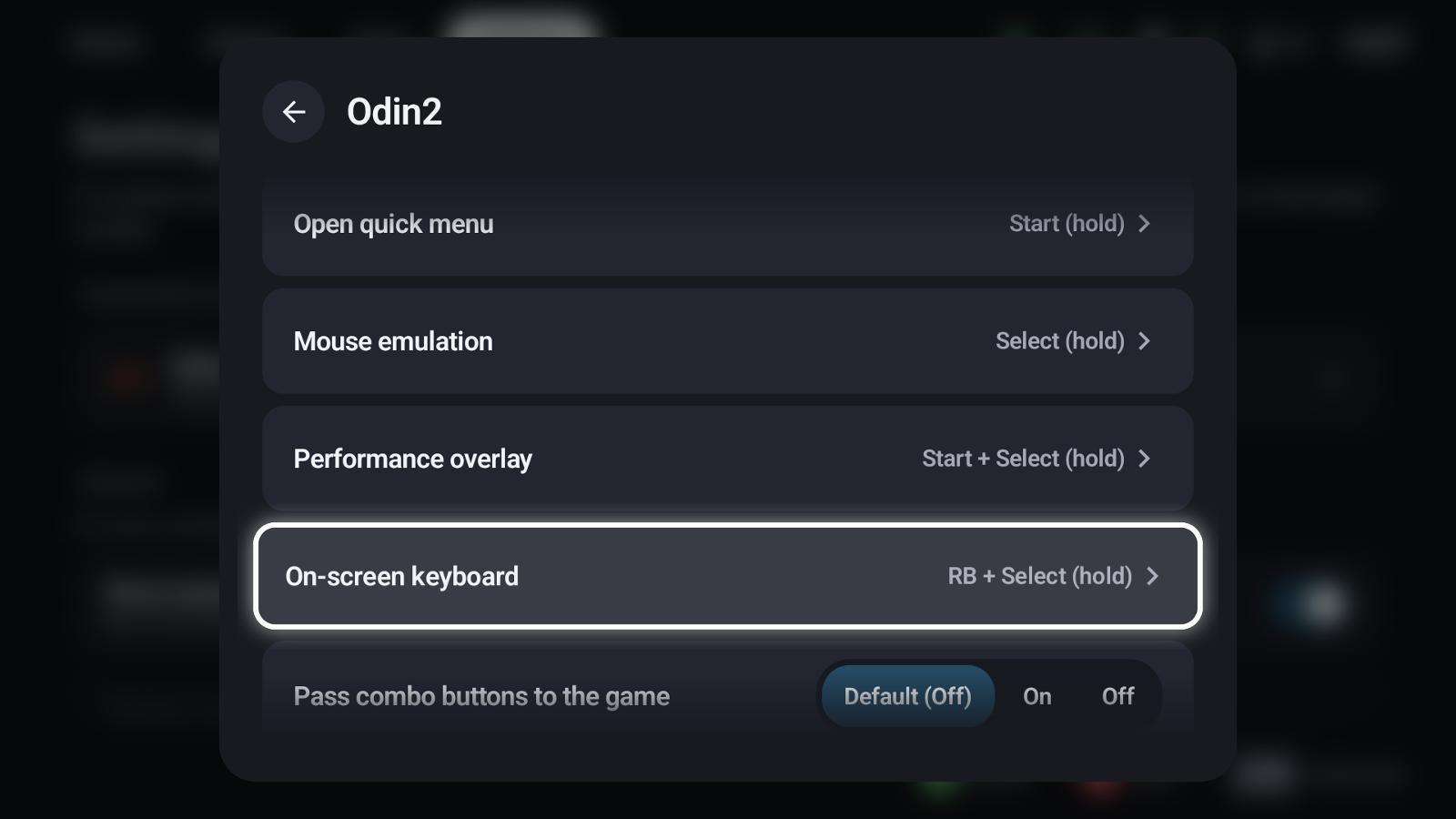
| Action | Default | Does |
|---|---|---|
| Back to GameLodge | Guide | Brings GameLodge to the front from a game or stream; in GameLodge it goes to the Home tab |
| Open quick menu | Start (hold) | Opens the quick menu |
| Mouse emulation | Select (hold) | Switches the mouse pointer on or off |
| Performance overlay | Start + Select (hold) | Shows the stream's performance figures |
| On-screen keyboard | LB + Select (hold) | Shows the keyboard in the stream |
Select an action to record your own: press a single button or a combination; keep it held for a moment to record a hold combination. Use default goes back to the controller's default, Off removes the shortcut.
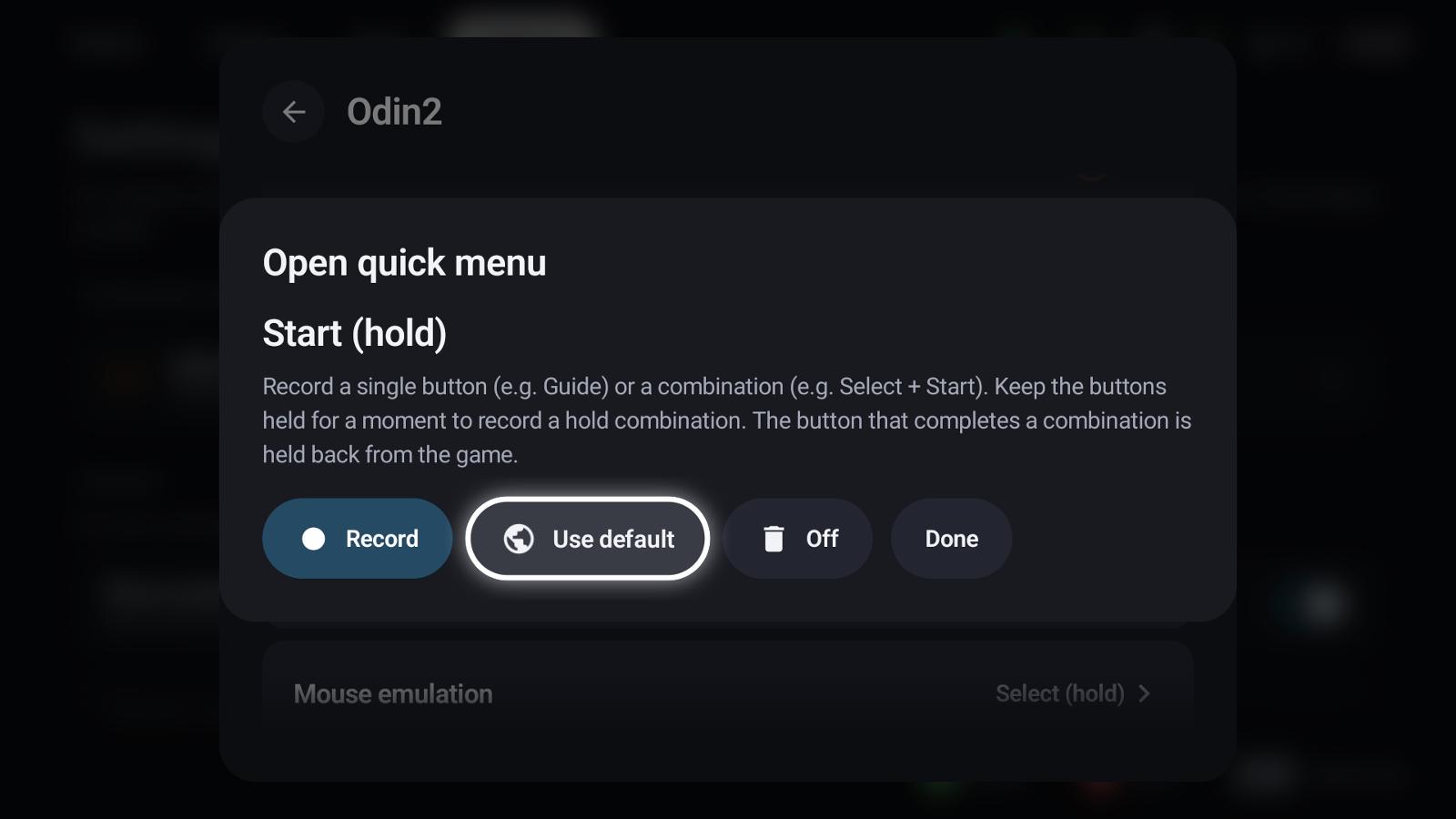
The same shortcuts work in GameLodge, in streams and – on Windows – system-wide while GameLodge runs. A, B and the D-pad alone stay reserved for navigation, and a combination can only be used once.
Pass combo buttons to the game: off (default), the shortcut's buttons only run the action; on, they also reach the game.
Short presses of hold buttons
In GameLodge and in the stream a short press of a button with a hold shortcut still reaches the game. In other Android apps it is passed on at once and the shortcut runs in addition when held – Android doesn't let an app hand on a press later.
Shortcuts in other apps (Android)
In GameLodge and in the stream the shortcuts work right away. For other apps – Android games, a browser, an emulator – switch on System-wide (accessibility) under Settings → Controllers. It opens Android's accessibility settings:
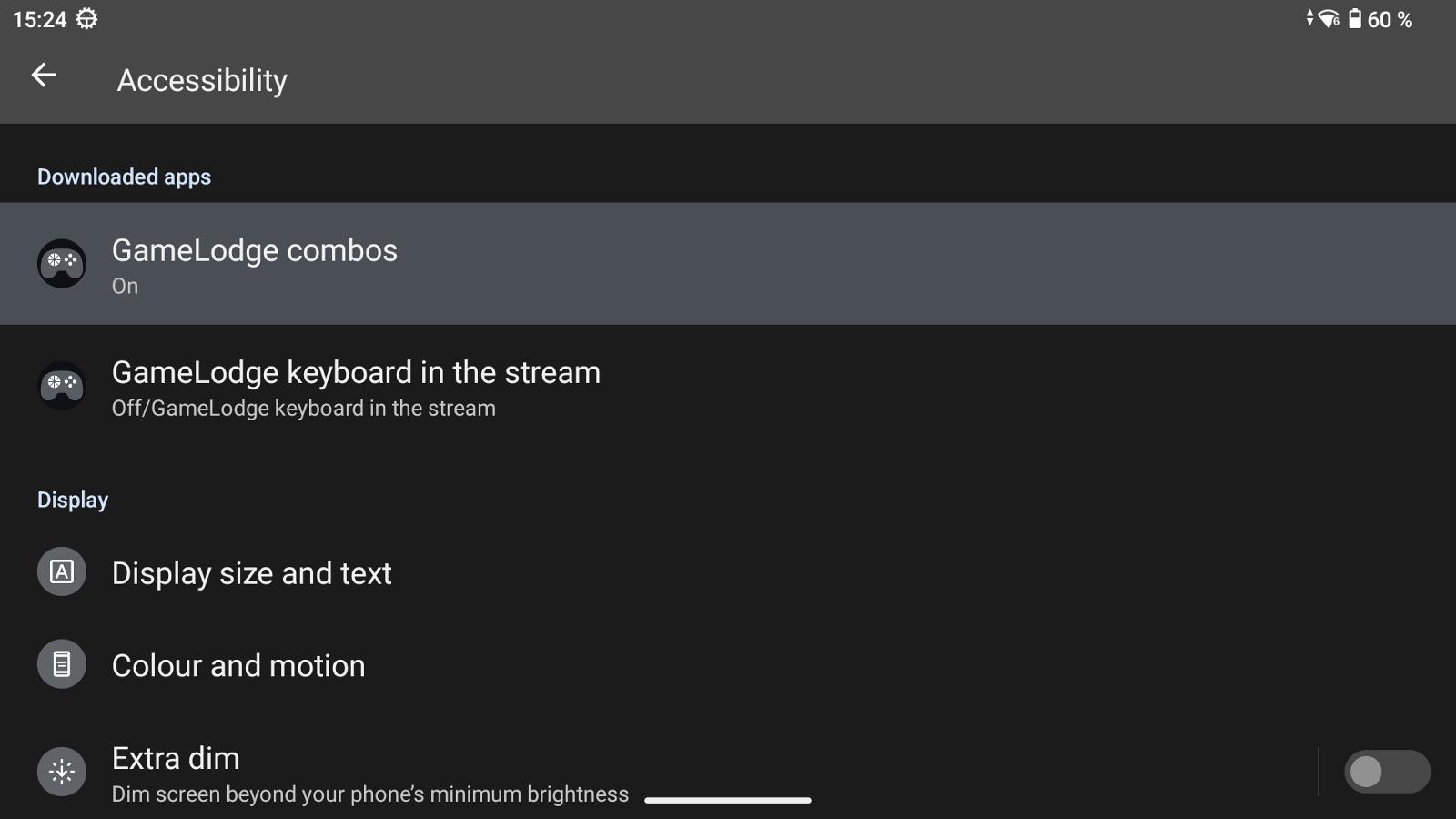
- GameLodge combos – the button shortcuts in every app. The service only reads controller buttons, nothing on the screen.
- GameLodge keyboard in the stream – optional: passes keys of a hardware keyboard that Android would otherwise use itself (e.g. Alt+Tab, the Windows key) to the streamed PC.
Installed outside an app store
Android greys these services out until restricted settings are allowed: open GameLodge's app info, menu (⋮) → Allow restricted settings, then enable the service.
Touch, mouse & keyboard
Settings → Touch, mouse & keyboard: everything also works with touch, a mouse (side buttons can switch tabs) and a keyboard – keys for confirm, back, quick menu and home, and a quick menu shortcut. On Windows the shortcut (always with Ctrl, Alt or Shift) works system-wide, also with a game or stream in front.
See also
- Quick menu
- Mouse emulation
- Stream profiles – controllers in the stream
- Getting started – permissions on Android