Getting started
Install
Download the latest version from the releases page.
- Download
GameLodge-<version>.apkon the device (or copy it there). - Open it and allow installing apps from this source when Android asks.
- Start GameLodge – the setup wizard opens.
Android 10 or newer. GameLodge is built on the AYN Odin 2 Portal and runs on other handhelds, tablets, phones and Android TV devices as well.
- Download
GameLodge-Setup-<version>.exeand run it. - Choose an installation for your user or for all users.
- Start GameLodge from the start menu – the setup wizard opens.
Windows 10 or 11, 64-bit. The installer brings its own Java runtime and the streaming client.
The setup wizard
The wizard walks you through everything once; each step can be skipped and changed later in the settings. Language and controller layout are the only required steps.
| Step | What you set |
|---|---|
| Welcome | Language, or restore a backup from another device |
| Controller | Button layout of your controller (Xbox / Nintendo), with a live button test |
| Button shortcuts | Back to GameLodge, quick menu, mouse emulation, performance overlay, on-screen keyboard (see Controllers) |
| Appearance | Theme, accent colour, size and animations |
| Home app | Android: use GameLodge as the home screen |
| Permissions | Android: usage access for play time, overlays, Bluetooth and more |
| Startup | Windows: full screen, start with Windows, tray |
| Game sources | Windows: PC stores to scan |
| Emulators | Android: ROM folders and emulators |
| Streaming hosts | Find and pair your Sunshine / Apollo / Vibepollo PCs |
| Metadata | SteamGridDB and IGDB keys, with step-by-step guides and QR codes |
| Home Assistant | Sign in to show your entities as tiles |
| VPN | Android: WireGuard tunnel for streaming away from home |
Moving to a new device
Choose Restore a backup on the welcome page. The wizard first pairs your hosts and then restores favourites, play time and settings, so everything finds its games again. Pairings themselves are never part of a backup (see Backup & restore).
Home screen (Android)
Settings → Launcher mode makes GameLodge the home app: the Home button and the device start lead to it. You can switch back at any time; GameLodge also works as a normal app.
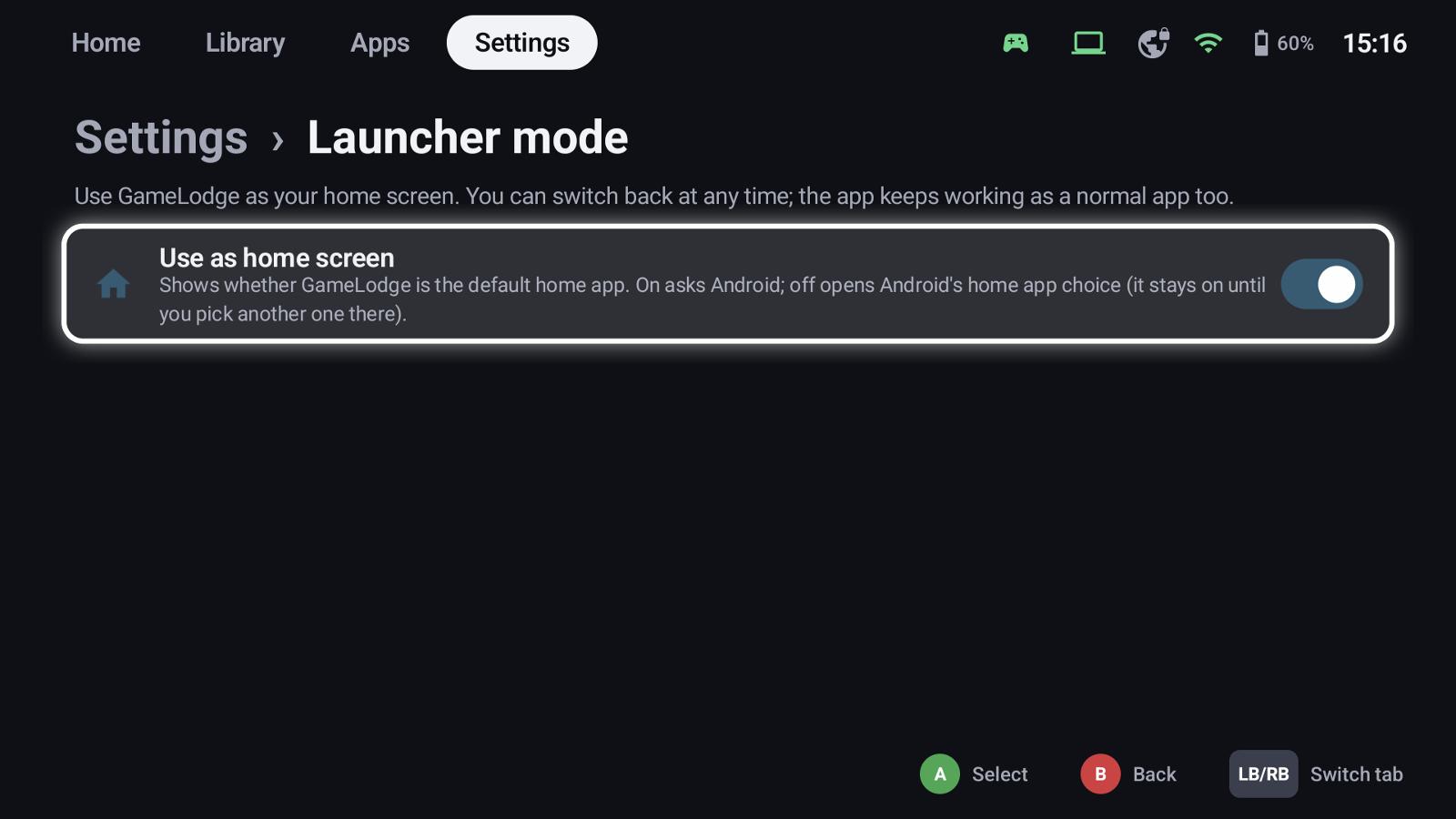
Switching it on asks Android; switching it off opens Android's home app choice – GameLodge stays the home app until you pick another one there.
Permissions (Android)
Each permission is optional and only needed for one feature. The setup wizard asks for them; Android's app info for GameLodge changes them later.
| Permission | Used for |
|---|---|
| Usage access | Play time of apps and games started outside GameLodge |
| Display over other apps | The quick menu over games and streams |
| Modify system settings | Brightness in the quick menu |
| Nearby devices / location | Bluetooth controllers and the Wi-Fi name in quick access |
| Notifications | Status notifications (e.g. while the VPN is connected) |
| Accessibility | Button shortcuts in other apps, see Controllers |
| Access to all files | Optional: faster ROM scans and ES-DE covers, see Emulators |
Window & startup (Windows)
Settings → Window & startup:
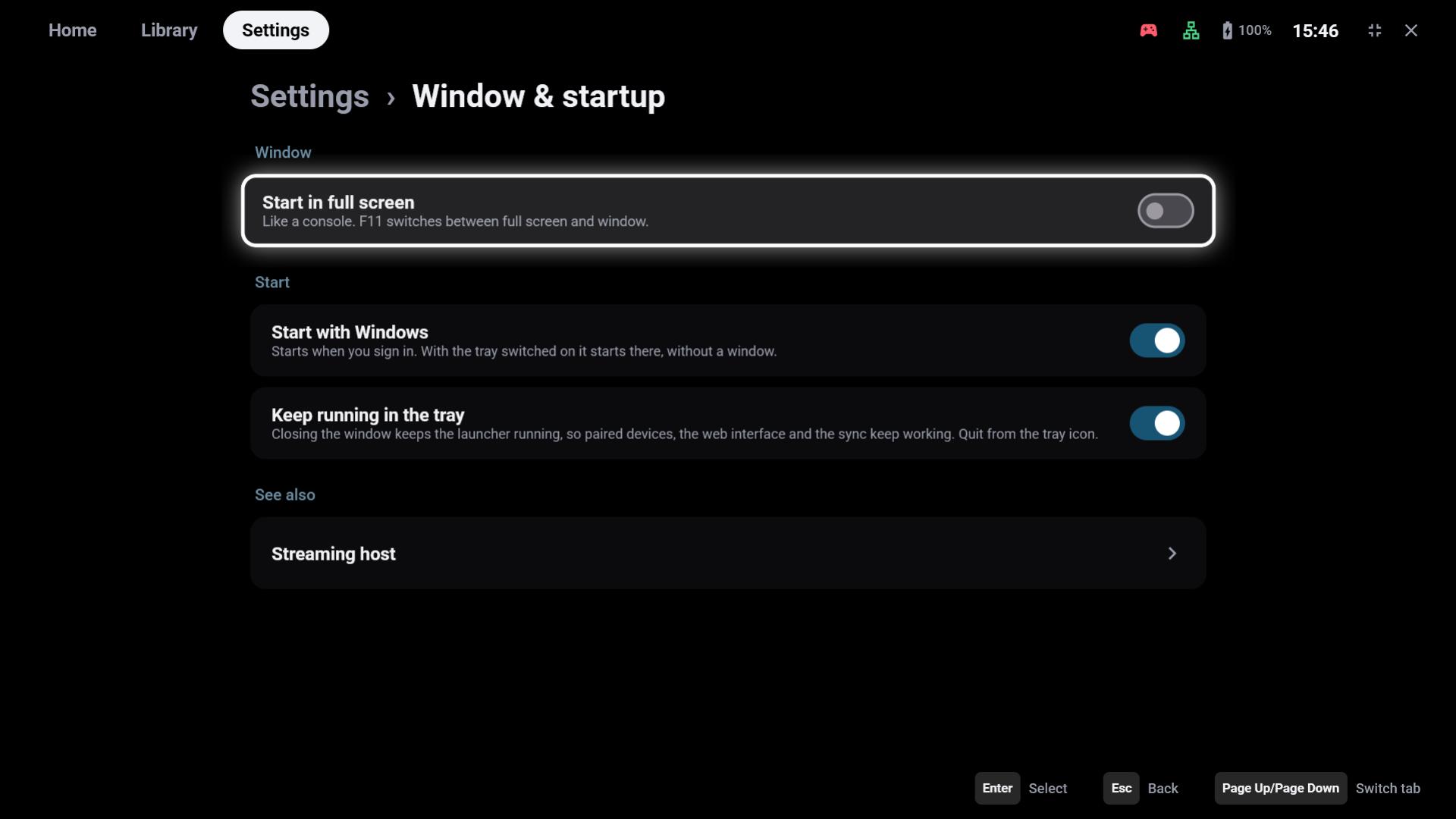
- Start in full screen – like a console; F11 switches between full screen and window at any time
- Start with Windows – starts when you sign in; with the tray switched on it starts there, without a window
- Keep running in the tray – closing the window keeps GameLodge running, so paired devices, the web interface and the game sync keep working. The tray icon opens it again, opens the web interface or quits.
Xbox Game Bar
While GameLodge runs, the Guide button belongs to it (back to GameLodge, quick menu). Windows' option Open Xbox Game Bar using this button on a controller is switched off meanwhile and restored when GameLodge quits.
See also
- Setup wizard – every step in detail
- Controllers & shortcuts – shortcuts in other apps on Android
- Backup & restore – moving to a new device
- FAQ & troubleshooting