Home Assistant
GameLodge connects to your Home Assistant to control your home from the couch, to power your PCs on and off, and to let your home react to your games.
Sign in
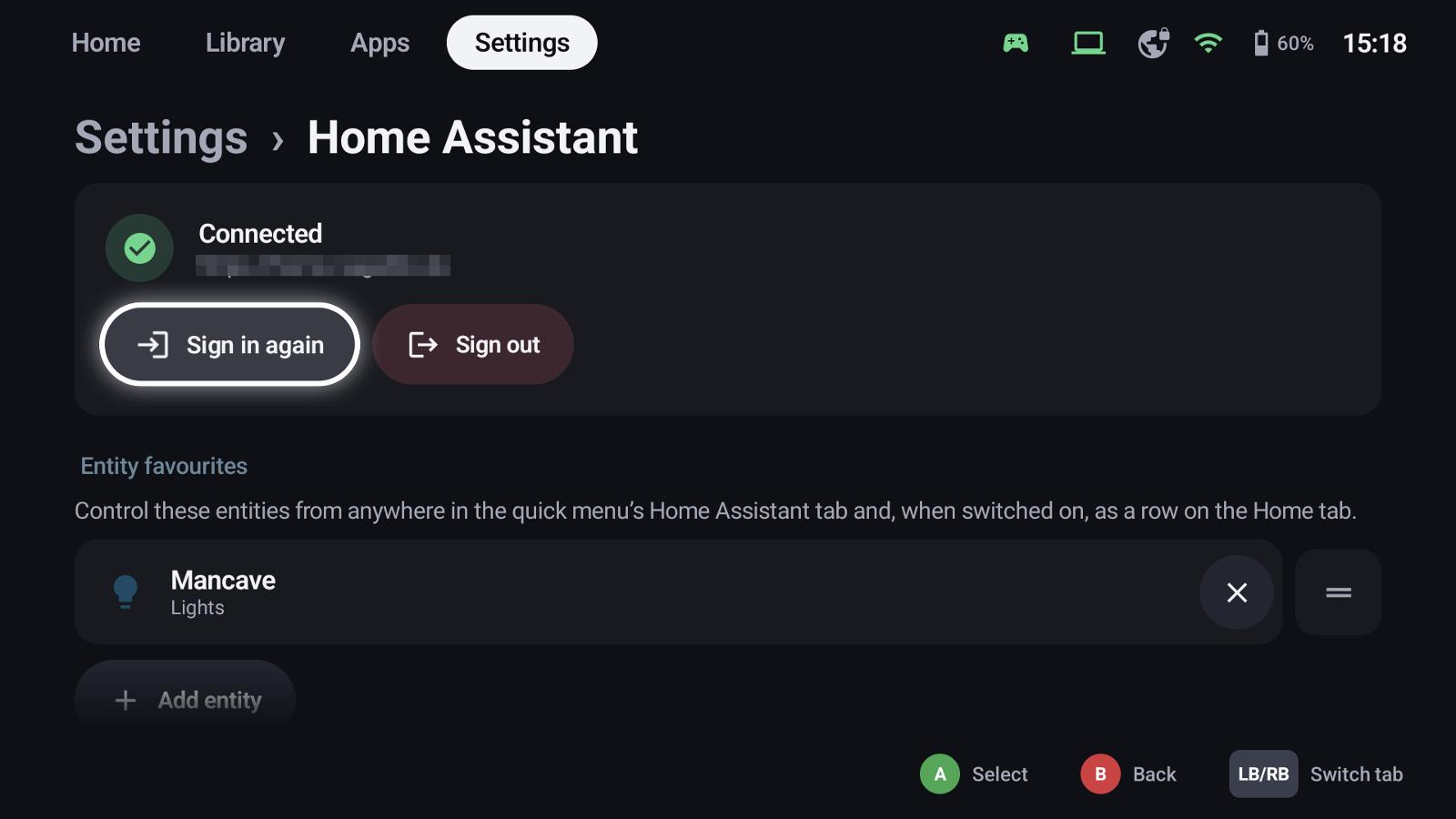
Settings → Home Assistant: enter the address of your Home Assistant and choose
- Sign in here – the login opens in the browser on this device, or
- Sign in on the phone – scan the QR code and sign in there (handy on a TV or handheld; the phone has to be in the same network).
GameLodge uses Home Assistant's normal login (OAuth); no token needs to be copied.
Entity tiles
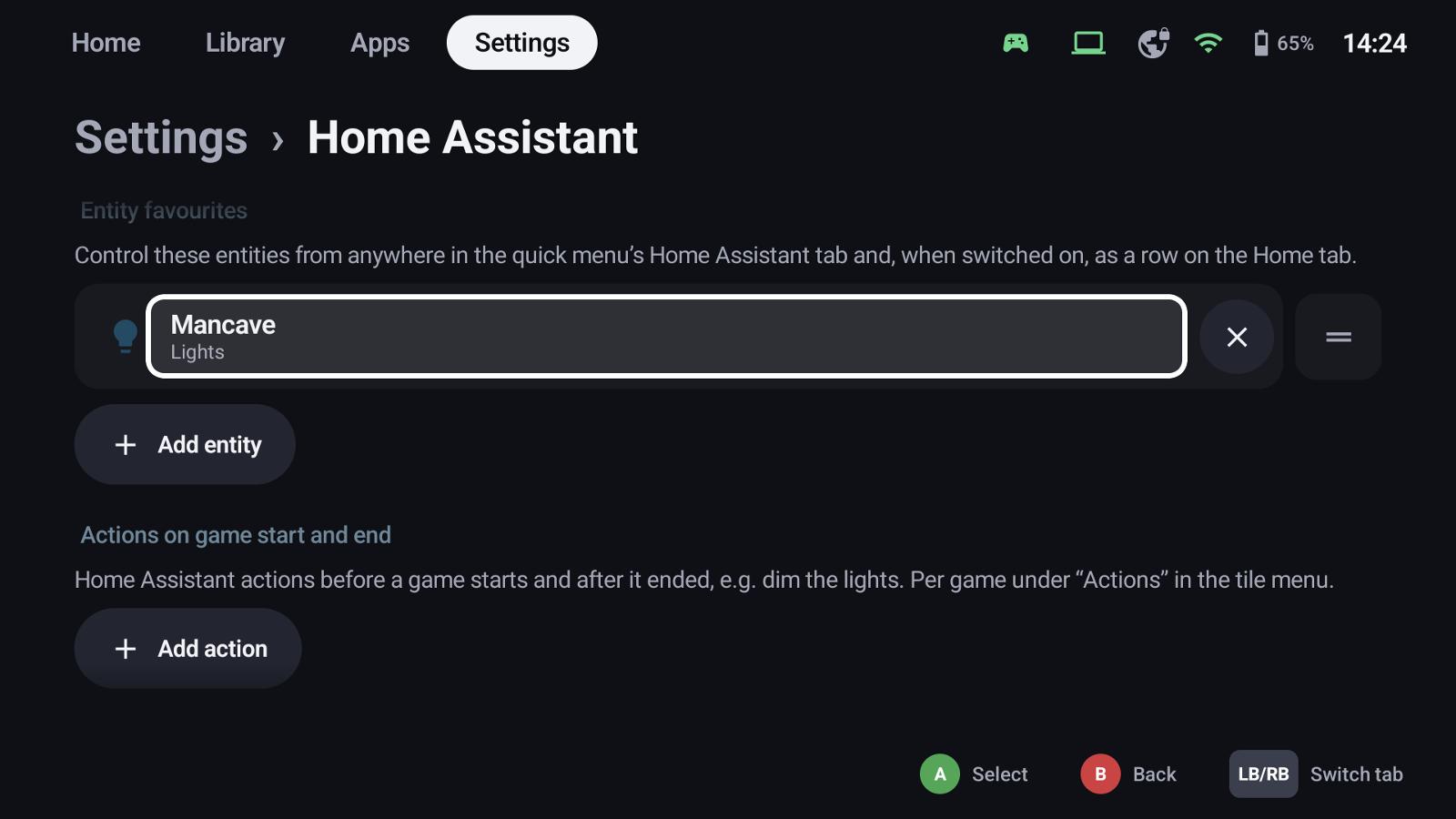
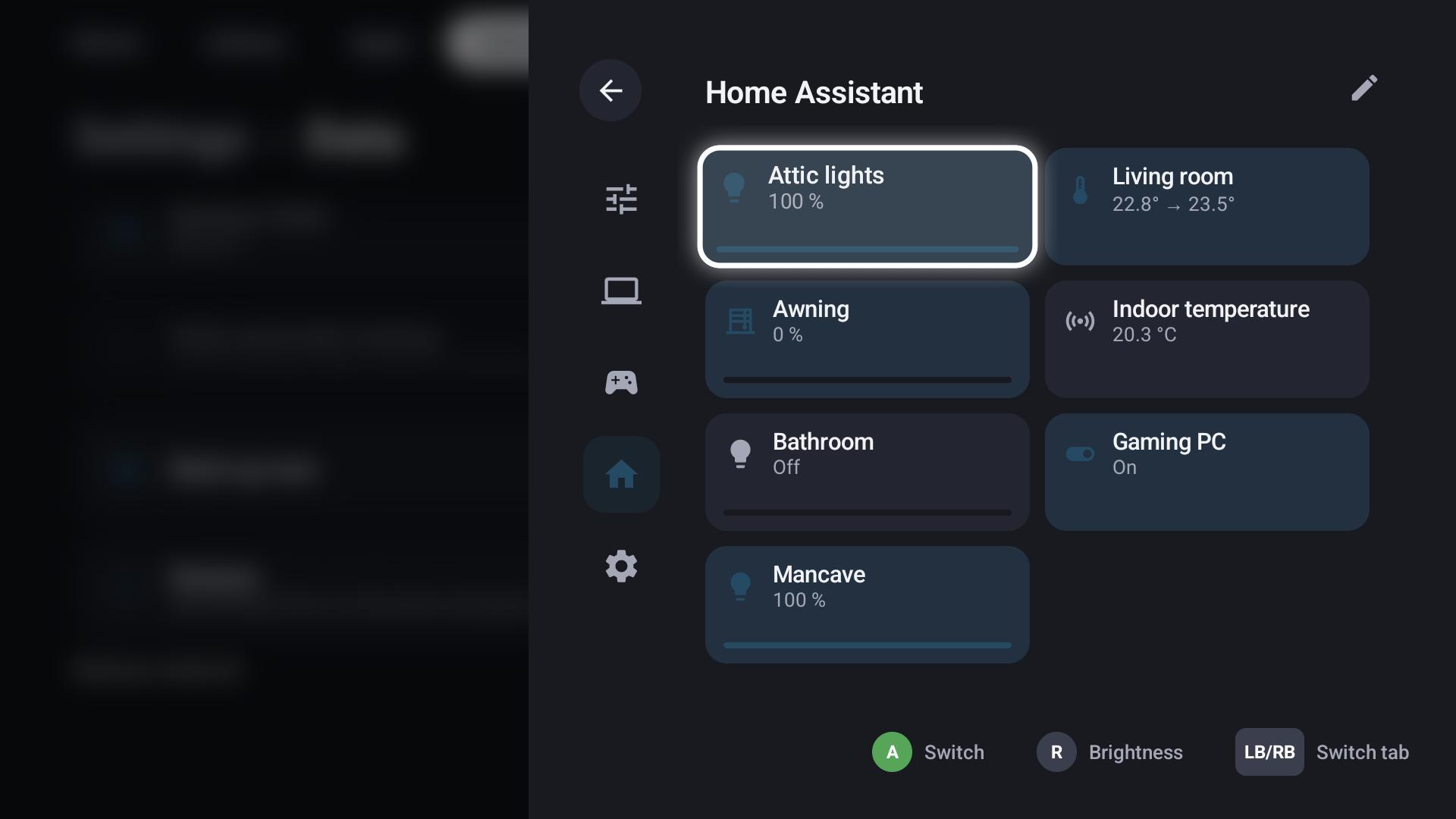
Add entity picks lights, switches, fans, buttons, scripts, scenes, automations, locks, media players, sensors, covers and climate entities. Tiles show in the quick menu's Home Assistant tab and, if you want, as a row on the Home tab.
- A switches or runs the entity; the right stick sets brightness, position or temperature.
- ✕ removes a tile, the handle reorders.
- Select a tile for its own settings:
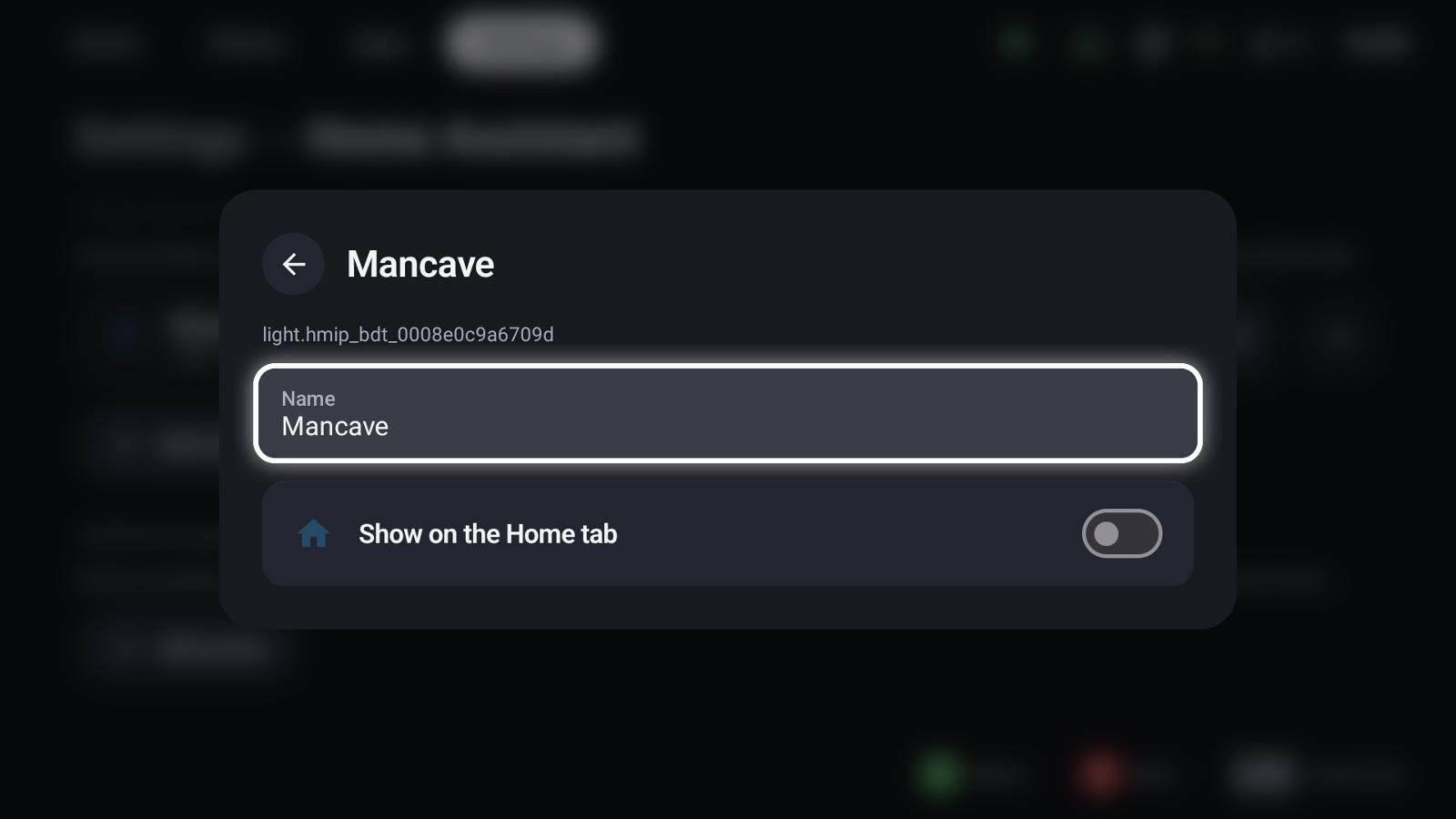
- Name – how the tile is called in GameLodge (empty: the name from Home Assistant)
- Show on the Home tab
Game actions
Run Home Assistant actions before a game starts and after it ended – dim the lights, switch on the TV and the soundbar, start the air conditioning.
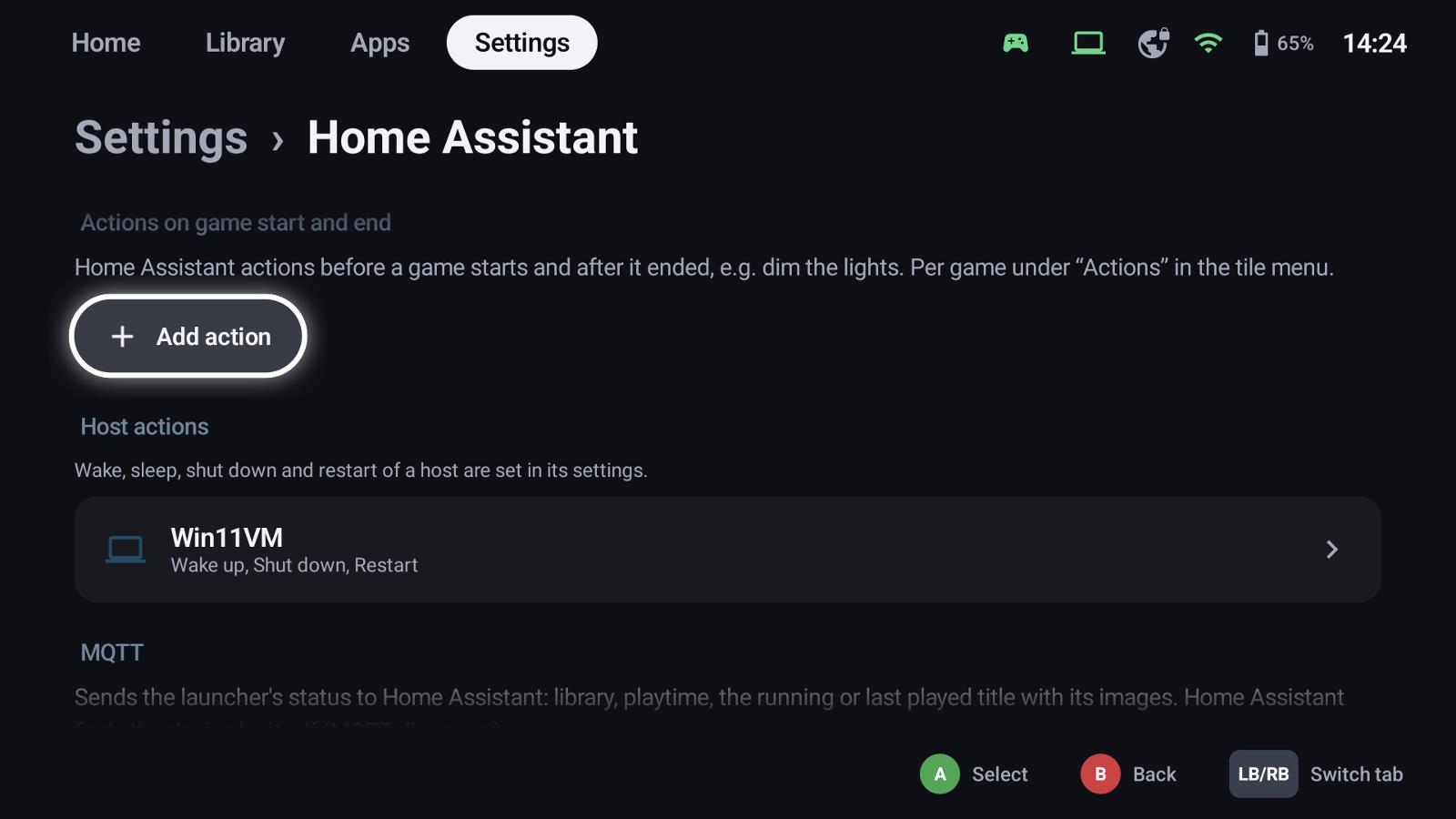
Add action – under Actions on game start and end, or per game with X → Actions on its tile:
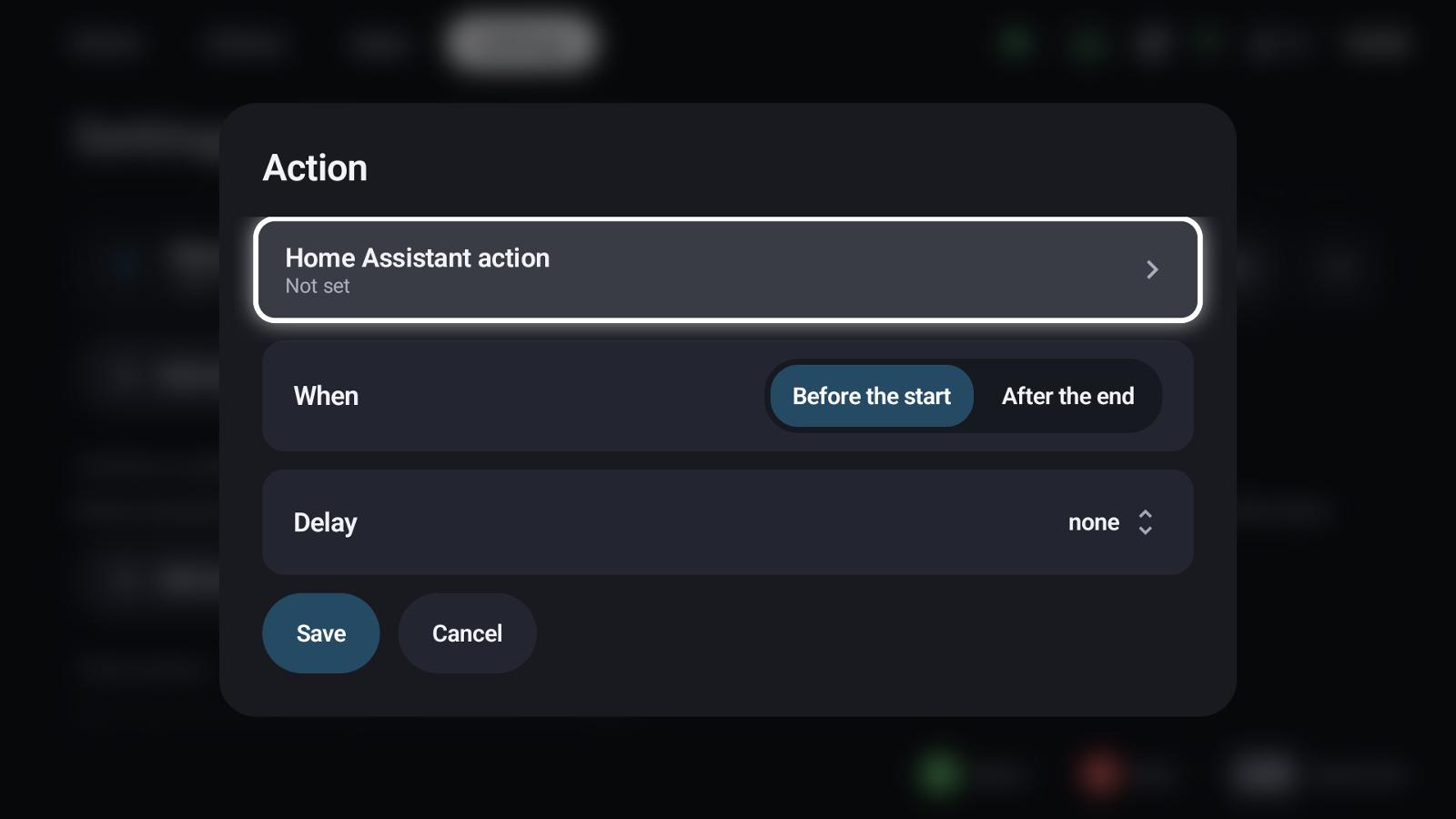
- Home Assistant action: any action (script, scene, light, switch …)
- When: before the start or after the end
- Delay: none or a few seconds / minutes, and whether the game start waits for it
On the Windows host, actions can also run when another device starts a game on the PC through Vibepollo.
Events for automations
For your own automations GameLodge fires gamelodge_started and gamelodge_stopped with the title, the kind
(game or app) and whether it's a stream; streams also bring the host and profile, gamelodge_stopped the
duration in seconds.
Host actions
Wake up, sleep, shut down and restart of a host can use Home Assistant actions – for PCs without Wake-on-LAN, a VM on a hypervisor or a PC behind a smart plug. Set them in the host's settings.
MQTT status
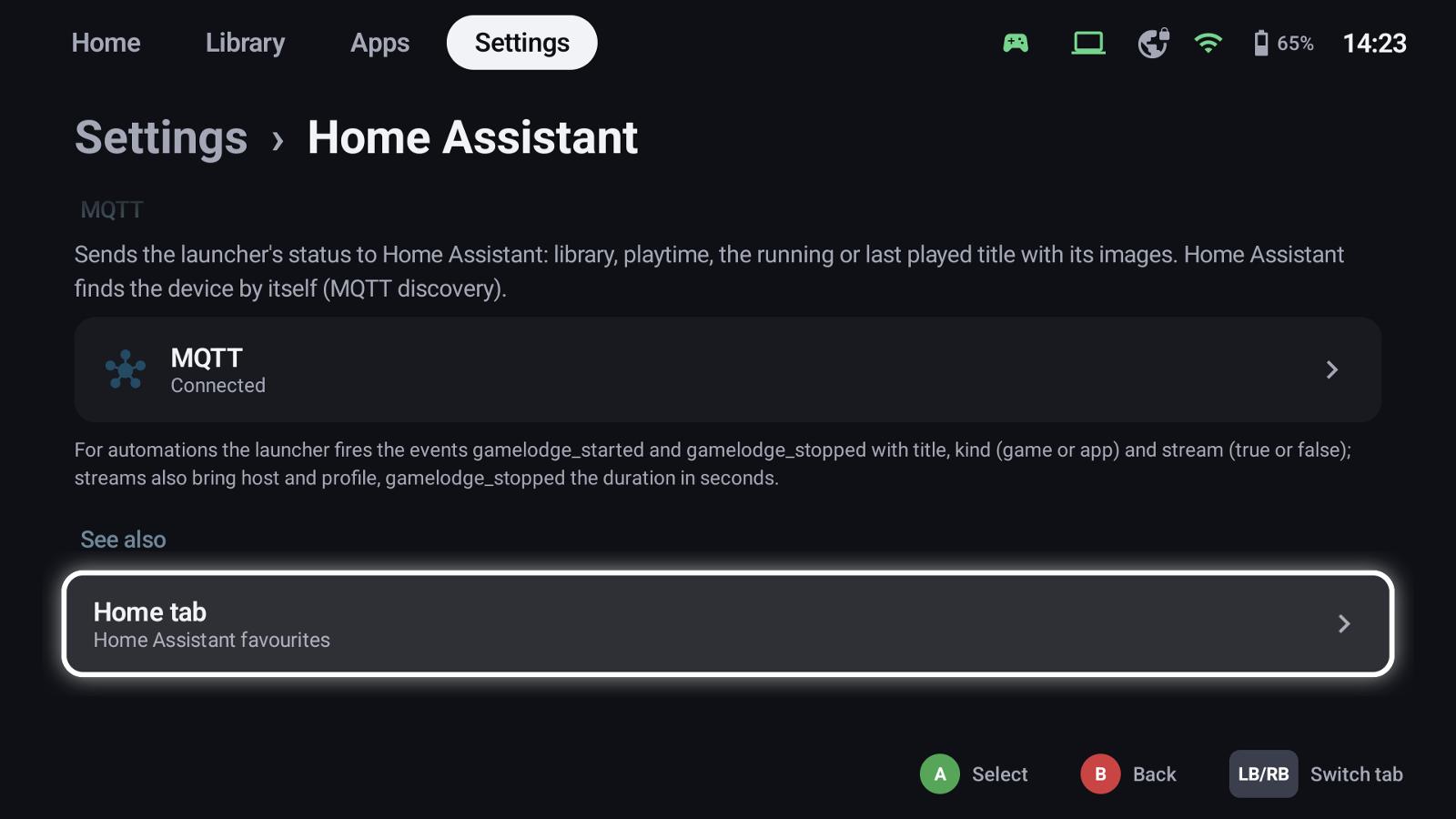
With an MQTT broker (e.g. the Mosquitto app), GameLodge reports its status: library size, play time and the running or last played title with its images. Every device appears as its own device in Home Assistant (MQTT discovery).
- Broker address, port, user and password; the device name in Home Assistant
- TLS: the broker's certificate must be valid for its address; a self-signed certificate is pinned by its fingerprint, which you confirm on the first connection – a changed certificate is refused until you confirm it again.
See also
- Hosts & pairing – host actions: wake up, sleep, shut down
- Quick menu – tiles over every game
- Streaming host – game actions on the PC
- Play time & statistics