Xbox consoles
GameLodge streams the games installed on your Xbox One or Xbox Series X|S – at home and away. The console is a host like a PC: its games are tiles in your library, Play wakes the console, starts the game on it and opens the stream. The player is built in on Android and Windows; no other app and no second sign-in.
Unofficial
Xbox home streaming uses the interfaces of Microsoft's own Xbox apps, which aren't public. Microsoft can change them at any time. GameLodge is not affiliated with Microsoft.
Prepare the console
On the console, under Settings → Devices & connections → Remote features:
- Enable remote features – on
- Streaming (Allow streaming to other devices or Allow streaming from any device) – on
- Power mode – Sleep (Standby), so GameLodge can wake the console. In Energy saving mode the console is fully off: only a Home Assistant action can turn it on then.
Under Settings → Account → Sign-in, security & passkey, set your profile to sign in automatically: a game started remotely otherwise waits at the profile selection.
Add the console
Settings → Streaming hosts → Add Xbox (also in the setup wizard):
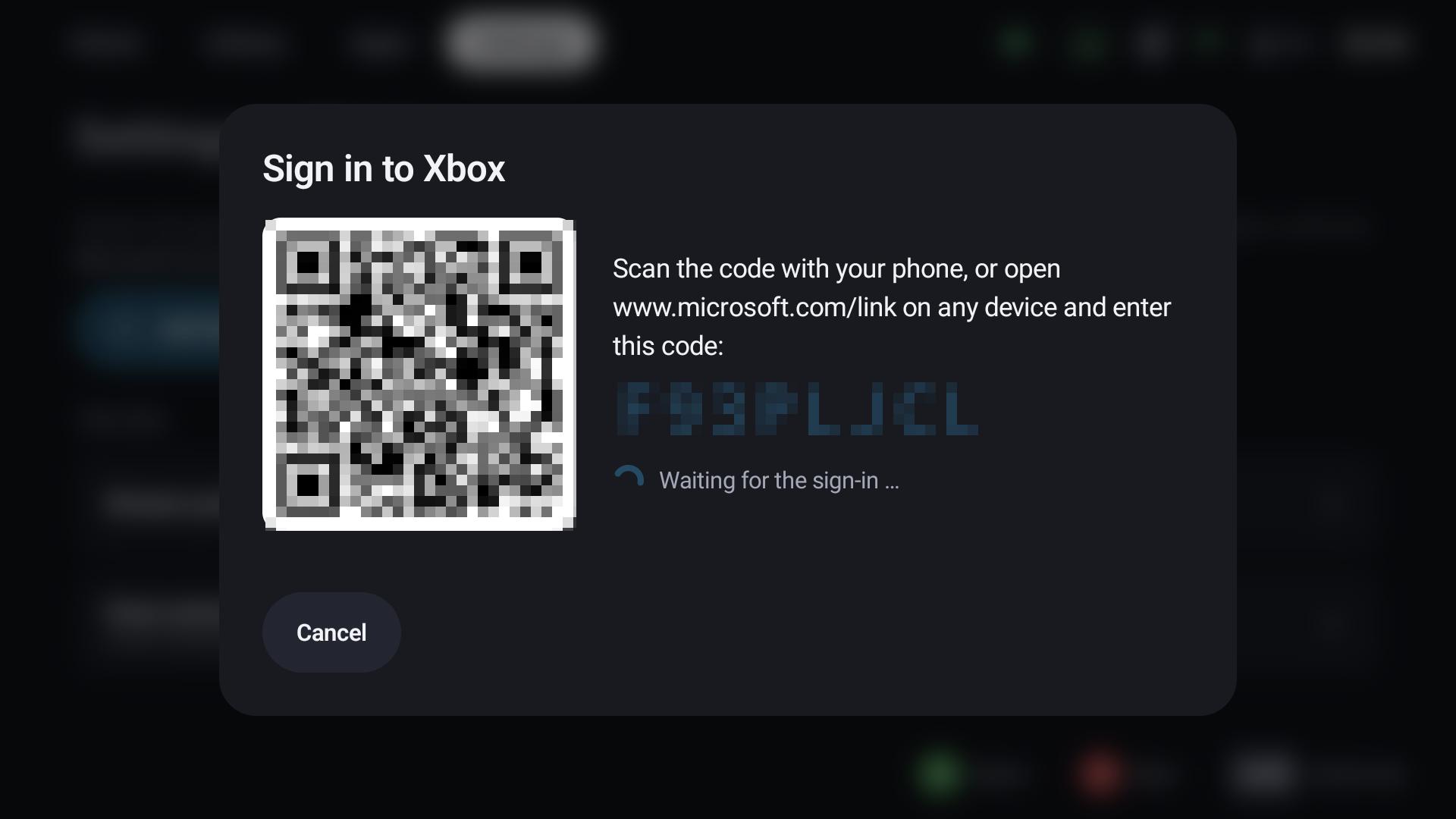
- Scan the QR code with your phone, or open microsoft.com/link on any device and enter the code shown.
- Sign in with the Microsoft account of the console.
- Choose the console.
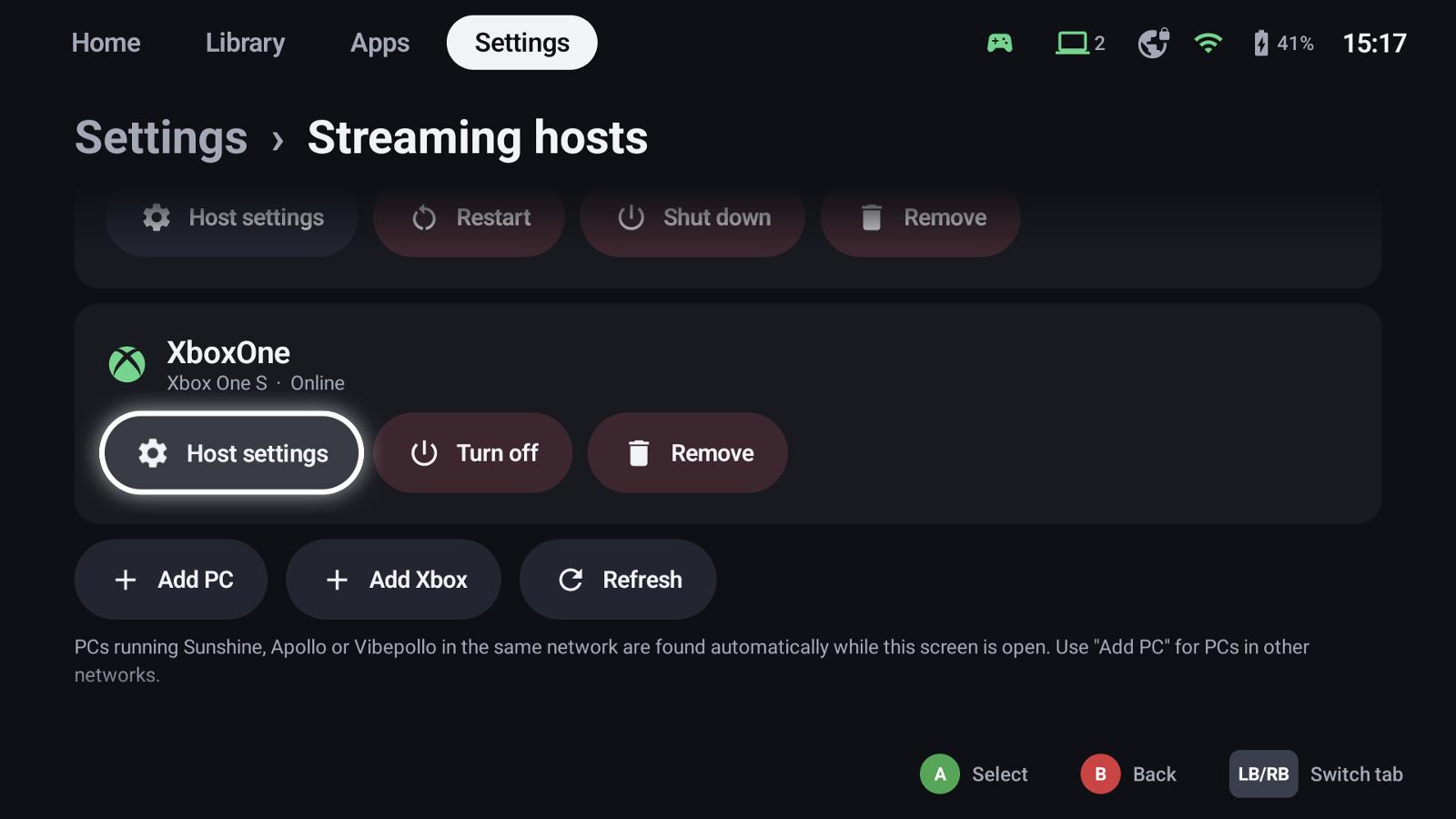
GameLodge reads the console's installed games with their store artwork and adds them to the library (again every 15 minutes while the console is on, or at once with Refresh on the streaming hosts page). Backward-compatible Xbox 360 games get the platform Xbox 360. A game you also have on a PC host becomes one tile with both ways to play: Start with… offers the PC and the Xbox. Tiles show a cloud for PC streams and the Xbox logo for console streams.
The sign-in is not part of a backup – like pairings, it stays on the device. After a restore, sign in again; the console and its games are found again.
Games without a license
Installed games you can only play through Game Pass or EA Play have no license of their own. Games without a license chooses whether they are hidden (default) or shown dimmed. It sits in a console's Host settings under Xbox account, next to the signed-in gamertag and Sign out of Xbox – licenses belong to the Microsoft account, so the choice applies to all its consoles.
Playing
| Play | Wakes the console if needed, starts the game on it (unless it already runs) and opens the stream |
| Guide | Back to GameLodge, as in PC streams |
| View + Menu together | The Xbox button on the console (Xbox guide) |
| Hold Start | Quick menu over the stream |
The game running on the console is shown as running – also when another device started it. The quick menu's Running tab resumes it (streams it again) or quits it: the stream ends and the game is closed on the console. Play time counts while you stream.
Controllers come from GameLodge, as many as four, with rumble. Touch controls for phones without a controller are not there yet.
The console's dashboard
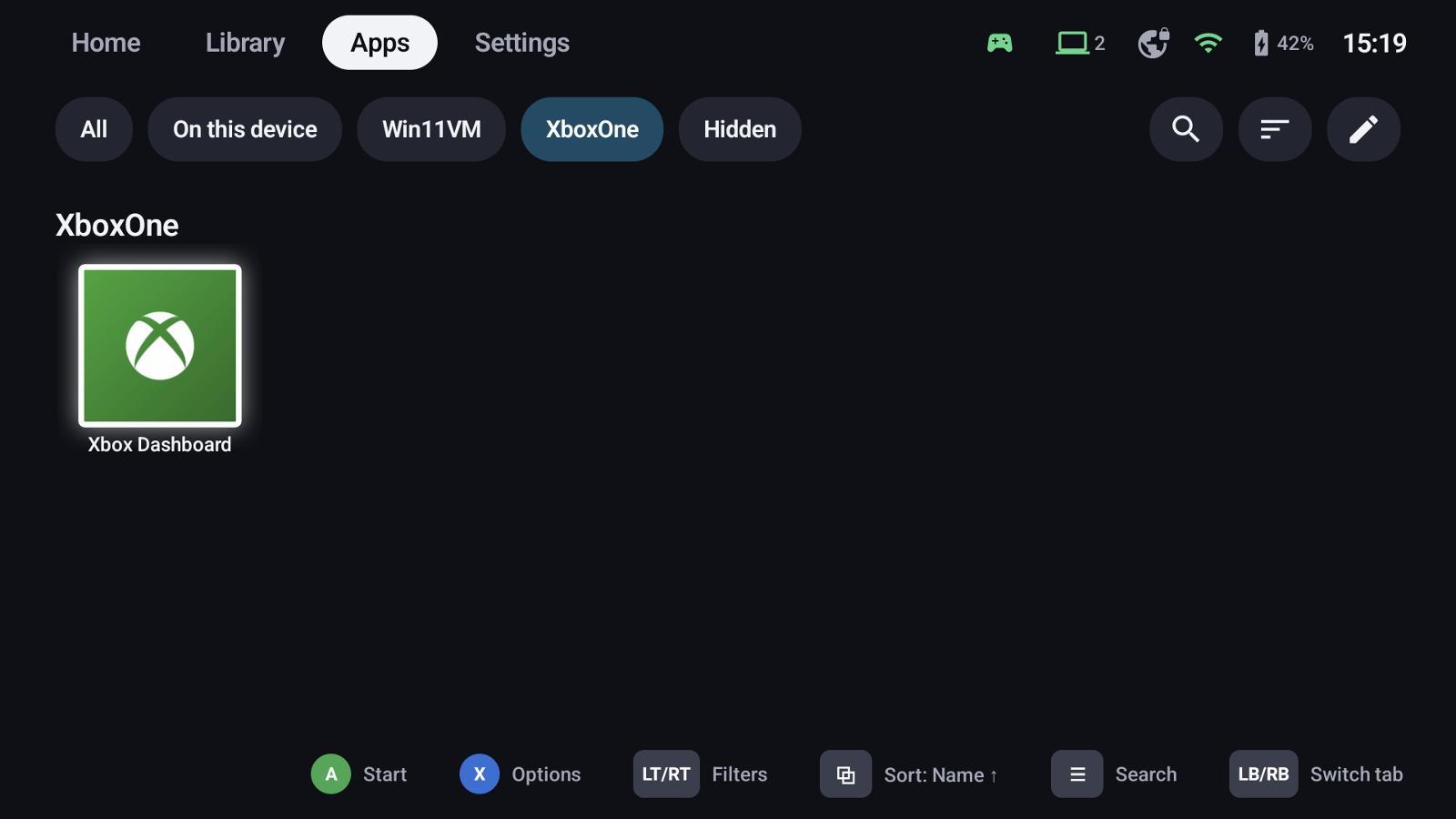
Every added console also appears as the app Xbox Dashboard in the Apps tab. It streams the console's home screen – to change its settings or install a game from afar. A game left running on the console stays there, minimized. In this stream Guide is the console's Xbox button; hold Start for the quick menu, which also ends the stream (Quit ends only the stream, not the console).
Stream settings
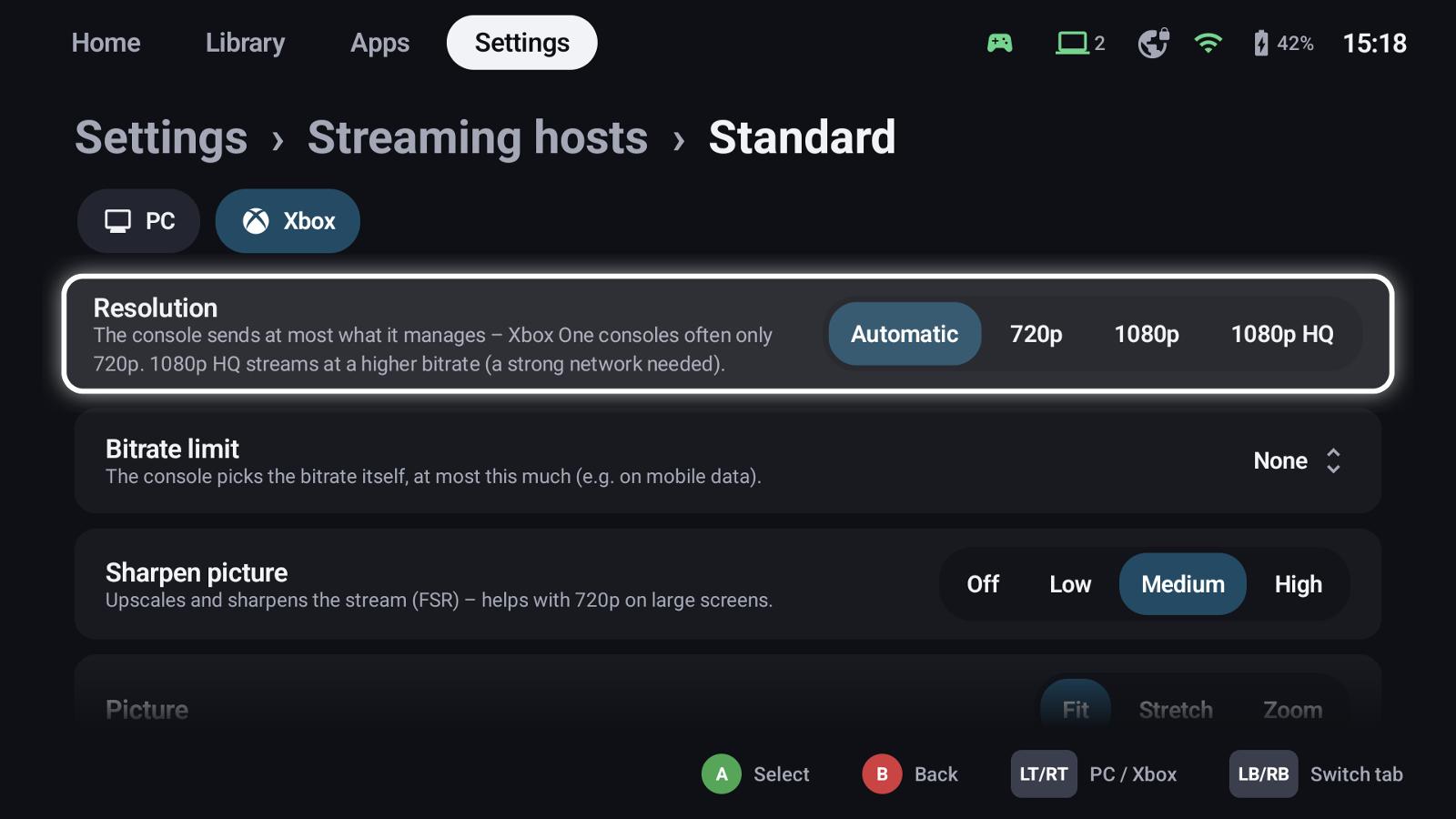
In the stream profiles, tab Xbox – like the PC settings, the active profile counts, and Start with… picks another one for a single launch:
| Setting | |
|---|---|
| Resolution | Automatic (1080p), 720p, 1080p or 1080p HQ (higher bitrate, needs a strong network). The console sends at most what it manages – Xbox One consoles often stay at 720p. |
| Bitrate limit | The console picks the bitrate itself; this caps it, e.g. on mobile data |
| Sharpen picture | Upscales and sharpens the stream (FSR) – the most visible help for 720p on a large screen |
| Picture | Fit, stretch or zoom to the screen |
| Vibration | The game's rumble on your controller |
Wake up and sleep
On the console's Host settings:
- Wake-up – in standby GameLodge wakes the console through Xbox Live. In Energy saving mode only a Home Assistant action can turn it on (e.g. HDMI-CEC of the TV or an IR blaster); set it under Host actions → Wake.
- After the stream – Auto sleep turns the console off (standby) the chosen time after the last stream. A Home Assistant action for sleep or shutdown is used instead when set.
- Turn off on the console's card does it at once.
Away from home
The stream is set up through Microsoft's servers and then runs directly between GameLodge and the console – no VPN needed. If your router blocks it, forward the console's UDP ports 3074 and 9002 to it.
Windows
The Windows app plays the stream in a window of its own (the Edge engine WebView2 that Windows 10 and 11 bring), named after the game and grouped with GameLodge on the taskbar. The launcher keeps reading the controllers while the stream is in front, so Guide and the quick menu work as usual.
See also
- Hosts & pairing – PC hosts
- Home Assistant – actions to wake the console
- Quick menu
- FAQ & troubleshooting